Reader setup
Before you apply
Use the lab result as evidence scope, not a universal recipe.
- A completed disposable ViciBox Phase 1 lab
- The official Express Box instructions
- No carrier, DID, or production agent
- What you will prove
- You can distinguish a running local lab stack from a configured calling system, verify Asterisk and PJSIP without placing a call, and know to change the default Admin login on first login.
- Safety boundary
- Do not connect a carrier, forward ports, or use real customer or lead data in this lab.
Reader path
How to use this article
- Use it when: You need a bounded proof before changing a live environment.
- Expected result: This helps you decide whether a specific migration or test path is ready for production.
- Start here: Read the purpose and scope section first, then treat every command as an evidence collector—not a universal recipe.
Start here
ViciBox Express is the single-server Phase 2 path. After its documented installer and reboot finish, verify the telephony stack from the command line before you ever log into the web interface — a web page loading is not proof the dialer stack underneath it is healthy.
Express is named for what it is not: a multi-server cluster with separate database, web, and telephony roles split across machines. Everything runs on one host here, which is exactly what makes it the right choice for a first lab — there is only one machine's worth of status to verify, not several machines that all have to agree.
The Phase 2 installer itself runs from the same first shell Phase 1 left you at; there is no second ISO to attach and no console session to abandon partway through. That continuity is part of why this stage's checklist can move directly from installation into verification without an intervening reboot-and-reconnect step.
Visual walkthrough
Follow three real first-login screens
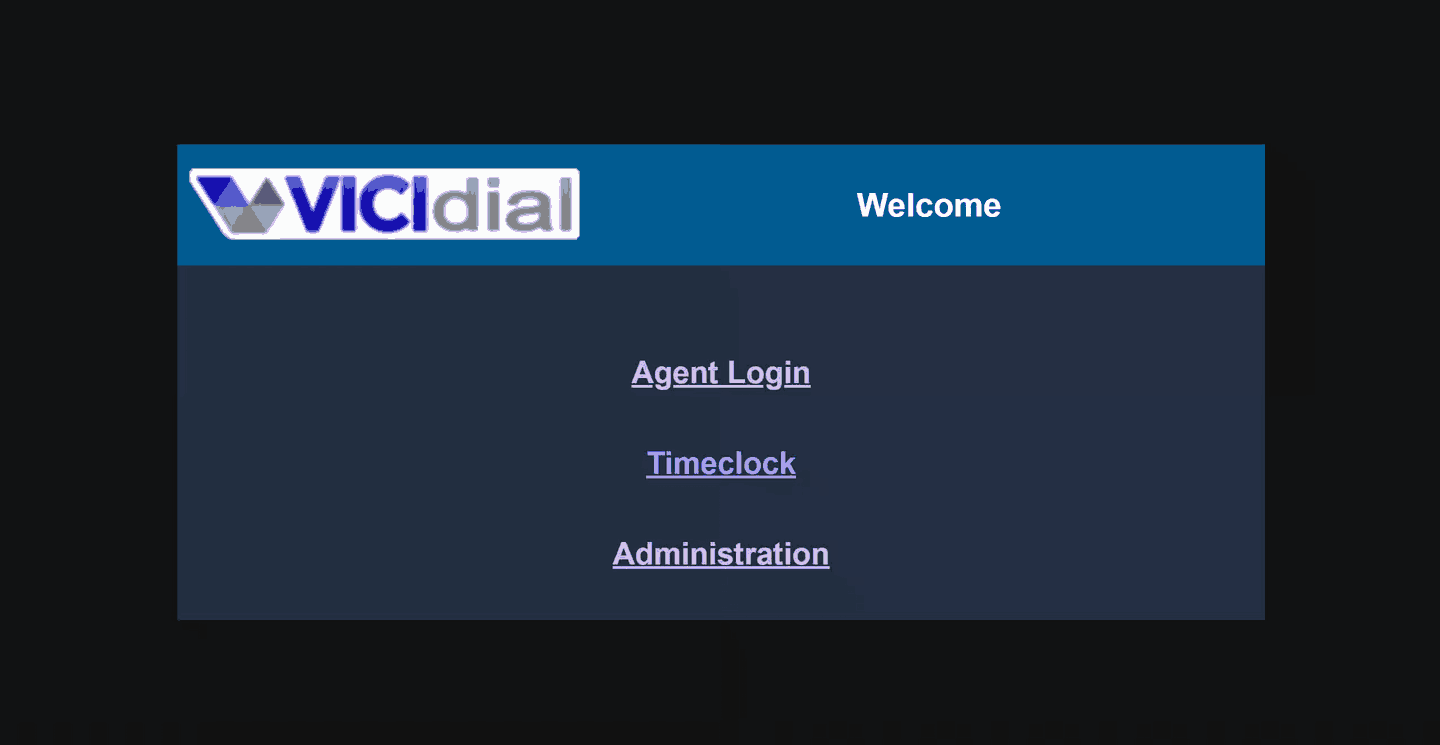
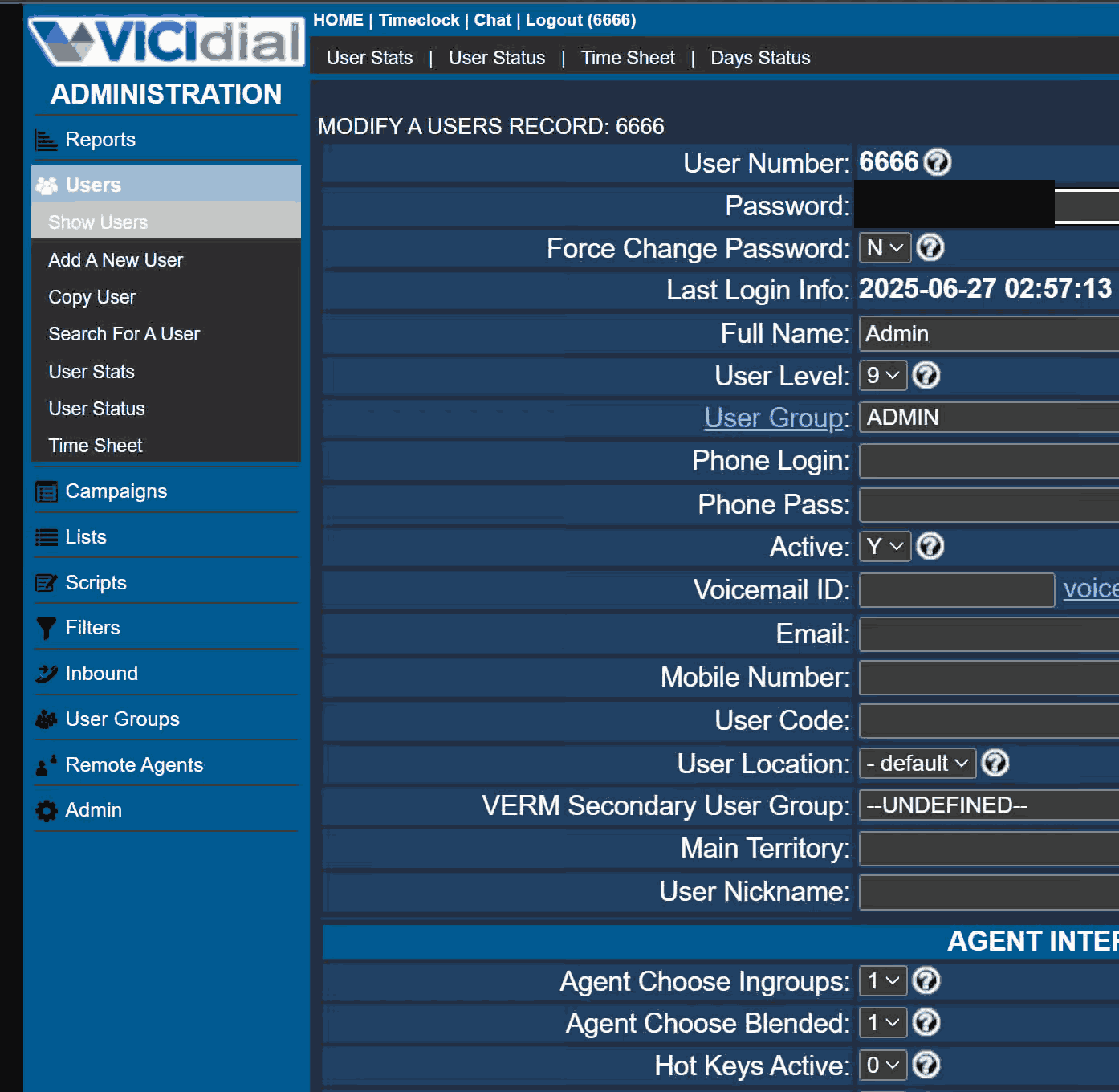
These three screens are real screenshots from the original vicigeek.com ViciBox install guide, not the isolated VICIdial demo used elsewhere on this site. Each caption states the date it was added to that guide, and every image helps you recognize a related screen; none proves that this article's exact command or result occurred on this build.Recognize where Phase 1 hands off to vicibox-express
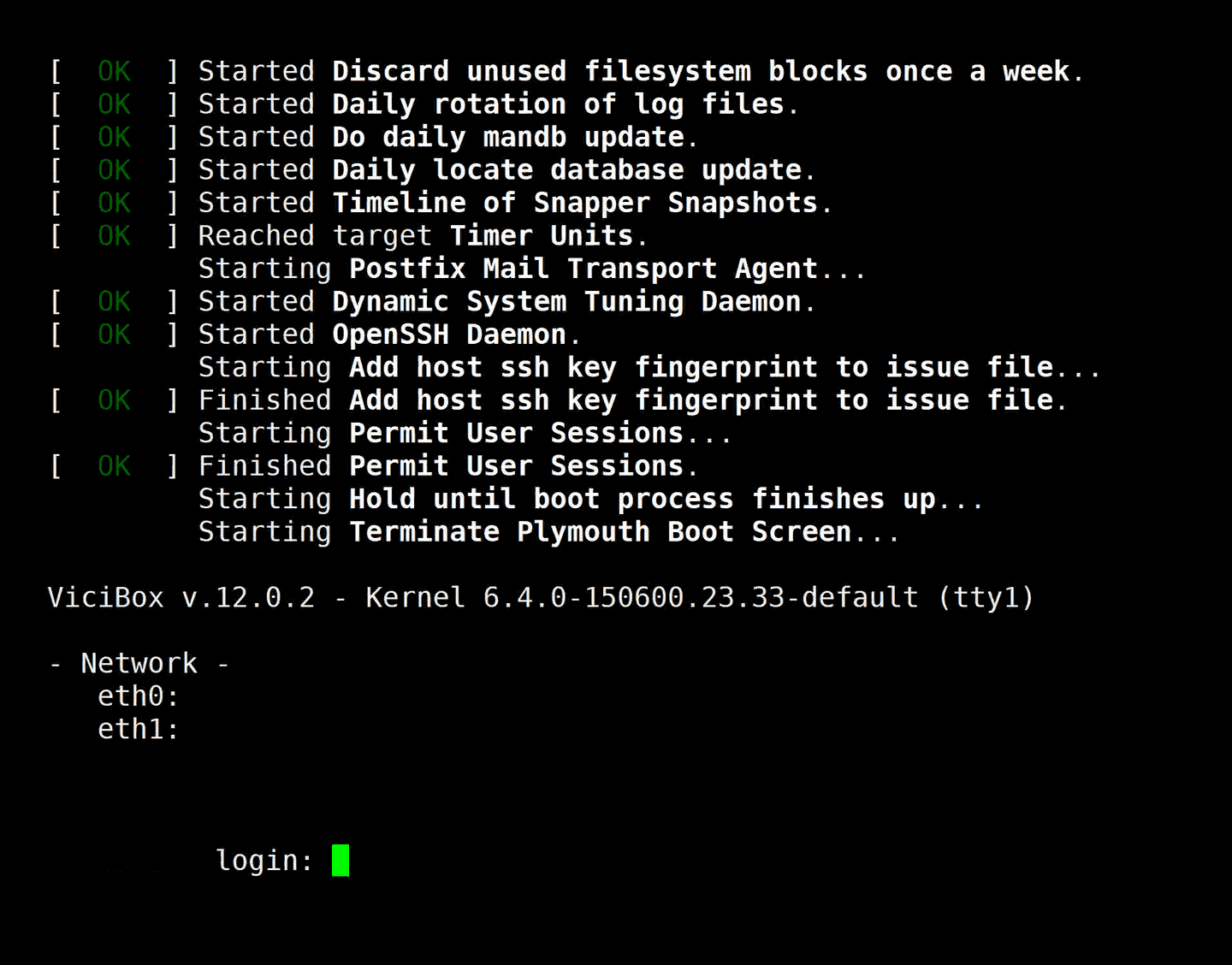
Reach Agent Login, Timeclock, and Administration
Replace the default Admin password immediately
The idea in plain language
Asterisk is the telephony engine beneath VICIdial. It can be running perfectly well with no carrier connection, no campaign, no agent, and no call in progress — that is exactly the safe, quiet state you want to confirm on a first lab check, before you connect anything real to it.
The verification order in this lesson matters: confirm the engine is alive first, confirm its supporting processes came up second, confirm its telephony configuration loaded third, and only then touch the web interface. Each step rules out one layer, so that if something is eventually wrong, you already know which of the four it is not.
This ordering is also a template for troubleshooting a lab weeks from now, not just for a first install. When something in VICIdial eventually misbehaves, working from the bottom up — engine, then processes, then telephony configuration, then the web layer — will usually locate the fault faster than starting from whatever screen happened to show an error first.
Run Phase 2 and check Asterisk's own status
Ask Asterisk for its version and its own uptime directly. Neither command changes configuration or places a call. On this build, Asterisk is not a systemd service — `systemctl is-active asterisk` reports inactive even while Asterisk runs perfectly well inside its own screen session — so systemd is never the right place to ask this question. Asterisk's own console is.
asterisk -Vasterisk -rx 'core show uptime'Captured demo response · 2026-09-23 21:35 UTC. The displayed command is the command that ran; a safe subset label means it was filtered, redacted, or fixture-scoped. Replays only after you select Replay transcript.
- Before you run it
- Run this after Phase 2 finishes and the host has rebooted. Neither command connects a call or changes a setting.
- Success looks like
- The first command prints a version string; the second reports how long Asterisk has been running, with no connection error.
- Stop if
- A connection-refused error from either command means the telephony engine itself has not started; resolve that before checking anything built on top of it, including the screen sessions and the web login.
Confirm the screen sessions came up
Phase 2 also starts the astguiclient dialer-control processes inside detached screen sessions. Their presence is a useful second signal, independent of Asterisk's own status.
screen -lsCaptured demo response · 2026-09-23 21:35 UTC. The displayed command is the command that ran; a safe subset label means it was filtered, redacted, or fixture-scoped. Replays only after you select Replay transcript.
- Before you run it
- Run this right after your first successful Phase 2 boot. It only lists sessions.
- Success looks like
- Expect about a dozen detached sessions on a freshly completed Express install — our lab shows 12. Treat that as a rough expectation rather than a fixed pass/fail threshold; your own build's exact count can differ.
- Stop if
- A near-empty result immediately after Phase 2 suggests astguiclient's startup did not complete; re-check the Asterisk status above before assuming this step is the fault.
Confirm PJSIP is alive, with no carrier yet
This is the deferred check from the earlier SIP-basics lesson, now run for real on a live Asterisk instance: confirming PJSIP has endpoints and contacts configured, without needing a carrier to prove it. An endpoint is a configured identity PJSIP knows about — an extension, a trunk definition, or a phone; a contact is a specific address that endpoint has registered from. On a fresh lab with no phones plugged in yet, expect endpoints to exist as configuration with few or no contacts registered against them.
The distinction between an endpoint and a contact is worth sitting with, because it explains a confusing symptom you may eventually run into: an endpoint can be perfectly well configured and still show no contacts, simply because nothing has registered against it yet. That is a registration problem to chase on the phone or trunk side, not a reason to suspect the endpoint's own configuration is wrong.
This build also runs chan_sip alongside PJSIP, listening on a separate port, and phone records created as protocol SIP on this build register through chan_sip rather than PJSIP. For those, `asterisk -rx 'sip show peers'` is the matching check — `pjsip show endpoints` will not show them, and that is expected rather than a fault.
asterisk -rx 'pjsip show endpoints'asterisk -rx 'pjsip show contacts'Captured demo response · 2026-09-23 21:35 UTC. The displayed command is the command that ran; a safe subset label means it was filtered, redacted, or fixture-scoped. Replays only after you select Replay transcript.
- Before you run it
- Run this on the Express lab. Both commands are read-only console queries; neither places a call.
- Success looks like
- Asterisk answers both commands. On our ViciBox 12 lab both print No objects found: the stock phones use chan_sip, and a PJSIP endpoint only appears once a PJSIP phone or an active PJSIP carrier exists. Either result proves PJSIP is loaded and answering.
- Stop if
- A connection error here, after Asterisk's own status already reported active, would be unusual — double-check you are running the command against the same host you just verified.
Log in once, then change the default immediately
The Express installer's documented default Admin login is 6666 / 1234. Log in once to confirm the web interface itself works, then change it immediately — a stock credential pair published in vendor documentation is not a secret, regardless of how new or disposable the install is.
This matters even on a lab you intend to destroy in an hour. The habit of changing a default credential the moment you see it is the same habit that keeps a real deployment safe, and building it now, when the stakes are zero, costs nothing.
Notice, too, that this default is documented openly by the vendor rather than hidden — which is exactly the point. A published default credential is a known starting point for every install everywhere, not a secret specific to your build, so treating it as one after your first login is a mistake regardless of how isolated your lab appears to be.
The first-login-tour lesson elsewhere in this curriculum walks through that first login screen by screen. This lesson's job stops at the boundary: confirm the stack underneath is healthy, note the default, and change it — the tour picks up from there.
Ready for the next lesson
Continue to the detailed ViciBox 12 installation walkthrough next — it retraces Phase 1 and Phase 2 in full step-by-step detail — and then to the read-only database account lesson before you run a single SQL query against this lab. Everything you verified here — Asterisk alive, the screen sessions present, PJSIP configured — is exactly what that installation walkthrough will ask you to reproduce and confirm again, in more detail.
Evidence ledger
Verification basis
- ViciBox documents Express as the single-server Admin, Agent and telephony role path, with a stated default Admin login.
Primary references
Sources
- Express Box — ViciBox 12.0 documentationViciBox · accessed September 23, 2026
- Installation — ViciBox 12.0 documentationViciBox · accessed September 23, 2026