Reader setup
Before you start
Run each step in order and move only when the outcome is confirmed.
- A VICIdial agent account already created by an administrator: a phone login, a user login, and at least one assigned campaign
- A headset or desk phone registered to your assigned extension, with two-way audio already tested
- A manager or senior agent free to sit with you through your first few real calls, with read-only database access through /etc/vicidial-readonly.cnf (see vicidial-read-only-database-account if you do not have one yet) for the verification queries in this guide
- What you will prove
- You can complete the two-step login, read every part of the agent screen, control your own availability with the right pause code, take a predictive call correctly, dial manually without doubling a call, save an accurate disposition, schedule a real callback, run a blind or warm transfer on purpose, hold a three-way conference, and log out cleanly at the end of a shift.
- Safety boundary
- Predictive calls connect the customer before your screen catches up, and transfer, conference, and manual-dial actions do not undo themselves. Treat every button press as real, stop before you repeat one the screen has not confirmed, and check with a manager instead of guessing.
Reader path
How to use this article
- Use it when: You need a fixed sequence to make a deployment or configuration change now.
- Expected result: Follow each step and verify the outcome before changing the next layer.
- Start here: Start at the first section and complete every checkpoint before moving to the next.
01 / 13
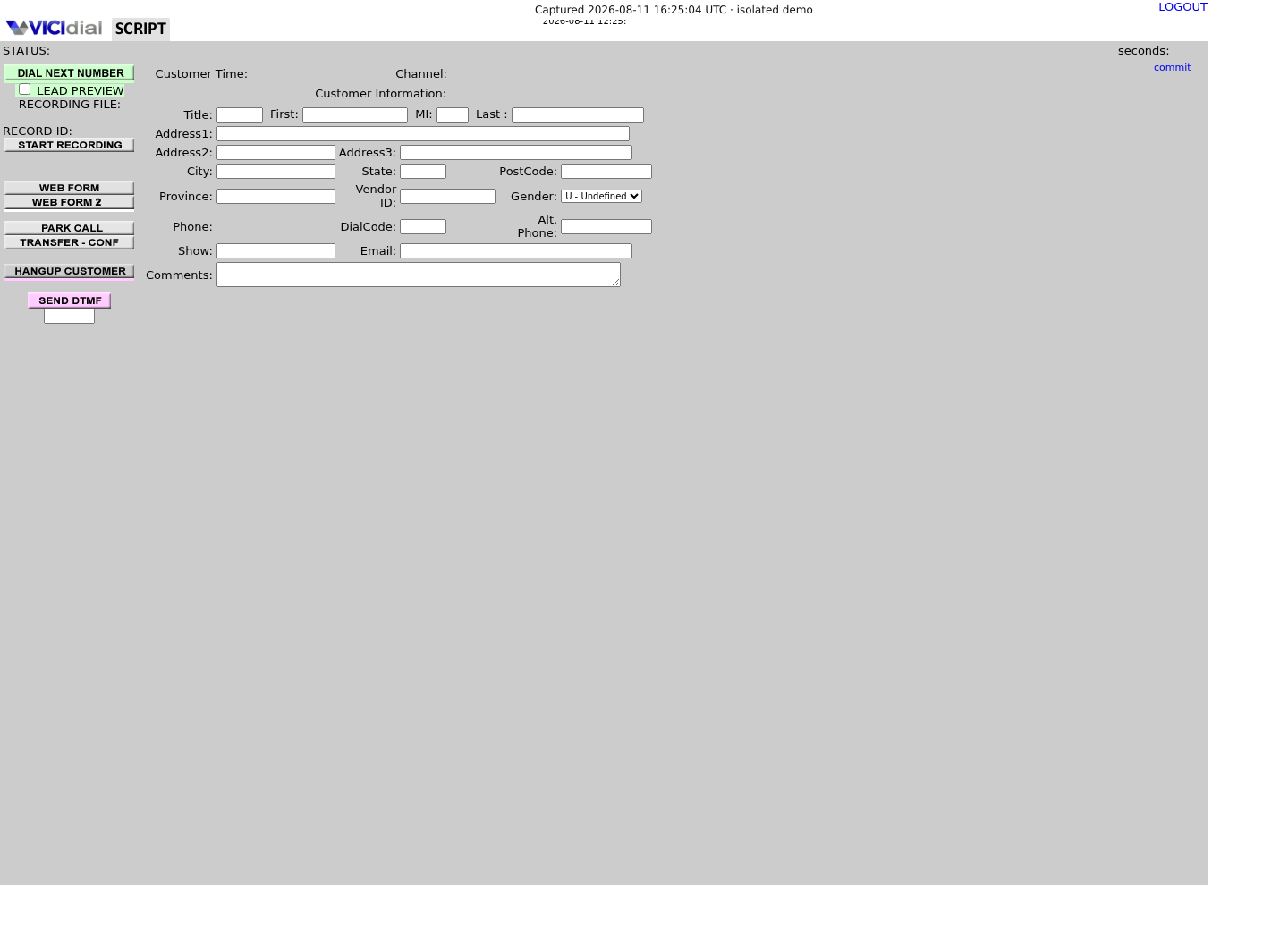
What the Agent Screen Is and How the Day Starts
Fast answer: log in with your phone credentials first, then your user login and campaign, in that order. Wait for the screen to settle on PAUSED before you press Ready. Watch the status indicator, not the clock, because the whole screen runs on a one-second poll behind the scenes. When a predictive call is assigned to you, the customer is already connected the instant your screen changes, so greet them immediately. Save one disposition per call, schedule callbacks instead of guessing at a good time to call back, and always use the Logout control at the end of a shift — never just close the browser tab.
In plain language: an agent is the person logged into the VICIdial agent screen taking or making calls; a campaign is one outbound calling project — one list, one dial pace, and one set of dispositions — that an agent joins at login; a list is a named batch of leads loaded and worked together as a unit; a lead is one contact record: a phone number plus its call history and any custom fields; a disposition is the outcome code you save at the end of a call, such as a sale or a callback; the hopper is the pool of leads a campaign has already marked callable right now, waiting for the dialer or an agent to use them; an in-group is an inbound queue an agent registers for, separate from the outbound campaign described above; a channel is one call leg inside Asterisk — one side of one connection; a conference is the audio bridge, MeetMe on older builds or ConfBridge on newer ones, that holds you, the customer, and anyone else on the call at the same time.
Behind that layout sits a live state machine, not a normal web page. vicidial.php renders your screen once at login; after that, a background request to vdc_db_query.php polls the server roughly once every second for as long as you stay logged in. That one-second poll is what flips your status indicator, loads a new lead's details, and starts your talk timer the moment a call lands — the page is not refreshing, it is reporting.
- Status indicator, top bar: READY, PAUSED, INCALL, and a few other states.
- Customer panel, center: lead details and any custom fields your campaign uses.
- Call controls, right side: DIAL, HANGUP, TRANSFER, PARK CALL, and the CALLBACKS tab.
- Script or web form panel, bottom: whatever your campaign attached to this call.
Visual walkthrough
Follow three real demo screens
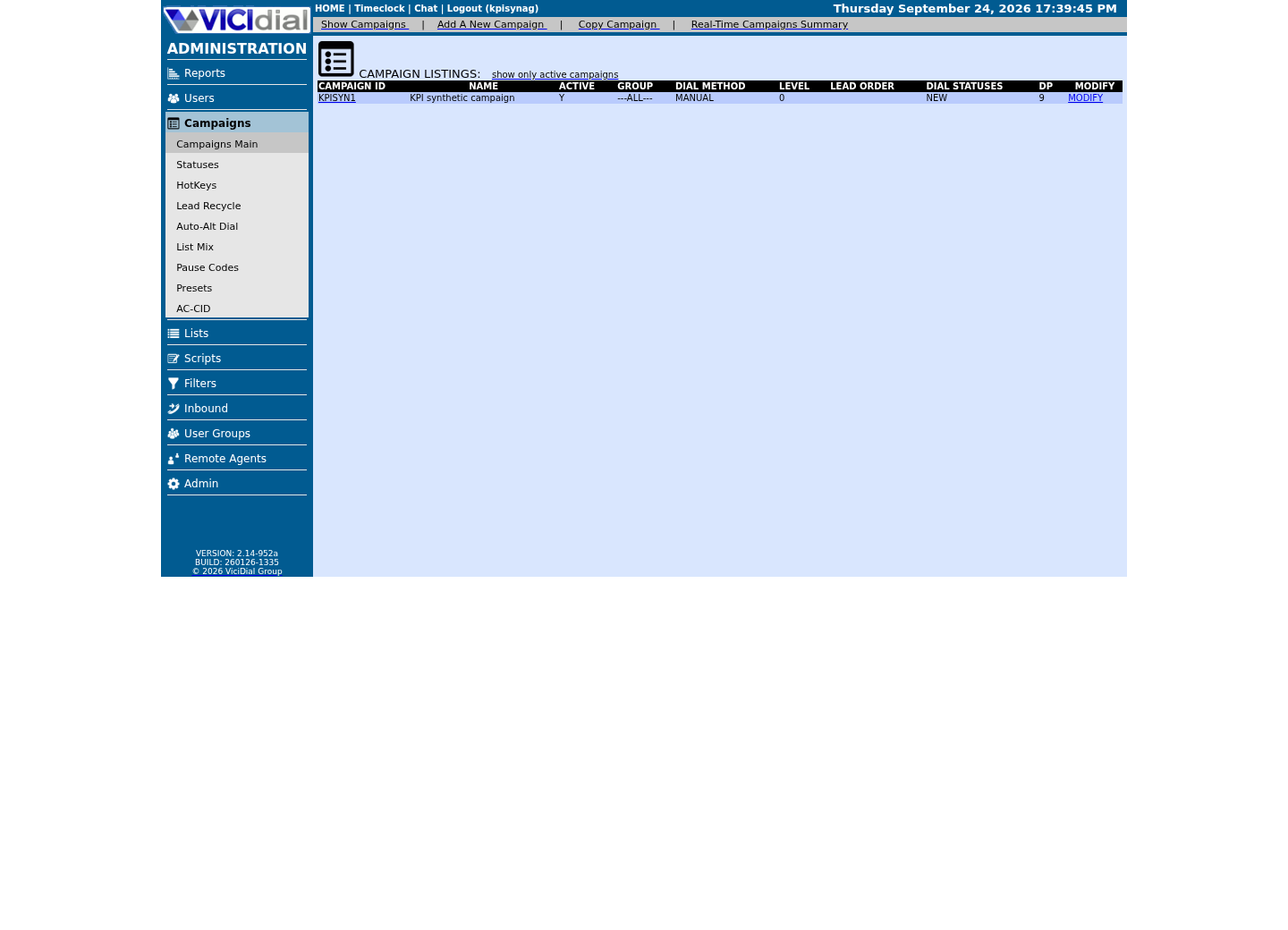
Captured on an isolated VICIdial demo: Administration screens on September 24, 2026, and the idle Agent screen on August 11, 2026. Each caption states its own capture time, and every sanitized image helps you recognize a related screen; none proves that this article's call, command, or result occurred.Keep phones and users separate
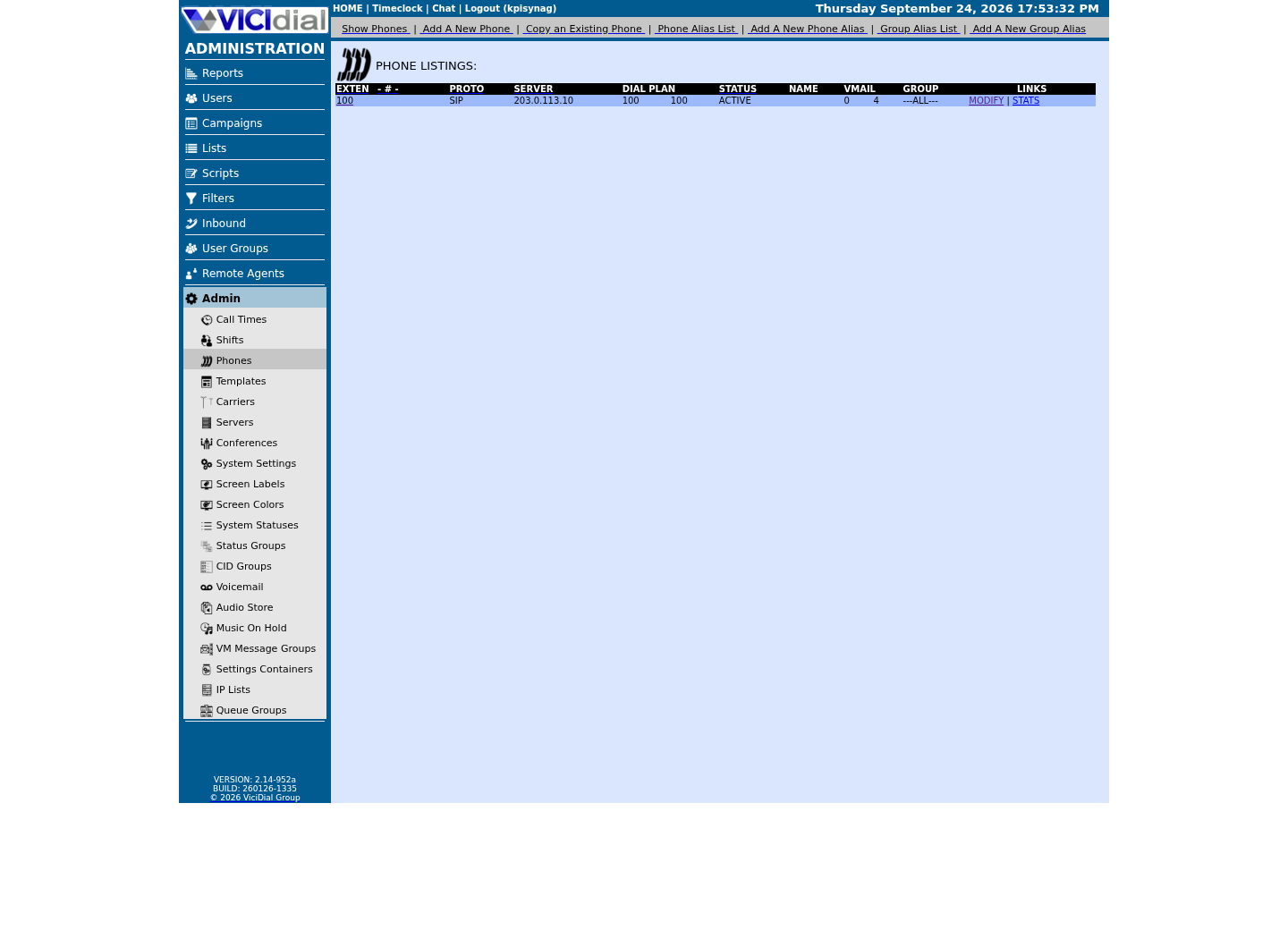
Find the campaign the agent should use
Read the real Agent screen in an idle state
02 / 13
Step 1 — Log In With Phone Credentials, Then User and Campaign
Two separate logins happen on the same screen, in a fixed order. First, your phone credentials — a phone login and a phone password — tell VICIdial which extension or webphone you are sitting at. Second, your VICIdial user login and password, plus the campaign you are joining, tell VICIdial who you are and what work you are allowed to receive. Submit both together, and the server checks them in that order: phone first, then user and campaign.
A successful login does two things you cannot see happen separately: it writes a live session row for you, and it connects your extension into a conference — the audio bridge Asterisk keeps ready for your seat. Until that conference is actually joined, nothing you click will reach a real customer, so give the page a few seconds after Submit instead of clicking it again.
Your very first status after login is PAUSED, not READY, no matter how quickly you logged in. That is deliberate: nobody wants a brand-new session grabbed by a live call before the agent has even seen the screen. You choose when to go Ready, in the next step.
- Enter the phone login and phone password first, exactly as issued.
- Enter the user login, user password, and campaign next, in the same submission.
- Wait for PAUSED to appear before doing anything else.
- If nothing happens after Submit, wait; do not resubmit the form.
SELECT user, status, conf_exten, extension, agent_log_idFROM vicidial_live_agentsWHERE user = '<AGENT_USER>';Captured demo response · 2026-09-24 22:25 UTC. The displayed command is the command that ran; a safe subset label means it was filtered, redacted, or fixture-scoped. Replays only after you select Replay transcript.
- Before you run it
- Ask whoever manages your database for read-only access, and run this right after a trainee's first login while you are both still looking at the screen together, replacing <AGENT_USER> with the trainee's own login.
- Success looks like
- One row comes back, status reads PAUSED, conf_exten and extension are both filled in, and agent_log_id is a real number — the session and the conference both exist.
- Stop if
- Zero rows, or a blank conf_exten, means the login did not fully complete. Do not have the trainee press Submit again; log them out properly and repeat the two-step login from the start.
03 / 13
Step 2 — Go Ready, Go Paused, and Use Pause Codes on Purpose
Your status lives in one column the whole system watches: READY means available for a call, PAUSED means unavailable on purpose, INCALL means on a live call, and a few other values — QUEUE, CLOSER, MQUEUE — cover a call being delivered, an inbound call you are handling, or a manual-dial queue state. Press Ready only when you mean it; a predictive dialer treats Ready as a promise that you can take the next call it hands you.
Pausing always asks why. Every pause code your campaign offers has three properties an administrator sets, not you: Billable, YES, NO, or HALF, for payroll; Mgr Approve, whether a manager has to sign off before the code is granted; and Time Limit, how many seconds you can sit in that code before the system flags it. A code with no explicit limit still defaults to sixty-five thousand seconds behind the scenes, about eighteen hours, so do not read the absence of a warning as permission to stay paused indefinitely.
Pick the code that actually matches what you are doing — break, lunch, training, a technical problem — rather than the first one in the list. Every pause you take is logged against your name, and a manager reviewing your first week can tell a self-chosen pause from one the system or an administrator forced on you, so guessing at codes leaves a worse record than a slow, correct choice.
- READY only when you can actually take the next call.
- PAUSED always needs a code — pick the one that matches the real reason.
- Ask before assuming a code needs manager approval; check, do not guess.
- A pause with no visible time limit is not a pause with no limit at all.
SELECT pause_code, pause_code_name, billable, time_limit, require_mgr_approvalFROM vicidial_pause_codesWHERE campaign_id = '<CAMPAIGN_ID>'ORDER BY pause_code;Captured demo response · 2026-09-24 22:25 UTC. The displayed command is the command that ran; a safe subset label means it was filtered, redacted, or fixture-scoped. Replays only after you select Replay transcript.
- Before you run it
- Run this before a trainee's first shift so you can tell them, out loud, which codes need sign-off and which do not; replace <CAMPAIGN_ID> with the trainee's own campaign.
- Success looks like
- Each row shows a short code, its full name, its Billable value, its Time Limit in seconds, and YES or NO under require_mgr_approval.
- Stop if
- An empty result means this campaign has no codes of its own yet; check whether it is meant to inherit codes from another campaign before you assume the query itself is wrong.
04 / 13
Step 3 — Receive a Predictive Call: The Customer Is Already Live
Predictive dialing works backward from what a manual phone call feels like. The dialer has already called several numbers, already gotten an answer, and already decided this specific answered call is yours, before your screen shows you anything. The one-second poll running in the background is what notices your assignment and flips your status to INCALL — and the moment it does, the customer is not ringing, waiting, or about to answer. They are already on the line, and they already said hello.
That order matters more than almost anything else in this guide. Greet the customer the instant the screen changes, before you have finished reading their name. Every second you spend getting oriented is a second of silence a real person sits through after already picking up their phone, and in several countries that silence is itself regulated, not just rude.
Confirm the right lead loaded before you say anything you cannot take back. The customer panel should already show a name and phone number that match who is actually on the line; if it looks wrong, or blank, use a neutral greeting while you check, rather than guessing at a name.
- Assume the customer is already connected the moment your status changes — do not wait for a ring you will never hear.
- Say hello first; read the lead details second.
- If the on-screen lead looks wrong, greet neutrally and verify before using a name.
05 / 13
Manual Dialing: When You Choose the Number
Manual dialing flips who decides: instead of the predictive dialer assigning you an already-answered call, you select or look up a lead yourself and ask the system to place exactly one call. Behind the button, that single click reserves the lead, logs the attempt, and requests one origination — one real outbound call — from Asterisk. Nothing about that sequence is designed to be pressed twice.
If the screen appears to hang after you press Dial, resist the reflex to click it again. A second press before the first request has resolved does not cancel or replace the first attempt; it can start a second, entirely separate, real call to the same number. Stop, wait a few seconds, and if the screen still has not moved, ask your manager to check the live state before you touch anything else.
The same caution applies to any manual override fields your campaign exposes, such as a dial prefix or a call-time check. Those exist for genuine edge cases, not for working around a stuck screen; if manual dialing looks broken, treat it as a question for a manager, not a setting to change mid-call.
#!/usr/bin/env bash set -euo pipefail CNF="/etc/vicidial-readonly.cnf" LEAD_ID='<LEAD_ID>' mysql --defaults-extra-file="$CNF" -e "SELECT status, user FROM vicidial_list WHERE lead_id = $LEAD_ID;" mysql --defaults-extra-file="$CNF" -e "SELECT user, status, callerid, lead_id FROM vicidial_live_agents WHERE lead_id = $LEAD_ID;" Captured demo response · 2026-09-24 22:25 UTC. The displayed command is the command that ran; a safe subset label means it was filtered, redacted, or fixture-scoped. Replays only after you select Replay transcript.
- Before you run it
- Run this from a manager's or administrator's own machine, with a read-only account, while the trainee leaves the screen alone, replacing <LEAD_ID> with the lead actually dialed. Do not have the agent press Dial again while you check.
- Success looks like
- vicidial_list alone answers most of the question: once a user is actually sitting in that lead's own row, your trainee's dial reached the record — whether or not the agent's live row has caught up yet.
- Stop if
- A vicidial_list row that still shows no user attached at all is the plainer signal that the click likely never registered — on our ViciBox 12 lab the fixture lead used here has never actually been dialed, so its own row comes back exactly that way, not proof of a stuck screen by itself. The second query naturally prints nothing at all when no live session currently holds that lead, which is the same idle case rather than a sign the check itself failed; treat a second attempt already logged against the same lead as the reason to stop and escalate, not to keep clicking.
06 / 13
Save a Disposition: Close the Call the Right Way
A disposition is not a formality; it is the single action that ends the call's workflow and tells the rest of the system what actually happened. Saving one can update the lead, log the call, and, depending on how your campaign is configured, send an email, notify another system through a configured web address, or route the lead to quality control (QC) review before you ever move to the next screen.
Some disposition pairs exist specifically to separate what you decided from what the dialer decided automatically. An agent-classified answering machine and a dialer-classified one are different codes for a reason, and so are an agent-classified busy signal and a carrier-reported one. Mixing them up does not change what happened on the call, but it does quietly corrupt every report built on top of that code, weeks after you have forgotten which call it was.
A dial failure — a fast busy, a network reject, a number that never rings — is not the same disposition as a person who answered and then hung up on you. If you are not sure which code fits, ask before guessing; a wrong disposition on a real answer can incorrectly place a live lead onto a DNC (Do Not Call) list it never should have reached.
SELECT status, status_name, selectable, human_answered, scheduled_callback, dncFROM vicidial_campaign_statusesWHERE campaign_id = '<CAMPAIGN_ID>'ORDER BY status;Captured demo response · 2026-09-24 22:25 UTC. The displayed command is the command that ran; a safe subset label means it was filtered, redacted, or fixture-scoped. Replays only after you select Replay transcript.
- Before you run it
- Run this once per campaign you train someone on, replacing <CAMPAIGN_ID> with theirs, and read the human_answered, scheduled_callback, and dnc columns out loud with them.
- Success looks like
- Every campaign-specific status this query lists shows selectable = Y, and the flag columns match what you already tell agents about each one — for example, a callback status shows scheduled_callback = Y.
- Stop if
- If a code you are teaching does not appear, or its flags contradict what you were told, stop teaching that code as fact and confirm it with whoever configured the campaign. Zero rows at all is a broader, simpler case — on our ViciBox 12 lab the fixture campaign returns nothing here, because vicidial_campaign_statuses lists only a campaign's own customized statuses on top of the system-wide default set, not the full list of dispositions agents can actually select; an empty result means no campaign-specific overrides exist, not that the campaign has no dispositions at all.
07 / 13
Scheduling a Callback: CALLBK vs. CBHOLD
CALLBK and CBHOLD are not the same thing, even though agents new to VICIdial use them interchangeably. CALLBK is the disposition you save when you tell the system to call this person back. CBHOLD is a state the lead itself sits in afterward, held out of normal dialing until the scheduled time you set actually arrives.
Saving a CALLBK also creates a separate scheduling row, not just a note on the call log. That row records whether the callback is USERONLY, reserved for you specifically, or ANYONE, meaning any agent in the campaign can take it once it is due. Your campaign's settings decide whether you can even see ANYONE callbacks from other campaigns, so do not assume your Callbacks tab shows every scheduled callback in the building; it shows the ones you are allowed to see, under this campaign's rules.
Treat the callback count on your screen and a historical CALLBK total on a report as two different numbers measuring two different things. One is what is currently scheduled and waiting; the other is how many calls, ever, ended with that disposition. A large gap between them is normal, not a sign either number is broken.
SELECT status, recipient, COUNT(*) AS callback_rowsFROM vicidial_callbacksWHERE campaign_id = '<CAMPAIGN_ID>'GROUP BY status, recipientORDER BY status, recipient;Captured demo response · 2026-09-24 22:25 UTC. The displayed command is the command that ran; a safe subset label means it was filtered, redacted, or fixture-scoped. Replays only after you select Replay transcript.
- Before you run it
- Run this before explaining the Callbacks tab to a new agent, replacing <CAMPAIGN_ID> with theirs, so you can point at real numbers instead of describing the feature in the abstract.
- Success looks like
- You see a small set of rows, each combining a scheduling status with USERONLY or ANYONE and a count — for example, several ACTIVE and USERONLY rows for callbacks still in the future.
- Stop if
- A count that never changes across a whole shift usually means a campaign lock or a display-days setting is hiding rows, not that no callbacks exist; check those settings before telling an agent the queue is simply empty. On our ViciBox 12 lab this same query returns nothing at all for the fixture campaign, since nobody has scheduled a callback against it yet — read a single empty snapshot like that as a fresh, callback-free campaign, not as proof of the locked queue a count stuck across a whole shift would point to.
08 / 13
Blind vs. Warm Transfer: Get the Right One
A blind transfer sends the customer straight to another destination and drops you from the call in the same motion. You never speak to whoever picks up on the other end; you go directly to your disposition screen the instant the transfer completes. Use it only when you are certain the destination is correct, because you will not be there to catch a mistake.
A warm transfer, sometimes called a consultative or attended transfer, keeps you on the line while a third party joins. You speak to that destination first, confirm they are the right destination and ready to take the call, and only then leave the conference so the customer and the destination continue without you.
Transfer and conference actions are stateful: each button press assumes one specific situation exists at that instant, and pressing the same button again does not simply repeat the first press safely. There is no rollback once you have left a call — if a warm transfer lands on the wrong destination, you cannot pull the customer back yourself; stop before you press anything twice, and check with a manager if the screen has not visibly changed.
- Blind transfer: instant, one-way, no rollback — confirm the destination before you press it.
- Warm transfer: verify the destination out loud, then leave the conference on purpose.
- Never press a transfer or conference button twice while waiting for the screen to update.
09 / 13
Three-Way Conference: Add a Third Party Without Losing the Customer
A three-way conference is the warm transfer's cousin: instead of leaving once the third party joins, you stay, and all three legs — you, the customer, and the third party — share the same conference at once. That third party might be a colleague answering a question, a supervisor confirming an approval, or an outside number the customer asked to include.
The three of you are sharing one Asterisk conference bridge, not three separate calls stitched together, so confirm your customer is comfortable with a third party joining before you start dialing them in, not after. If that third party is an automated menu instead of a person, you can send touch-tone digits, DTMF, short for dual-tone multi-frequency, into the same conference instead of speaking.
If the third party never picks up, or the conference looks stuck, do not repeatedly press whatever button started it. Each press is a separate, stateful action against a call that may already be mid-transition. Give it a moment, and if it is still wrong, ask a manager to check the actual conference state on the server rather than guessing from the screen.
#!/usr/bin/env bash set -euo pipefail CONF_EXTEN='<CONF_EXTEN>' # This build's servers table sets conf_engine to ConfBridge: asterisk -rx "confbridge list $CONF_EXTEN" # Older VICIdial builds, or a server row still set to MeetMe, use this instead: asterisk -rx "meetme list $CONF_EXTEN" This sample changes a system, contacts an outside service, needs a live call, or would print real data from a shared server, so it was not run on the demo. Run it only where you are authorized, and compare the result with the success and stop guidance.
- Before you run it
- Run this from the Asterisk server itself, using the conference or extension number shown on the trainee's screen. Confirm which engine your own install actually uses — the servers table's own conf_engine value, readable from Admin's Servers screen or a SELECT against it — rather than assuming; only one of the two commands will return real data.
- Success looks like
- One of the two commands lists the parties actually connected right now, confirming whether the third party ever joined, or already left, independent of whatever the agent's screen currently shows.
- Stop if
- If neither command shows the expected parties, treat the agent's screen as unreliable for this call; hang up and start the customer's contact fresh rather than continuing to press buttons against a conference that no longer matches what is on screen.
010 / 13
Log Out Cleanly at the End of Shift
Logging out is its own action, not a side effect of closing your browser tab. The Logout control tells the server to end your session on purpose, coordinating three things at once: your browser session, your live-agent database row, and whatever the phone side needs to clean up on Asterisk. Closing the tab instead skips all three.
If you are mid-call when you log out, the system waits: your logout takes effect once you have saved a disposition, not before. If you are paused or ready with no call, it happens immediately. Either way, wait for the confirmation on screen before you walk away or shut down your machine.
A session left open by a closed tab does not vanish immediately. It can sit as a live row until a cleanup process notices it is stale, which means a seat that looks occupied, or a phone that looks busy, for longer than it should. If you ever have to step away without warning, log back in and out properly the moment you can, rather than leaving it for someone else to find.
- Always use the Logout control — never just close the tab.
- If mid-call, wait for your disposition to save before logout completes.
- Confirm the on-screen logout message before you walk away.
SELECT COUNT(*) AS live_rowsFROM vicidial_live_agentsWHERE user = '<AGENT_USER>';Captured demo response · 2026-09-24 22:25 UTC. The displayed command is the command that ran; a safe subset label means it was filtered, redacted, or fixture-scoped. Replays only after you select Replay transcript.
- Before you run it
- Run this a few seconds after a trainee clicks Logout and sees the confirmation screen, replacing <AGENT_USER> with theirs.
- Success looks like
- The count is 0 — no live row remains for that user.
- Stop if
- A count of 1 or more after a confirmed logout means cleanup has not caught up yet, or the logout did not fully complete; do not let the same user log back in until you have confirmed which one it is.
011 / 13
Troubleshoot the First Week: Common Agent-Screen Problems
Most first-week problems trace back to the same handful of causes. Before assuming something is broken, check these against what you now know about the login order, the one-second poll, and pause codes.
The screen seems to freeze at disposition. This is usually the campaign's own wrap-up timer, a deliberate pause the system inserts after every call so you have time to finish notes before the next one lands, not a failure of the screen itself. Give it the full time before assuming it is stuck.
A pause code will not apply. Check whether it needs manager approval first; a code waiting on Mgr Approve looks unresponsive until someone actually grants it, which can take longer than a busy manager realizes.
A manual dial did nothing. Refer back to the manual-dialing section above: stop, do not press it again, and have a manager check the lead and live-agent rows before you touch the screen a second time.
- Wrap-up time at the end of a call looks like a freeze but is not one.
- A pause code pending Mgr Approve is waiting on a person, not broken.
- A manual dial that seems to hang needs a check, not a second click.
- When in doubt, ask before repeating an action the screen has not confirmed.
012 / 13
For Managers: What to Watch While an Agent Learns
Watching a new agent well means watching specific things, not just sitting nearby. Confirm the two-step login actually reaches PAUSED with a real conference before you leave them alone — a login that looks fine on screen but never joined the conference is the single most common early problem.
Watch their first few predictive calls in particular. The customer is live the instant the screen changes, and a new agent's instinct is to read the lead panel before speaking; coach the greeting-first habit in the first hour, not after a week of complaints.
Review pause activity, not just pause totals. The agent log records whether a pause was chosen by the agent, forced by the system, triggered through an integration, or set by an administrator, which tells you whether a trainee is over-using self-chosen pauses or simply hitting normal system wrap-up time. Use that distinction in coaching instead of guessing from a total-minutes number alone.
Spot-check dispositions against what you can independently confirm — a recording, a callback that actually shows up, a DNC entry that actually took. A trainee who is fast and confident but consistently wrong on disposition choice is a harder problem to catch than one who is slow.
- Confirm the login reached a real conference before leaving a new agent alone.
- Coach the greeting-first habit during the very first predictive calls.
- Read pause_type, not just pause totals, before coaching on breaks.
- Spot-check dispositions against something you can independently confirm.
SELECT pause_type, COUNT(*) AS pause_events, SUM(pause_sec) AS seconds_pausedFROM vicidial_agent_logWHERE user = '<AGENT_USER>'AND event_time >= CURDATE()GROUP BY pause_typeORDER BY seconds_paused DESC;Captured demo response · 2026-09-24 22:25 UTC. The displayed command is the command that ran; a safe subset label means it was filtered, redacted, or fixture-scoped. Replays only after you select Replay transcript.
- Before you run it
- Run this at the end of a trainee's first few shifts, replacing <AGENT_USER> with theirs, comparing AGENT-initiated pauses against SYSTEM, API, or ADMIN ones.
- Success looks like
- The breakdown roughly matches what you observed directly — for example, mostly AGENT rows around known breaks, with SYSTEM rows around normal wrap-up time.
- Stop if
- A large, unexplained SYSTEM or API total is worth investigating on its own; do not assume it is the same thing as the agent choosing to pause. Run against the fixture agent's own login on our ViciBox 12 lab, with no shift logged yet today, and this query returns nothing at all — a completely empty breakdown like that simply means no pause of any type has posted yet, not a missing report or a broken query.
013 / 13
One-Page Agent Quick-Reference Card
Keep this next to your screen for the first few weeks. It does not replace the sections above — it is what to glance at mid-shift when you only have a few seconds to check something.
VICIDIAL AGENT QUICK REFERENCE LOGIN ORDER1. Phone login + phone password2. User login + password + campaign-> Status starts at PAUSED. You choose Ready. STATUS MEANINGSREADY - available for the next callPAUSED - unavailable, code requiredINCALL - on a live callQUEUE - a call is being delivered to you PREDICTIVE CALLSThe customer is ALREADY connected when yourscreen changes. Greet first, read second. MANUAL DIALINGOne click = one real call. If the screenseems stuck, stop. Do not click Dial again. DISPOSITIONPick the code that matches what actuallyhappened. Agent-classified and dialer-classifiedcodes are not interchangeable. CALLBACKCALLBK = the disposition you choseCBHOLD = the lead is now waiting, not dialable TRANSFERBlind = instant, no rollback, you leave nowWarm = you verify, then leave on purpose 3-WAY / CONFERENCEEveryone hears everyone once they join.Never press a transfer or conference button twice. LOGOUTAlways use Logout. Never just close the tab. This sample is a template or reading aid, not a terminal command. There is no output to show.
- Before you run it
- Use this after you have been through the full walkthrough at least once with a trainer present.
- Success looks like
- You can answer a quick question mid-shift from this card alone, without reopening the full guide.
- Stop if
- If a line on this card ever seems to contradict what your specific campaign does, trust your campaign's own training and flag the mismatch to a manager — campaigns can configure real differences this card cannot capture.
Evidence ledger
Verification basis
- vicidial_live_agents.status is a MySQL ENUM('READY','QUEUE','INCALL','PAUSED','CLOSER','MQUEUE') that defaults to PAUSED, confirming every fresh login starts paused, not ready.
- vicidial_pause_codes carries billable ENUM('NO','YES','HALF'), a time_limit column defaulting to 65000 seconds, and require_mgr_approval ENUM('NO','YES') per pause code, all set by an administrator rather than the agent.
- vicidial_agent_log records pause_type as UNDEFINED, SYSTEM, AGENT, API, or ADMIN for every pause event, which is how a manager can separate a self-chosen pause from a system- or admin-forced one.
- vicidial_callbacks stores recipient as USERONLY or ANYONE and its own status separately from the lead's CALLBK/CBHOLD status, confirming the scheduling row and the call disposition are two different records, not one.
- The agent screen (agc/vicidial.php and vdc_db_query.php) is documented as a one-second-polling browser state machine whose transfer, conference, and park actions are stateful and non-idempotent, meaning the same action pressed twice does not simply repeat the first press.
Primary references
Sources
- VICIdial Agent API referenceVICIdial Group · accessed August 5, 2026
- VICIdial statuses referenceVICIdial Group · accessed August 5, 2026
- VICIdial open source contact center suiteVICIdial Group · accessed August 5, 2026