01 / 04
1. Create the station
- Open Admin → Phones → Show Phones and check whether 8001 is unused. Reuse it only if it is your own practice record; otherwise select another approved ID consistently.
- Choose Add A New Phone and enter the companion-lab values below. Server IP comes from the assigned active server in Admin → Servers; choose separate private Login Password and Registration Password values.
- Select SUBMIT, open 8001 from Show Phones, then set the saved webphone fields below only if WEBRTC_PJSIP and VICIPHONE_SETTINGS exist for this prepared installation. SUBMIT and reopen to compare every saved value.
- If PJSIP, the template or settings container is missing, stop and ask the administrator to prepare the named prerequisites; do not silently substitute a different template.
- Phone Extension / Dial Plan Number / Agent Screen Login
- 8001 / 8001 / 8001Example only; confirm the ID is unused.
- Voicemail Box / Outbound CallerID
- Leave empty / leave emptyOptional for this station exercise; use a configured mailbox or an authorized public caller ID only when required.
- Admin User Group
- ---ALL---The separate course lab uses this administrative visibility; use the assigned group on other installations.
- Server IP
- Assigned active dialer from Admin → Servers
- Login Password / Registration Password
- Two different strong private valuesThe first is for the Agent phone-login form; the second is for SIP registration.
- Status / Active Account / Client Protocol
- ACTIVE / Y / PJSIPUse PJSIP only where the stack is enabled.
- Phone Type / Full Name / Local GMT
- Training softphone / Practice station 8001 / your standard UTC offsetThe recorded −5.00 is an illustrative standard offset. Follow the form’s “Do NOT Adjust for DST” instruction.
- Saved record: Template ID / Set As Webphone
- WEBRTC_PJSIP / YOnly in the prepared course environment.
- Saved record: Allowed Codecs / Webphone Extra Settings
- ulaw / VICIPHONE_SETTINGSConfirm both the template and settings container exist first.
- Saved record: Webphone Auto-Answer / Webphone Debug
- Y / NCourse fixture; follow the local approved settings elsewhere.
Steps and result5 steps
Actual VICIdial form entry with fictional examples. The recording stops before saving; follow the field notes for deployment-specific values.
Entry shownNative phone fields show fictional entries and PJSIP. Server IP is intentionally unselected; the form is incomplete for saving. No phone, registration, agent session or call was created.
Read the chapter notes
- Actual VICIdial form — not submitted
Native phone fields show fictional entries and PJSIP. Server IP is intentionally unselected; the form is incomplete for saving. No phone, registration, agent session or call was created.
- Use station 8001 consistently
Phone Extension, Dial Plan Number and Agent Screen Login use the fictional station 8001. Optional voicemail and caller ID stay empty until real values are assigned.
- Keep the two passwords distinct
Login Password is the station password used at Agent login. Registration Password belongs to the SIP endpoint. These readable strings are only filming examples; generate private values for a real station.
- Select the actual client protocol
Client Protocol PJSIP is shown. Match it to the installed server driver, and select the actual assigned Server IP on your own system; this recording leaves Server IP unselected.
- Review before any real save
Native phone fields show fictional entries and PJSIP. Server IP is intentionally unselected; the form is incomplete for saving. No phone, registration, agent session or call was created.
November 4, 2026 · VICIdial Admin 2.14-969a build 261102-0125. Native phone fields show fictional entries and PJSIP. Server IP is intentionally unselected; the form is incomplete for saving. No phone, registration, agent session or call was created. ViciGeek attribution is encoded in the video and poster. Use fullscreen to read the original field labels.
View a still screenshot
Enter the phone station
Open to enlarge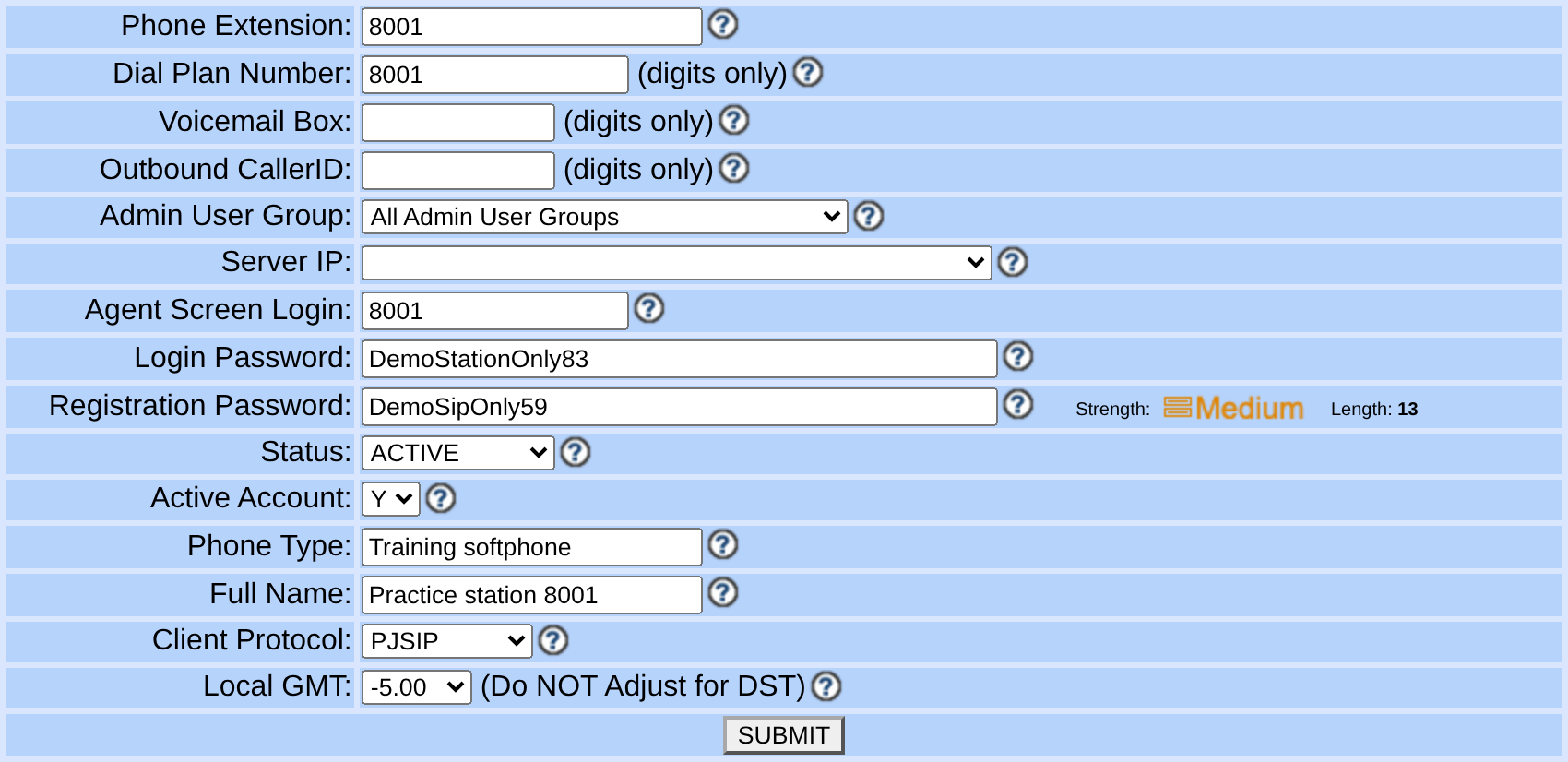
Capture details
Shown passwords are fictional and must not be reused. Voicemail and caller ID are empty; −5.00 is an illustrative standard UTC offset. This is not a saved or registered phone. Actual browser capture, November 4, 2026; Admin 2.14-969a build 261102-0125.You should seeThe entry example shows 8001, ACTIVE, Y and PJSIP in the actual unsaved form. Server IP is unselected; choose your assigned server before saving. Reopening your saved record checks configuration; registration and audio need separate tests.
02 / 04
2. Connect the assigned device
Before connecting the device, inspect the assigned saved phone’s native webphone controls. The companion recording shows only unsaved examples; WEBRTC_PJSIP is missing in this capture lab. Prepare the required template and confirm the saved record before attempting registration.
- For a softphone, obtain its registration user, Registration Password, host, port and transport from the administrator. Check the actual PJSIP transport instead of assuming port 5060.
- For VICIphone, confirm the installation’s Webphone URL and the phone record’s named template and settings container. Open the assigned HTTPS Agent address with a trusted certificate; allow the browser microphone and any required popup.
- On the first form enter Phone Login 8001 and the phone Login Password; on the second enter User Login learner1, its separate User Password and Campaign LAB01. These are example values only after the course records are provisioned.
- If no panel opens, check the popup and microphone permissions and ask the administrator to inspect Webphone URL. A registration failure calls for the separate Registration Password and PJSIP contact check.
Historical inspection: WEBRTC_PJSIP was unavailable. Follow the current LABSIP8001 recipe in the guide.
Steps and result4 steps
Actual native VICIdial controls, filled with example values in the browser. This recording stops before submission. Use the field notes to distinguish lab fixtures, missing prerequisites and deployment-specific values.
Entry shownThe native Modify Phone fields contain unsaved webphone examples. VICIPHONE_SETTINGS exists, but the previously suggested WEBRTC_PJSIP template is absent; the current guide creates LABSIP8001 and its control is unselected. No phone was saved, registered or used for a call.
Read the chapter notes
- Actual native form — not submitted
The native Modify Phone fields contain unsaved webphone examples. VICIPHONE_SETTINGS exists, but the previously suggested WEBRTC_PJSIP template is absent; the current guide creates LABSIP8001 and its control is unselected. No phone was saved, registered or used for a call.
- Select webphone and auto-answer
Set As Webphone Y and Webphone Auto-Answer Y illustrate native controls on a Modify Phone screen.
- Select the real VICIphone settings container
VICIPHONE_SETTINGS exists in this lab. It is not proof that the required template, TLS or registration is ready.
- Review the unsaved example
The native Modify Phone fields contain unsaved webphone examples. VICIPHONE_SETTINGS exists, but the previously suggested WEBRTC_PJSIP template is absent; the current guide creates LABSIP8001 and its control is unselected. No phone was saved, registered or used for a call.
November 4, 2026 · VICIdial 2.14-969a build 261102-0125. The native Modify Phone fields contain unsaved webphone examples. VICIPHONE_SETTINGS exists, but the previously suggested WEBRTC_PJSIP template is absent; the current guide creates LABSIP8001 and its control is unselected. No phone was saved, registered or used for a call. ViciGeek attribution is encoded in the video and poster. Use fullscreen to read the original field labels.
View still screenshots
Enter the saved phone webphone controls
Open to enlarge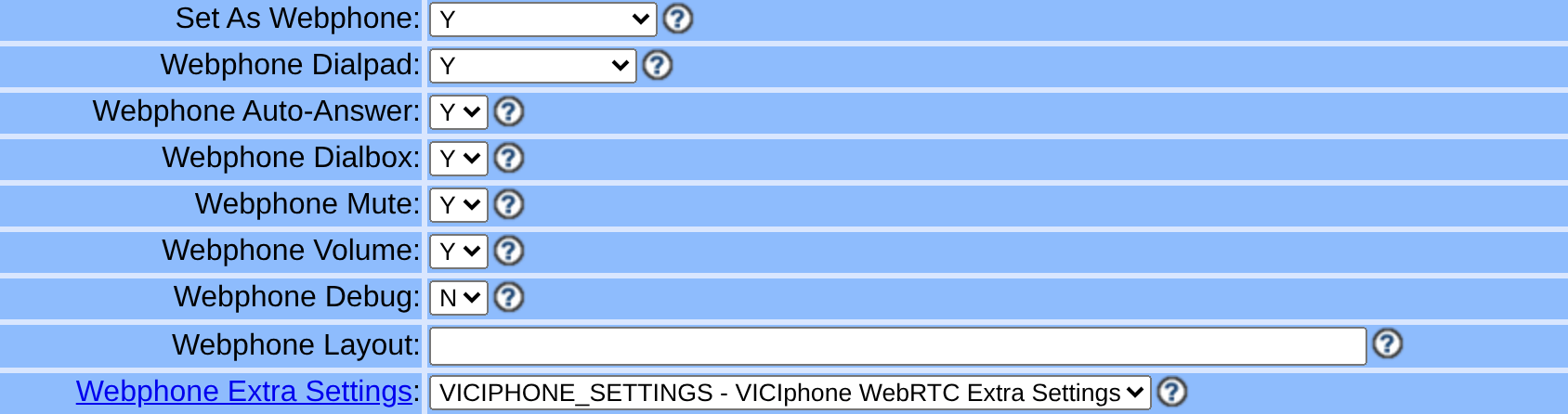
Capture details
Unsaved Modify Phone example; the account identity and private inputs are excluded. The required course WEBRTC_PJSIP template is missing here and remains unselected, so this is a stop state, not a registered or ready phone. Actual browser capture, November 4, 2026; VICIdial 2.14-969a build 261102-0125.Select Client Protocol PJSIP
Open to enlarge
Capture details
This unsaved protocol selection does not install a PJSIP stack, assign a server, save the phone or establish a registration. Actual browser capture, November 4, 2026; VICIdial 2.14-969a build 261102-0125.Enter the allowed codec
Open to enlarge
Capture details
Select codecs supported by the endpoint and the prepared server. This unsaved value does not prove negotiation or audio. Actual browser capture, November 4, 2026; VICIdial 2.14-969a build 261102-0125.Stop when the required template is missing
Open to enlarge
Capture details
Stop and prepare the named course prerequisite before saving a webphone. No template option was fabricated and no registration was demonstrated. Actual browser capture, November 4, 2026; VICIdial 2.14-969a build 261102-0125.You should seeThe Agent workspace opening is not registration or audio proof.
03 / 04
3. Verify the PJSIP object
- On the assigned server, run `pjsip show endpoints` and locate the station ID.
- Run `pjsip show endpoint <ID>` and `pjsip show aor <AOR>` with the observed names. For a registering phone, look for its current contact.
- If the endpoint is missing, inspect configuration load errors and the phone record; if it has no contact, check device credentials, server, port and network access.
- Before you use it
- Run on the relevant Asterisk server with authorized CLI access; output may contain operational identifiers.
asterisk -rx 'pjsip show endpoints'This example has no recorded result here. Follow its preparation, expected result and stop conditions before using it.
- Success looks like
- The assigned endpoint appears in the list.
- Stop if
- If absent, check the phone's server and generated configuration with its administrator.
You should seeA loaded endpoint and contact support registration diagnosis; neither confirms two-way audio.
04 / 04
4. Test audio and recover
- Call the approved internal test destination or a consenting test participant once.
- Confirm that each participant hears the other and that the call can end normally.
- If one direction is silent, check the selected browser devices, negotiated codec and media path for both legs; document the result and escalate. Restore any changed station values if the test causes a regression.
You should seeOnly the actual test establishes audio for that path and moment; no registration or call was observed for this guide.
Checks and sources
What was checked
- Instructions are based on the linked project documentation and sanitized interface captures. The captures do not prove registration, a completed call, a transfer, callback or audio quality.
- The lab runs VICIdial SVN 4037, database schema 1748 and Asterisk 18.26.4-vici. Labels, enabled features and provider requirements can differ on another installation.
Primary references
Sources
- VICIdial PJSIP supportVICIdial Group · accessed November 4, 2026
- Asterisk PJSIP troubleshootingAsterisk · accessed November 4, 2026
- Configuring Asterisk for WebRTC clientsAsterisk · accessed November 4, 2026