Reader setup
Before you start
Run each step in order and move only when the outcome is confirmed.
- A computer that can run a free hypervisor or reach a cloud VM provider
- A terminal or SSH client on that computer
- No production system and no customer data anywhere near this lesson
- What you will prove
- You can get a disposable lab VM, then identify where you are, inspect a directory and move through paths without guessing.
- Safety boundary
- Do not paste commands you do not understand, and do not use sudo in these exercises.
Reader path
How to use this article
- Use it when: You need a fixed sequence to make a deployment or configuration change now.
- Expected result: Follow each step and verify the outcome before changing the next layer.
- Start here: Start at the first section and complete every checkpoint before moving to the next.
01 / 06
Get a disposable lab VM first
Every exercise in this curriculum assumes you are sitting in front of a machine you are allowed to break. If you do not have one yet, get one before you type a single command below. Three options work equally well: a local hypervisor (software that runs one or more virtual machines on your own computer, each isolated from the real operating system underneath) such as the free VirtualBox, running a small Linux distribution on your own laptop, offline once installed; a short-lived cloud VM from any provider that bills by the hour and that you destroy the moment the lesson ends; or a spare physical machine that nobody else needs and that you have explicit permission to wipe.
"Disposable" has a specific meaning here, not a casual one. A disposable machine is one you can revert to a clean snapshot or destroy and rebuild within a few minutes, holds no production data, customer records or real credentials, and has no other person or process depending on it staying online. A shared department server, a coworker's laptop, or anything already running a live installation of VICIdial (the open-source contact center software this whole curriculum leads to) taking real calls fails all three tests and is never an acceptable substitute, no matter how convenient it seems in the moment.
If you choose VirtualBox, install it, download a small current Linux ISO (a single downloadable file that is an exact image of an installation disc, which the hypervisor boots from), create a new virtual machine with default settings, and take a snapshot immediately after the first successful boot — that snapshot is what actually makes the machine disposable, because you can always roll back to it. If you choose a cloud VM instead, write down its provider console login somewhere safe and set a reminder to destroy the instance; forgotten cloud VMs are a common source of both surprise bills and unpatched, forgotten attack surface.
- I can destroy or roll back this machine in a few minutes, on my own, without asking permission.
- Nothing on it is a production system, a live phone number, or a real customer record.
- I know exactly how I get back into it — a saved console link or a snapshot name — separate from this lesson's text.
Visual walkthrough
Follow three real demo screens
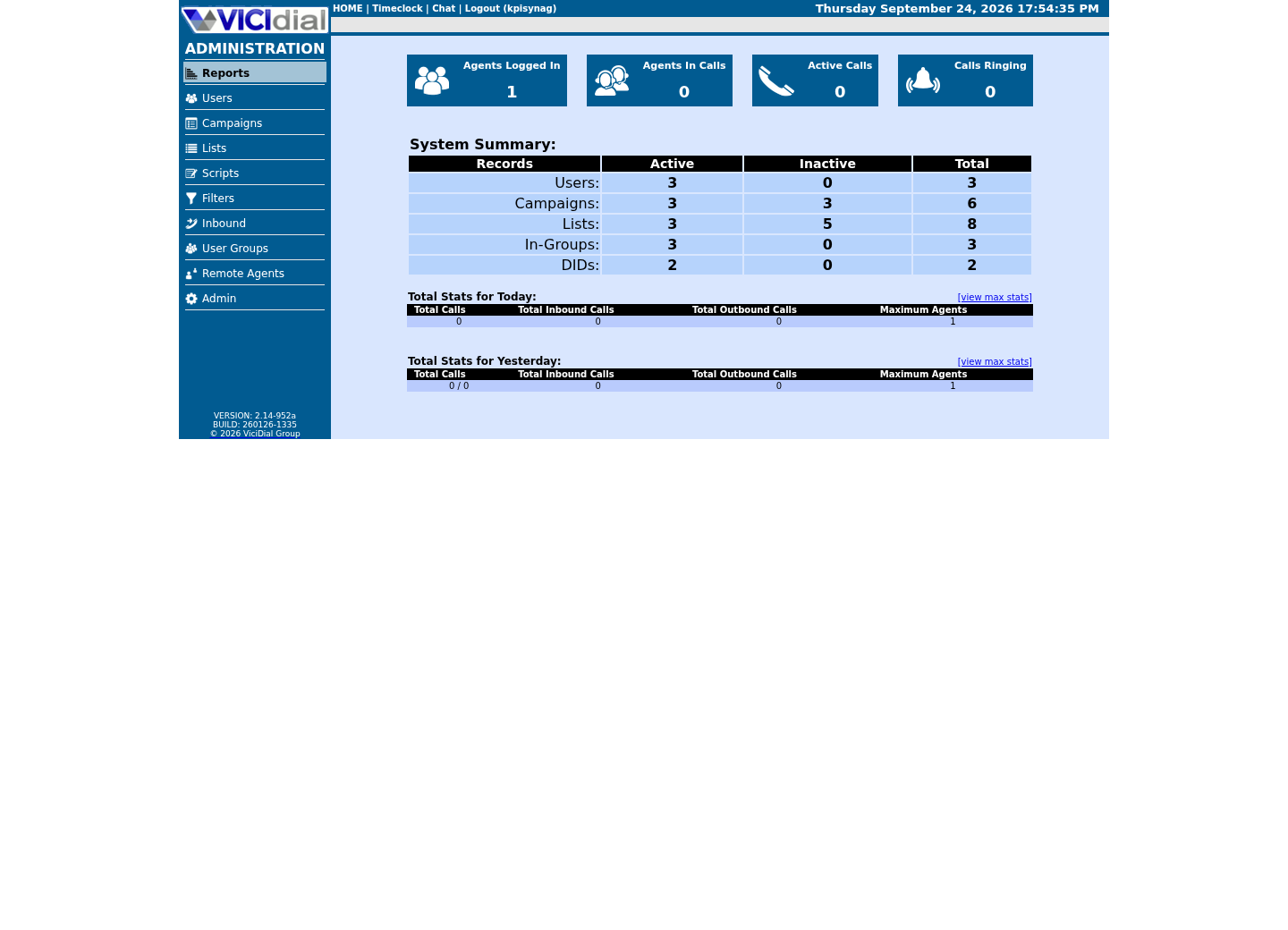
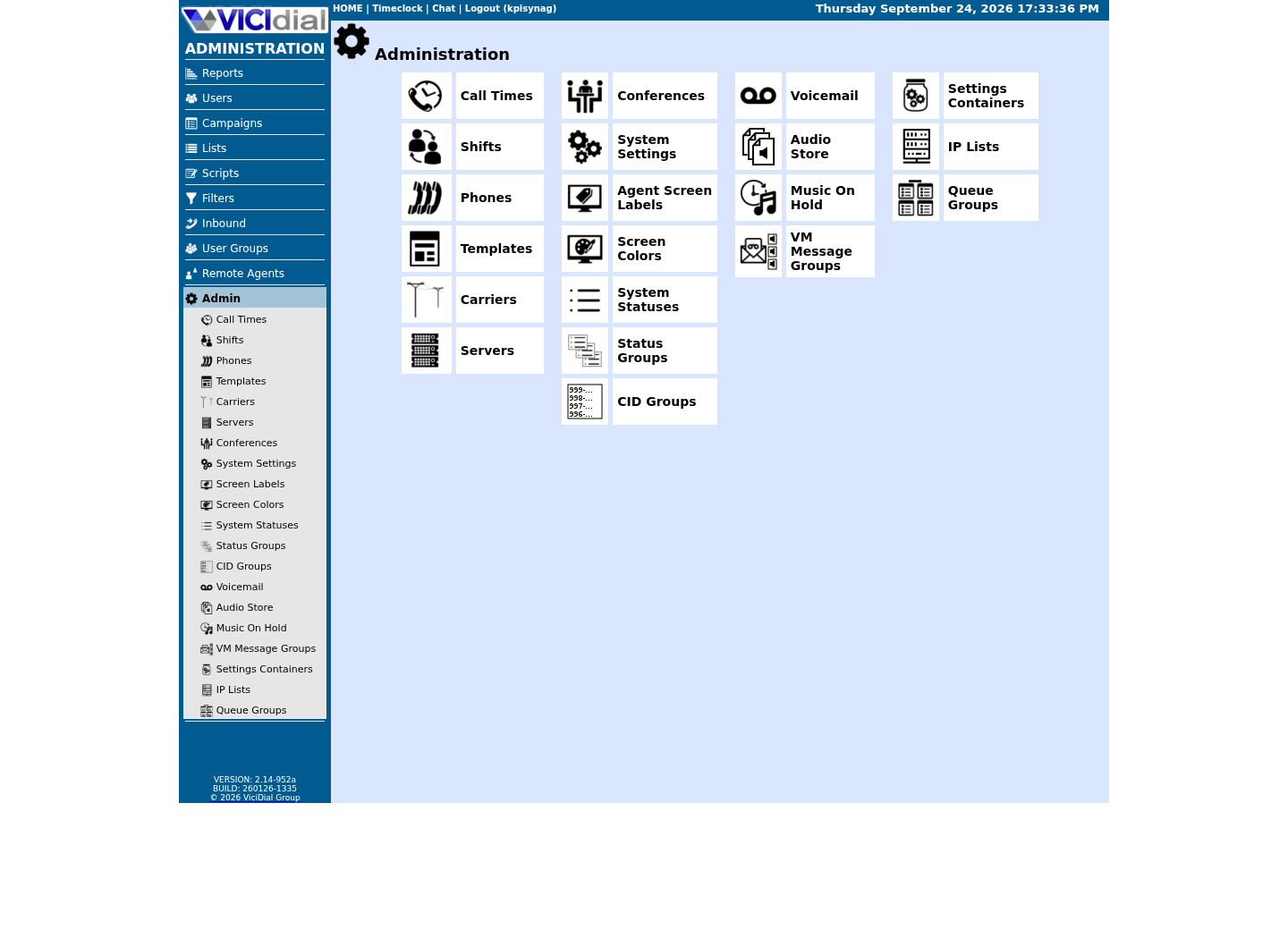
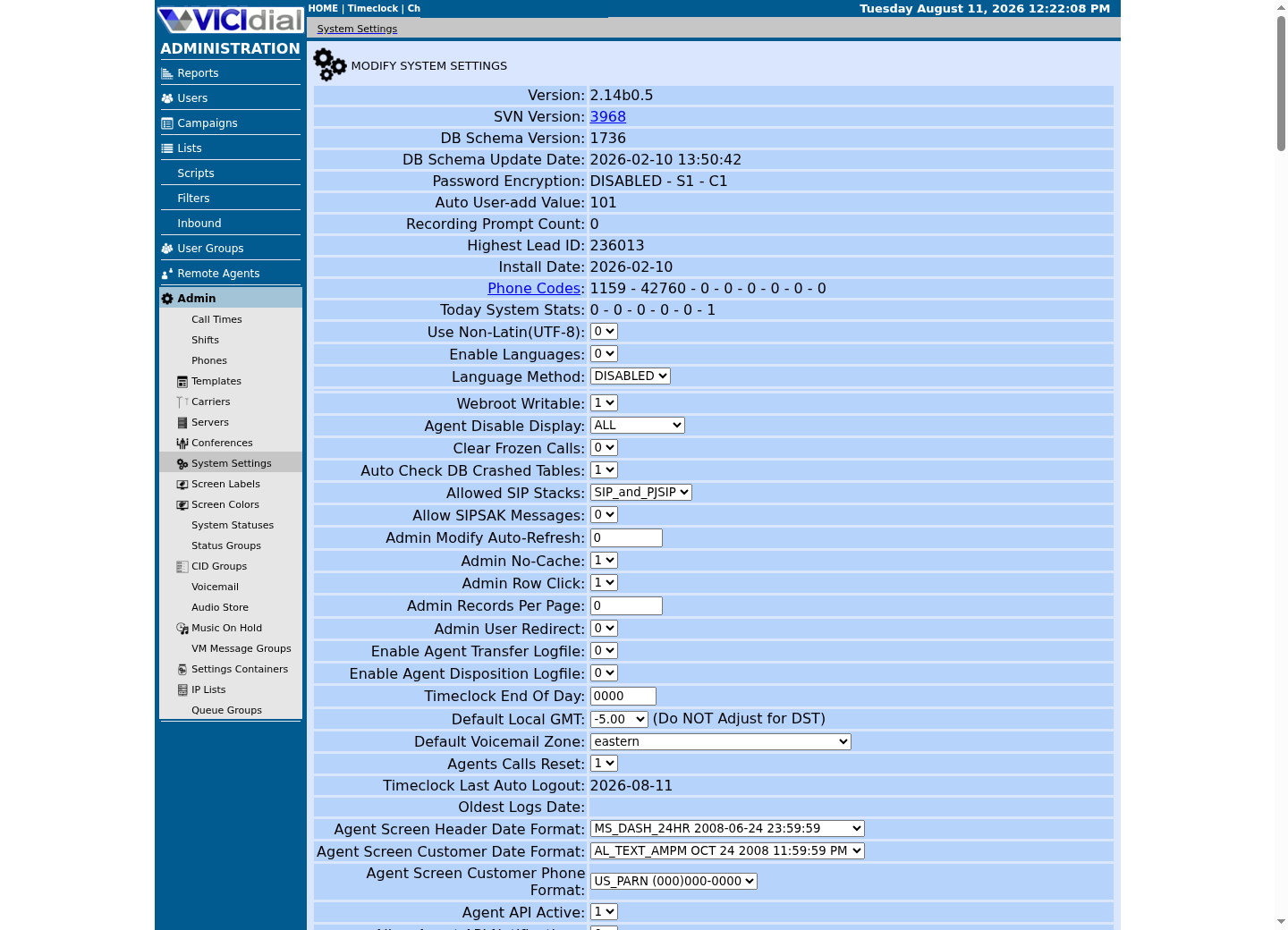
Captured on an isolated VICIdial demo: Administration screens on September 24, 2026, and the idle Agent screen on August 11, 2026. Each caption states its own capture time, and every sanitized image helps you recognize a related screen; none proves that this article's call, command, or result occurred.Start at Administration home
Use the Administration menu as a map
Confirm version and system-wide context
02 / 06
The terminal is a precise conversation
The terminal is a text interface to Linux. You type a command, Linux runs it, and it prints a result or nothing at all — silence usually means success. A command has a name, optional options (usually starting with a dash), and sometimes a target such as a filename. The prompt in front of your cursor is not part of the command; it exists only to tell you which account and which machine are waiting for input, and reading it before you type anything is the single cheapest habit in this entire curriculum.
Two words come up in almost every Linux guide you will read after this one, so it is worth defining them here, once, before either one appears without warning. Root is the Linux administrator account that can read, write, or delete anything on the system, with no permission check standing in its way. Sudo is the command that borrows root's power for a single instruction, on systems set up to allow it, and only when you are certain what that instruction does — a scoped loan of authority, not a general-purpose fix for a permission you do not yet understand.
You need neither root nor sudo for anything in this lesson; every command below runs as your ordinary account. That is deliberate: the fastest way to make a mistake expensive is to reach for elevated privileges before you can predict what a command will do. Later lessons in this curriculum tell you explicitly when a step needs sudo, and by then you will already know exactly what you are lending it.
03 / 06
Paths explain where a file lives
Linux paths begin at /, the filesystem root that has nothing above it. Your home directory is commonly /home/yourname, and it is where you should keep every practice file in this curriculum. A relative path starts from wherever your shell currently is — vicigeek-lab/status.txt means "inside the current directory" — while an absolute path always begins with / and names the same file no matter where you are standing when you type it.
Spaces and letter case both matter. Documents and My Documents are two different directory names to Linux, and a filename containing a space needs to be quoted or escaped or the shell treats it as two separate words. Avoiding spaces in filenames you create yourself sidesteps an entire category of beginner mistakes before it starts.
04 / 06
Guided sample: find your place
Start with observation, not action. `pwd` (print working directory) shows the absolute path of the directory your shell currently sits in. `ls -la` lists everything there, including the dot-files a plain `ls` hides, plus the permissions and ownership of each entry. `whoami` reports which account you are running as, and `hostname` reports which machine answered. None of these four commands edits a single byte on disk.
Run them together, in order, and read the output before moving on. If any answer surprises you — an unfamiliar hostname, an account you did not expect — stop and work out why before you run anything else. That five-second pause is what turns "I ran a command" into "I understood what I ran."
pwdls -lawhoamihostnameViciGeek does not predict command output. This read-only sample has not been captured on the demo yet; run it only in your approved environment and compare the result with the success and stop guidance.
- Before you run it
- Run this in your own lab VM or an approved account.
- Success looks like
- You see a directory listing including dot-files, your account name and the host name.
- Stop if
- Stop if the host is unfamiliar or the output shows a production system you were not authorized to inspect.
05 / 06
Guided sample: move without changing anything
`cd` changes only your shell's current directory; it never moves, renames or deletes a file. `cd ~` (or plain `cd` with no argument) returns you to your home directory from anywhere. `cd ..` steps up to the parent directory, and running it twice from a nested folder walks up two levels. `cd -` is a small convenience worth learning early: it jumps back to whichever directory you were in immediately before your last `cd`, which is handy when you are comparing two locations.
Practice this sequence until all four feel automatic, because you will use them, several times an hour, for as long as you administer any Linux host — VICIdial's included.
cd ~pwdcd ..pwdcd -Captured demo response · 2026-09-23 21:34 UTC. The displayed command is the command that ran; a safe subset label means it was filtered, redacted, or fixture-scoped. Replays only after you select Replay transcript.
- Before you run it
- This changes only your shell's current location, never a file.
- Success looks like
- The final `cd -` returns you to the previous directory, and each `pwd` matches where you expect to be.
- Stop if
- Stop if a guide ever asks you to `cd` into a path you cannot identify or explain.
06 / 06
Readiness check before administration
Before you open any server guide beyond this one, you should be able to answer three questions without hesitating: which host am I on, which account am I using, and exactly which directory does this next command target? Nearly every mistake this curriculum warns against — editing the wrong file, restarting the wrong service, running a write command against a shared host by accident — starts with skipping one of those three questions.
- I can name the host and account a prompt is showing me, on sight.
- I can tell an absolute path from a relative one without counting slashes twice.
- I know how to get back to my home directory, and back to wherever I just came from.
Evidence ledger
Verification basis
- Both guided samples in this lesson are captures: `pwd`, `ls`, `whoami`, `hostname` and `cd` only read state and change your shell's current directory, never a file.
- The lab-VM section names three provider-neutral options rather than one specific product, because any genuinely disposable machine satisfies this curriculum's requirement.
Primary references
Sources
- GNU Bash manualGNU · accessed August 10, 2026
- Filesystem Hierarchy StandardLinux Foundation · accessed September 23, 2026
- Oracle VM VirtualBox User ManualOracle · accessed September 23, 2026