Reader setup
Before you start
Run each step in order and move only when the outcome is confirmed.
- Complete terminal navigation basics
- A disposable VM or home directory
- Permission to create a practice directory
- What you will prove
- You can create a lab file, read it without editing it, and read and search a real file that already exists on any host.
- Safety boundary
- Keep practice files beneath ~/vicigeek-lab; never use recursive commands against an unfamiliar directory.
Reader path
How to use this article
- Use it when: You need a fixed sequence to make a deployment or configuration change now.
- Expected result: Follow each step and verify the outcome before changing the next layer.
- Start here: Start at the first section and complete every checkpoint before moving to the next.
01 / 06
Files are data; directories are containers
A file holds data; a directory holds names that point to files or to other directories. Linux does not require a filename extension the way some other systems do, so notes and notes.txt are equally valid filenames — content and ownership matter far more than a suffix, and you should never trust a file's type just because of how its name ends.
Everything under / is part of one tree, whether it physically lives on the boot disk, a mounted USB drive or a network share. That uniform view is convenient once you are used to it: a path like /etc/os-release always means the same thing on a given machine, regardless of which physical device actually stores it.
A file whose name starts with a dot is a hidden, or dot, file — plain `ls` skips it, and `ls -la` from the previous lesson shows it. Nothing about a leading dot changes how the file behaves; it is a display convention, not a permission or a special file type, and configuration files in your own home directory very often use it.
Visual walkthrough
Follow three real demo screens
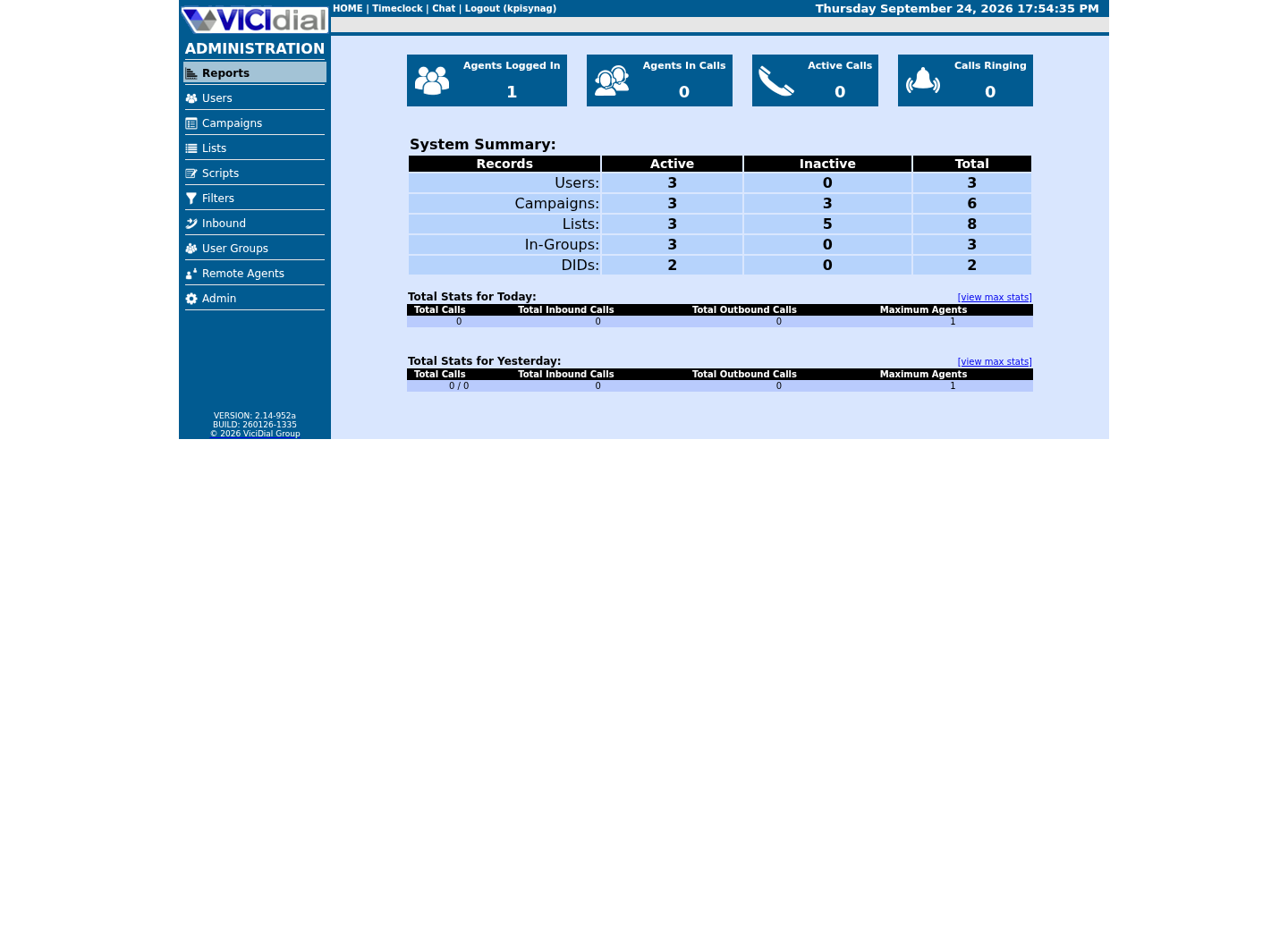
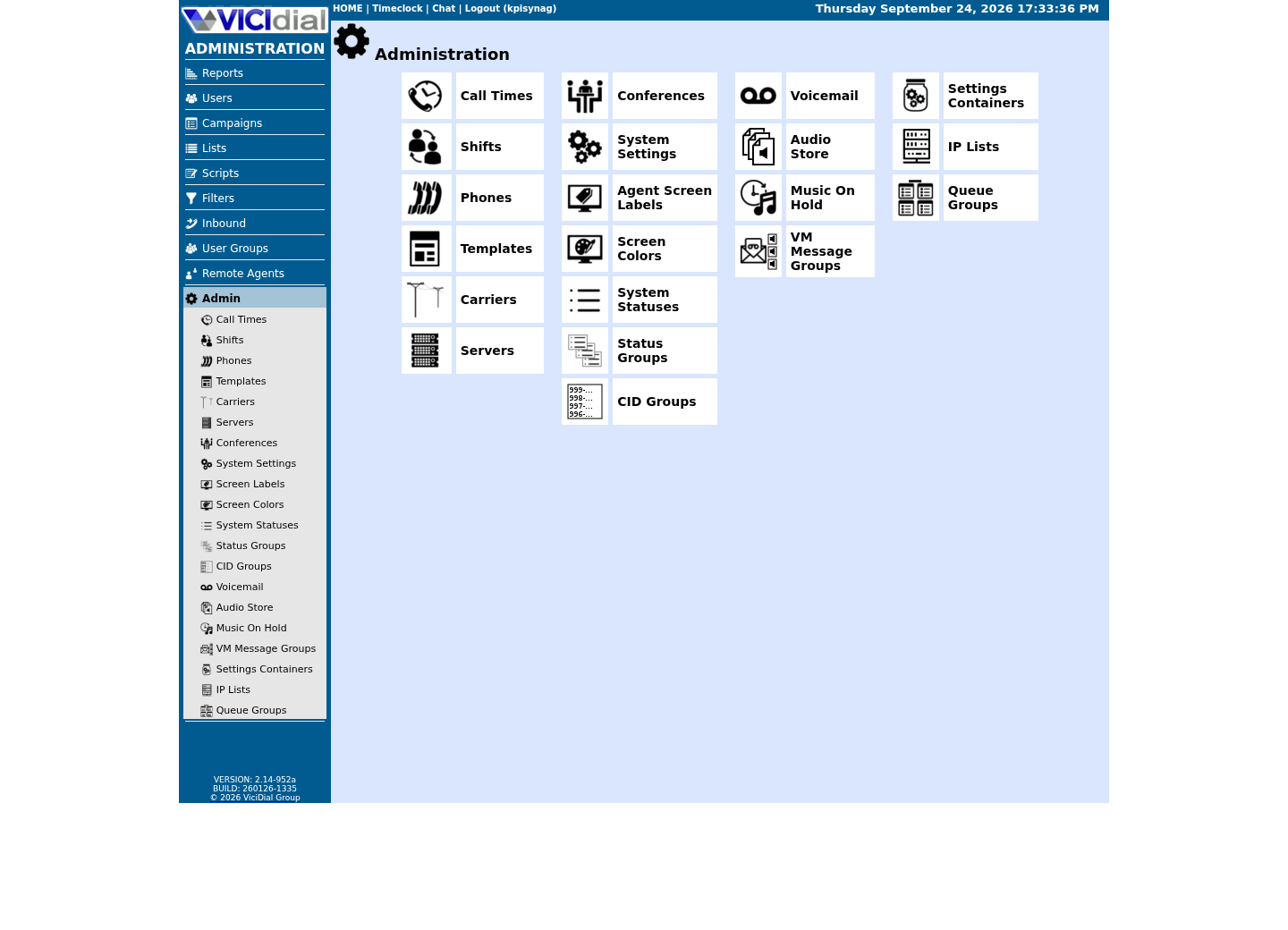
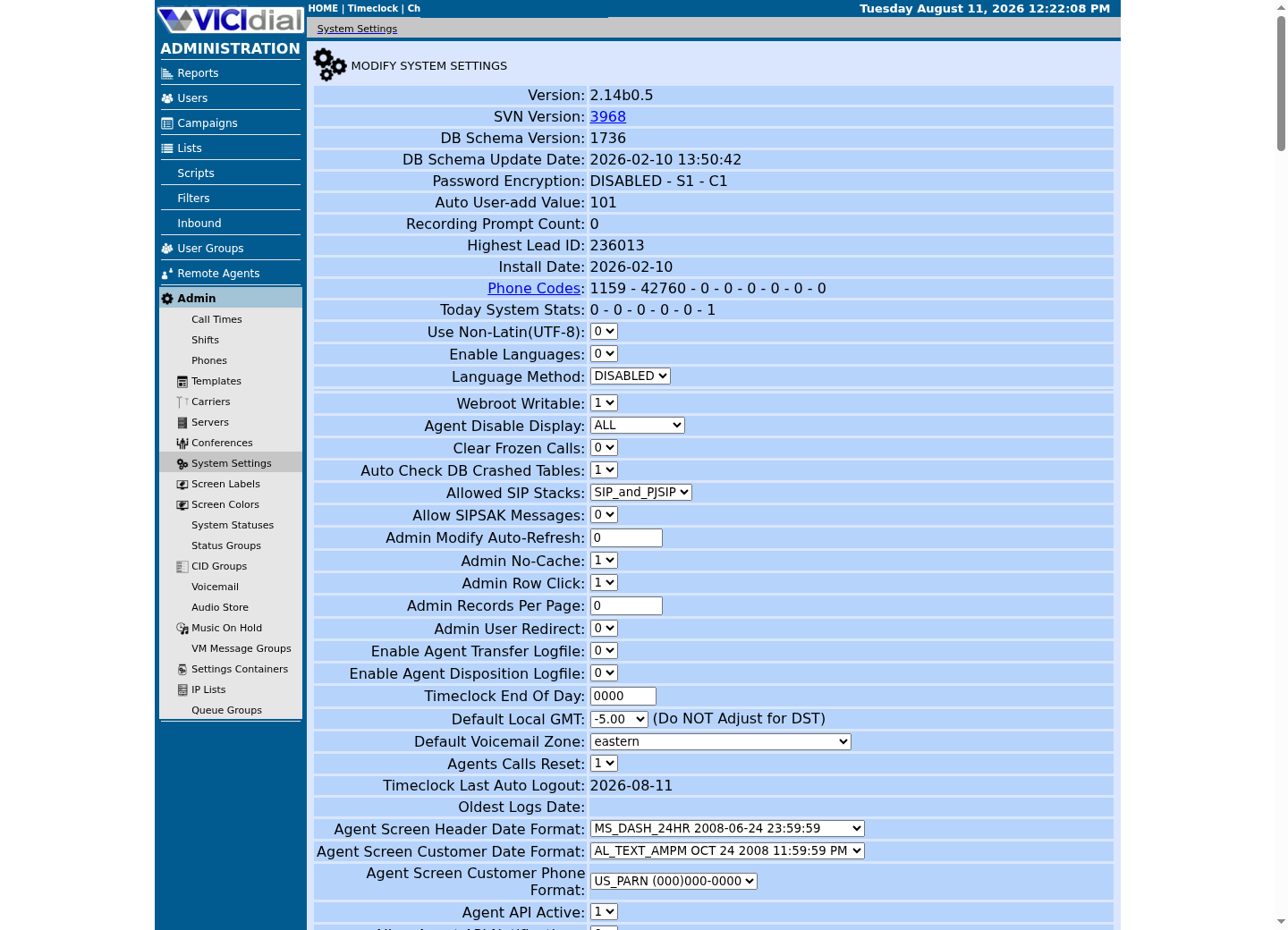
Captured on an isolated VICIdial demo: Administration screens on September 24, 2026, and the idle Agent screen on August 11, 2026. Each caption states its own capture time, and every sanitized image helps you recognize a related screen; none proves that this article's call, command, or result occurred.Start at Administration home
Use the Administration menu as a map
Confirm version and system-wide context
02 / 06
Read before you edit
`cat` prints a file's entire contents at once, which is fine for a short file but scrolls a long one straight off your screen. `less` is safer for anything longer because it pages through content without changing it — press space to move forward, b to move back, and q to leave. Configuration files and logs are ordinary text files underneath, but being able to read one is not the same as having a reason to change it.
Redirection is the other half of this idea. The `>` operator sends a command's output into a file, replacing that file's previous contents without asking first, while `>>` appends instead of replacing. Both take effect the instant you press enter, so treat the target filename as the most important word in the command.
The pipe operator, `|`, connects one command's output directly to another command's input without an intermediate file at all — you will see it constantly once you start filtering long output with `grep`, and it is worth recognizing on sight even before this lesson asks you to type one.
03 / 06
Guided sample: make a safe practice file
This sample creates a small directory and a two-line file inside it, then opens that file in `less`. It is labelled no-run here because it writes to disk — try it yourself on your own lab VM rather than expecting a captured result on this page, and confirm with `pwd` that you are inside your home directory before you press enter on the second line.
`mkdir -p` creates the directory, and any missing parent directories, without complaining if it already exists. `printf '%s\n'` writes each argument as its own line, a more predictable habit than `echo` once you start writing multi-line files from scripts.
mkdir -p ~/vicigeek-labprintf '%s\n' 'service=asterisk' 'state=running' > ~/vicigeek-lab/status.txtless ~/vicigeek-lab/status.txtThis sample changes a system, contacts an outside service, needs a live call, or would print real data from a shared server, so it was not run on the demo. Run it only where you are authorized, and compare the result with the success and stop guidance.
- Before you run it
- Try this on your own disposable lab VM, inside your home directory; it is not run for this page because it writes a file.
- Success looks like
- You see two lines in `less`, and the file exists only inside ~/vicigeek-lab. Press q to leave the pager.
- Stop if
- Stop if `pwd` shows anywhere other than your home directory, or if the target file already exists and holds something you did not create.
04 / 06
Guided sample: read a file that already exists
Every Linux distribution ships /etc/os-release, a short, plain-text file that identifies the operating system. Reading it is a genuinely safe, genuinely useful first real-file exercise, because it exists on literally every modern Linux host you will ever log into — including a stock ViciBox appliance, the pre-built openSUSE-based VICIdial server image this curriculum's lab stage installs — and `cat` cannot damage it no matter how many times you run the command.
cat /etc/os-releaseCaptured demo response · 2026-09-23 21:34 UTC. The displayed command is the command that ran; a safe subset label means it was filtered, redacted, or fixture-scoped. Replays only after you select Replay transcript.
- Before you run it
- This only reads the file; it works the same way on any Linux host.
- Success looks like
- You see several NAME= and VERSION= style lines identifying the distribution and release.
- Stop if
- Stop if the file is missing entirely — that is unusual enough on a modern distribution that it is worth asking the host's owner what it runs before continuing.
05 / 06
Guided sample: search a real file
`grep` searches text for a pattern and prints the matching lines; adding `-i` makes the match case-insensitive. `find` instead searches for files by name, type or other attributes rather than by their contents — the two tools solve related but different problems, and beginners often reach for one when they mean the other.
Both commands below target the same real file you just read, so the exercise stays narrow and its result is easy to predict and to explain to someone else afterward. `find`'s `-maxdepth 1` limits the search to /etc itself rather than descending into every subdirectory beneath it, and `-type f` restricts the match to regular files, which together keep a search on a large real system fast and its result short enough to actually read.
grep -i '^NAME' /etc/os-releasefind /etc -maxdepth 1 -name 'os-release'Captured demo response · 2026-09-24 21:55 UTC. The displayed command is the command that ran; a safe subset label means it was filtered, redacted, or fixture-scoped. Replays only after you select Replay transcript.
- Before you run it
- Both commands only read; neither changes a file or a permission.
- Success looks like
- grep prints the NAME= line and find prints the single matching path.
- Stop if
- Stop if grep reports no match at all — that would mean the file's format differs from the standard, itself worth noting before you rely on parsing it elsewhere.
06 / 06
Carry this habit into logs
The pattern you just practiced — read with a pager first, search with a narrow and explicit target, and never assume a command changed something just because it produced output — is exactly the pattern you will use on Asterisk (the open-source telephony engine that VICIdial places and receives every call through) and VICIdial logs later in this curriculum. The only new risk there is content, not commands: logs and configuration can hold phone numbers, customer names or credentials, so copy only the smallest relevant lines into an approved ticket rather than pasting a whole file.
That same discipline applies to searching, not only reading. A narrow `grep` against one named file, as you practiced above, is a request you can explain in one sentence; an unscoped search across an entire log directory can just as easily surface a customer's phone number as the line you actually needed, so keep the same habit of naming an explicit target once real logs are involved.
- I can explain the difference between `cat`, `less` and `grep` in one sentence each.
- I only ever pointed `>` at a filename I chose myself, inside my lab directory.
- I know that reading a config or log file is not permission to edit it.
Evidence ledger
Verification basis
- The make-a-practice-file sample is labelled no-run because it writes a file in your home directory — try it on your own VM. The two file-reading samples are captures: they only read /etc/os-release, unchanged on any Linux host.
Primary references
Sources
- GNU Coreutils manualGNU · accessed August 10, 2026
- GNU Grep manualGNU · accessed August 10, 2026