Reader setup
Before you start
Run each step in order and move only when the outcome is confirmed.
- Terminal and file basics
- A personal lab directory
- No production permission changes
- What you will prove
- You can interpret a file mode, contrast an ordinary file with a genuinely sensitive one, and tell when to request access instead of changing it.
- Safety boundary
- Do not run chmod -R, chown -R or sudo on a production path from this lesson.
Reader path
How to use this article
- Use it when: You need a fixed sequence to make a deployment or configuration change now.
- Expected result: Follow each step and verify the outcome before changing the next layer.
- Start here: Start at the first section and complete every checkpoint before moving to the next.
01 / 06
Permissions answer who may do what
The first character block in `ls -l` output describes a file's type and permissions: read (r), write (w) and execute (x), repeated three times for the owner, the group, and everyone else. A directory's execute bit means something slightly different from a regular file's — it controls whether you can traverse into that directory at all, which is why a directory can be listable but not enterable, or enterable but not listable, depending on which bits are set.
Numeric mode notation compresses the same information into three digits: 4 is read, 2 is write, 1 is execute, added together per position, so 6 means read plus write, 7 adds execute on top, and 0 means none of the three. A mode of 644 therefore means "owner can read and write, everyone else can only read" — one of the most common modes you will see on configuration files.
Reading a mode gets easier with practice, but it never stops being worth doing deliberately. A single misread digit — 666 instead of 644, or 777 instead of 755 — is the difference between a normal file and one that anyone on the system can rewrite, so treat the ten-character block at the start of an `ls -l` line as something to read in full, not skim.
Visual walkthrough
Follow three real demo screens
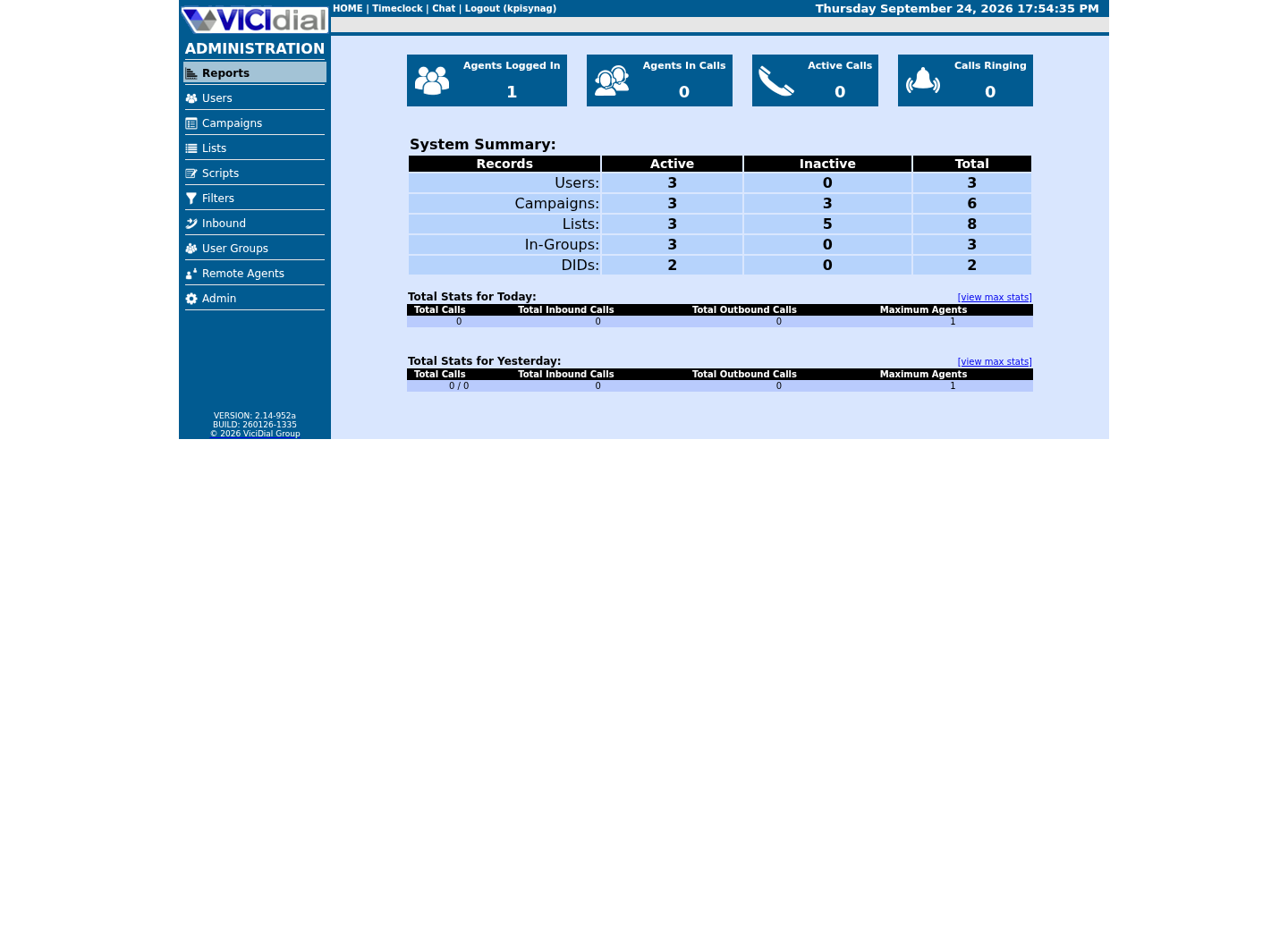
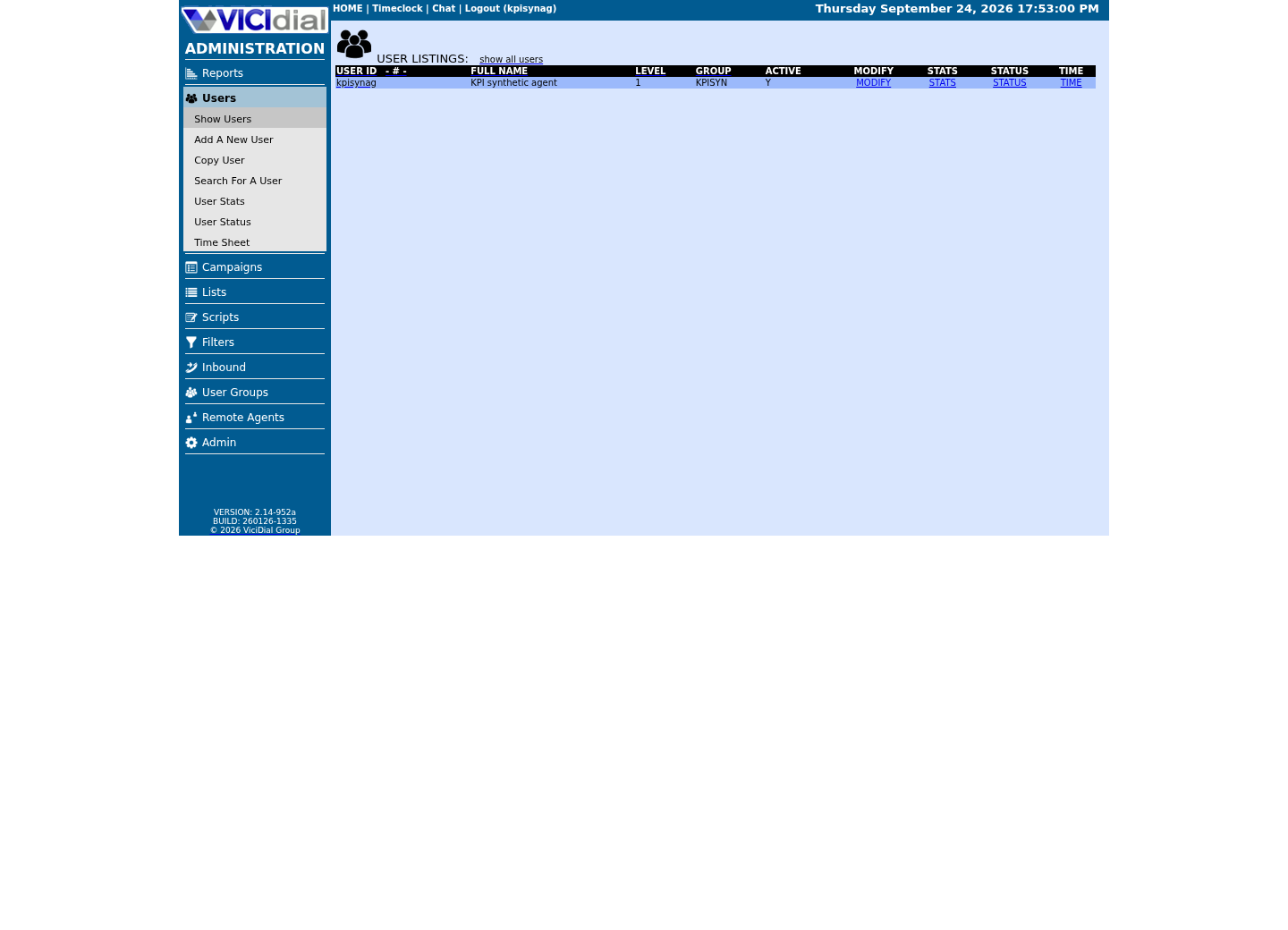
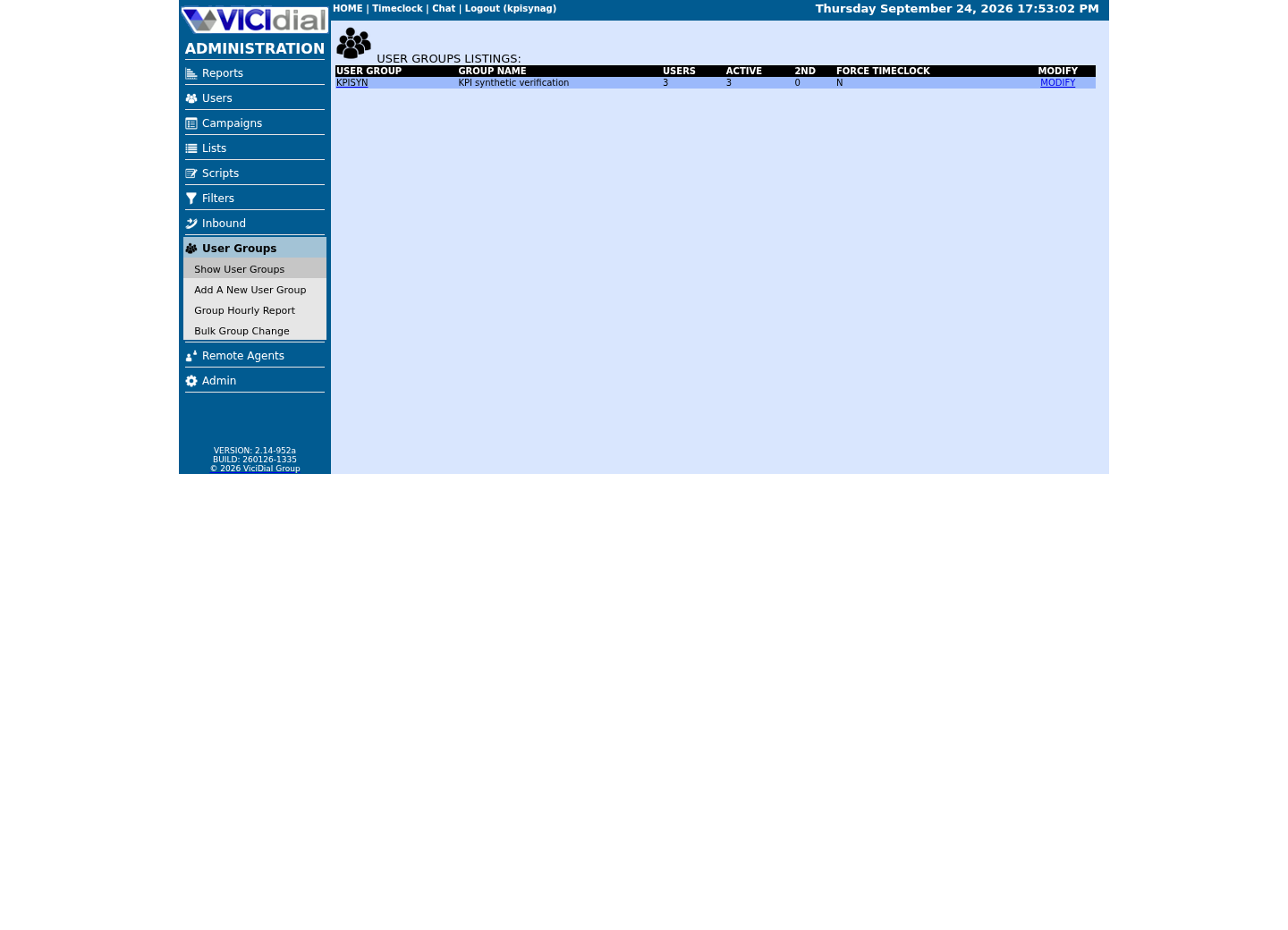
Captured on an isolated VICIdial demo: Administration screens on September 24, 2026, and the idle Agent screen on August 11, 2026. Each caption states its own capture time, and every sanitized image helps you recognize a related screen; none proves that this article's call, command, or result occurred.Separate Admin work from Agent work
Review the user listing
Review the user's group boundary
02 / 06
Ownership and sudo are separate ideas
Ownership names a file's user and group; permissions describe what each of owner, group and others may do to it. The two ideas combine: changing ownership with `chown` and changing permissions with `chmod` solve different problems, and neither is a substitute for asking the right person for access.
`sudo` runs one command with root's authority; it is a scoped tool, not a repair button. On a managed host, a permission-denied error is normally a signal to ask the file's owner or system administrator for access, not an invitation to loosen that file's permissions or reach for sudo out of impatience. VICIdial hosts hold recordings, configuration and, in some deployments, customer data, so this discipline matters more here than on a personal laptop.
A group is worth naming here too: it is a set of accounts that share one permission bucket, distinct from the owner and from everyone else. Adding an account to the right group is often the correct, narrow fix for an access problem that a beginner instead reaches for chmod 777 to solve — the group bit exists precisely so that broad grant is rarely necessary.
03 / 06
Guided sample: inspect modes on a file you own
This exercise creates an empty file, lists its mode, and checks which account you are. It is labelled no-run because `touch` writes to disk — try it on your own lab VM. Everything it produces should show your own account as owner and a permissive-looking default mode, because a freshly created file inherits your shell's default permissions rather than anything restrictive.
touch ~/vicigeek-lab/permissions.txtls -l ~/vicigeek-lab/permissions.txtidThis sample changes a system, contacts an outside service, needs a live call, or would print real data from a shared server, so it was not run on the demo. Run it only where you are authorized, and compare the result with the success and stop guidance.
- Before you run it
- Try this on your own account, inside your lab directory.
- Success looks like
- The listing shows your account as owner and a mode such as -rw-r--r--, and `id` confirms your username and group memberships.
- Stop if
- Stop if the file already exists and is owned by someone else, or if the directory is not the lab directory you created earlier.
04 / 06
Guided sample: contrast an ordinary file with a sensitive one
/etc/passwd and /etc/shadow sit on every Linux host and make "least privilege" concrete instead of abstract. /etc/passwd lists every account's username, numeric ID and home directory, and is deliberately world-readable because so many ordinary programs need to look a username up. /etc/shadow holds the actual password hashes for those same accounts and is deliberately locked down far more tightly — exactly which mode depends on your distribution, so treat any specific number as something to confirm on your own host rather than memorize.
`stat -c '%A %a %n'` prints a mode in both letter form (`-rw-r-----`) and numeric form (640) for each named file, side by side, which makes the contrast between the two files immediate and easy to describe in a ticket. The `%n` at the end is what prints the filename itself, so a two-file command like this one still tells you clearly which line is which.
ls -l /etc/passwd /etc/shadowstat -c '%A %a %n' /etc/passwd /etc/shadowCaptured demo response · 2026-09-23 21:34 UTC. The displayed command is the command that ran; a safe subset label means it was filtered, redacted, or fixture-scoped. Replays only after you select Replay transcript.
- Before you run it
- Both commands only read metadata; neither opens a file's contents.
- Success looks like
- passwd is readable by everyone, commonly mode 644, while shadow is restricted to root and, on many distributions, a shadow group — often 640 or 600. The exact numbers vary by distribution, so read what your own host reports rather than assume a fixed value.
- Stop if
- Stop and ask before changing either file's mode for any reason; a wrongly permissive /etc/shadow exposes every account's password hash on that host.
05 / 06
Guided sample: set a private mode on your own file
Now apply the same inspection tool to a change you make yourself, on the file you created earlier — never on /etc/passwd or /etc/shadow. `chmod 600` restricts a file to read and write for its owner only, the right default for anything holding a secret, such as an API credential file later in this curriculum.
Confirming the change with `stat` afterward is not optional busywork. `chmod` succeeds silently even when you typed the wrong number or the wrong path, so the only way to know the mode actually changed to what you intended is to read it back.
chmod 600 ~/vicigeek-lab/permissions.txtstat -c '%A %a %n' ~/vicigeek-lab/permissions.txtThis sample changes a system, contacts an outside service, needs a live call, or would print real data from a shared server, so it was not run on the demo. Run it only where you are authorized, and compare the result with the success and stop guidance.
- Before you run it
- This changes only the file you created yourself; try it on your own VM.
- Success looks like
- `stat` reports -rw------- and 600 for the practice file.
- Stop if
- Stop if you cannot name the exact file you are about to change; never run chmod against a path you are unsure about.
06 / 06
Choose the least privilege
When a script or a person asks for more access than the task needs, that is the moment to push back, not the moment to comply quickly. Grant the smallest permission that accomplishes the task, prefer read access over write access, and prefer a named individual account over a shared login whenever the system supports it.
- I can read a mode in both letter and numeric form.
- I only changed the mode of a file I created myself.
- I know that a permission problem is usually a request to make, not a mode to loosen.
Evidence ledger
Verification basis
- The two write-based samples (creating a file, then changing its mode) are labelled no-run — try them on your own VM. The /etc/passwd and /etc/shadow contrast is a capture: both commands only read file metadata.
Primary references
Sources
- GNU Coreutils: file permissionsGNU · accessed August 10, 2026
- sudo manualSudo project · accessed September 23, 2026