01 / 16
1. Identify the ViciBox release and installed tools
On ViciBox 11/12, vicibox-ssl is the interactive setup tool and acme-renew.sh is the packaged renewal wrapper. It uses acme.sh; adding a separate Certbot schedule is not part of this workflow.
The currently published ViciBox 13 manual identifies a beta release and uses the vicibox manager’s SSL certificate action. If your installed host is ViciBox 13, skip the legacy command sequence and use the ViciBox 13 branch below; do not infer production support status from this guide.
- Read /etc/vicibox-version and the installed package versions.
- Find vicibox-ssl and the renewal wrapper. If either is missing, identify the installed package before running a downloaded script.
- Check whether /root/.acme.sh/acme.sh resolves to an executable. The reviewed September 2026 package changes use the packaged acme.sh rather than an older bundled copy.
- Before you use it
- Run these inspections on the intended server; missing files are useful observations, not a reason to issue a certificate immediately.
cat /etc/vicibox-versioncommand -v vicibox-sslrpm -q vicibox-ssl acme.shreadlink -f /root/.acme.sh/acme.shtest -x /root/.acme.sh/acme.sh && /root/.acme.sh/acme.sh --versionThis example has no recorded result here. Follow its preparation, expected result and stop conditions before using it.
- Success looks like
- The paths and package versions identify your installed implementation. Compare it with the cited source before using the later commands.
- Stop if
- If the client link is missing or dangling, inspect the package’s installed files with rpm -ql vicibox-ssl and rpm -ql acme.sh. Repair through the installed package’s supported process; do not replace it with an unrelated internet installer.
You should seeYou know which release, executable and renewal mechanism this server actually uses.
Sources for this section
- ViciBox 12 SSL setupVICIdial Group · Checked November 6, 2026
- vicibox-ssl package paths and ACME dependencyVICIdial Group · Checked November 6, 2026
- ViciBox 13 SSL and renewalVICIdial Group · Checked November 6, 2026
02 / 16
2. Record the current certificate and preserve the rollback inputs
- Stay in the ViciBox 11/12 branch for these paths. Run the certificate check below before any issuance; record its issuer, validity dates and SHA-256 fingerprint privately. Also read the paths in the later certificate-bindings section if this is a customized installation.
- Before continuing to generation, preserve a private backup of /etc/apache2, /etc/asterisk/http.conf, the actual certificate/key targets behind their links and the ACME home directory. Include the VICIdial server record’s current WebSocket URL in your change record because the wizard can change it in the database.
- Save root’s current crontab with umask 077 and crontab -l > /root/vicibox-crontab-before-YYYYMMDD.txt, substituting a new filename. If crontab reports no crontab, record that absence; if it reports another error, resolve it before editing the schedule. Keep the backup with the configuration backup.
- Record which firewall/web/telephony services are running and confirm console recovery access. Do not proceed without a known way to restore the specific files, links and server setting this installed wizard changes.
- Before you use it
- Run as root if the installed certificate path requires it. This reads the public certificate, not the key. Use the actual configured path if this installation differs.
openssl x509 -in /etc/apache2/ssl.crt/vicibox.crt -noout -subject -issuer -dates -fingerprint -sha256 -ext subjectAltNameThis example has no recorded result here. Follow its preparation, expected result and stop conditions before using it.
- Success looks like
- The output identifies the current certificate and its covered names. Compare notAfter with the current UTC time and retain the fingerprint for the post-change comparison.
- Stop if
- A missing file, broken link, expired certificate or wrong name is a finding to investigate. Do not reissue until you know which configured file and endpoint are affected.
You should seeYou have a dated baseline and private rollback inputs. If you only need to inspect expiry or diagnose a current certificate, you can stop before the issuance steps.
Sources for this section
- vicibox-ssl source, OBS revision 47VICIdial Group · Checked November 6, 2026
- OpenSSL certificate inspection optionsOpenSSL Project · Checked November 6, 2026
03 / 16
3. Prepare the name, email and HTTP challenge
The wizard needs a real fully qualified domain name and an email address you monitor. dial.example.com and ops@example.com below are documentation placeholders; replace them with your own authorized values.
The reviewed wizard uses HTTP-01 with webroot /srv/www/htdocs/. Let’s Encrypt must reach its challenge on public TCP 80. Working HTTPS on 443 alone does not establish that validation can reach the correct server.
- Check the hostname’s public A and AAAA records from outside the server network. Both address families must reach the intended validation endpoint.
- Confirm that NAT, an upstream firewall, a proxy or a WAF forwards the challenge path to this server. Review /.well-known/acme-challenge/ handling; an empty-directory 404 is not a completed validation.
- Check the server clock, Apache and the planned validation access while leaving the firewall policy under control. Review any source-IP or country restrictions.
- For a wildcard certificate, plan DNS-01 or your existing provider’s process separately; this wizard’s webroot request is not a wildcard recipe.
- Certificate email
- Your monitored operations mailboxUse an address you control; do not copy ops@example.com.
- FQDN
- Your actual dialer hostnameEnter the hostname alone, without https://, a port or a URL path.
- Challenge route
- Public TCP 80 to the correct webrootTest externally and check IPv6 as well as IPv4.
- Before you use it
- Replace the example hostname first. Repeat the HTTP test from an external client; a server-local result can hide NAT or firewall problems.
VICIBOX_TLS_HOST='dial.example.com'getent ahosts "$VICIBOX_TLS_HOST"curl --head --connect-timeout 10 --max-time 20 "http://$VICIBOX_TLS_HOST/"This example has no recorded result here. Follow its preparation, expected result and stop conditions before using it.
- Success looks like
- You can compare resolved addresses and the HTTP response with the intended origin. This is a reachability check, not proof that an ACME token was served.
- Stop if
- Investigate a wrong address, timeout, authentication wall or unexpected redirect before retrying issuance. Do not bypass HTTPS verification to turn a failed check into a success.
You should seeThe chosen hostname and public challenge route are ready to be validated; no certificate has been requested yet.
Sources for this section
- vicibox-ssl source, OBS revision 47VICIdial Group · Checked November 6, 2026
- Let’s Encrypt HTTP-01 validationInternet Security Research Group · Checked November 6, 2026
- Let’s Encrypt IPv6 validationInternet Security Research Group · Checked November 6, 2026
04 / 16
4. Test an actual challenge-path file from an external client
This optional preflight creates one temporary public text file; it does not request a certificate. Use it only if /srv/www/htdocs is the reviewed HTTP-01 webroot on your server. One successful external check cannot prove that every CA validation location will reach it.
- On the intended server, replace dial.example.com below with your real hostname, then create the unique marker. Keep this terminal open so its file variable remains available.
- From a separate client outside the server network, run curl --fail --connect-timeout 10 --max-time 20 followed by the exact URL printed by the command. Require the response body vicigeek-acme-route-check. A 200 response containing a login page, or a 404 on an empty directory, does not pass this check.
- If the hostname has an AAAA record, repeat from an IPv6-capable external client using curl -6; use curl -4 for IPv4. Investigate the failing route before issuance. A client without IPv6 connectivity cannot validate the IPv6 branch.
- When finished, in the original server terminal run rm -- "$VICIBOX_CHECK_FILE" to remove only the file this preflight created. If you lost that variable, locate the exact printed filename; do not delete the challenge directory or another client’s tokens.
- Before you use it
- Run as root only on the reviewed webroot. This writes one temporary public marker and creates the challenge directory if absent; it changes no firewall rule.
VICIBOX_TLS_HOST='dial.example.com'VICIBOX_CHALLENGE_DIR='/srv/www/htdocs/.well-known/acme-challenge'if [ ! -d "$VICIBOX_CHALLENGE_DIR" ]; then install -d -m 755 "$VICIBOX_CHALLENGE_DIR"fiif [ -d "$VICIBOX_CHALLENGE_DIR" ] && VICIBOX_CHECK_FILE=$(mktemp "$VICIBOX_CHALLENGE_DIR/vicigeek-check.XXXXXXXX"); then printf '%s\n' 'vicigeek-acme-route-check' > "$VICIBOX_CHECK_FILE" && chmod 644 "$VICIBOX_CHECK_FILE" && printf 'http://%s/.well-known/acme-challenge/%s\n' "$VICIBOX_TLS_HOST" "${VICIBOX_CHECK_FILE##*/}"else printf '%s\n' 'STOP: no marker was created; inspect the error.' >&2fiThis example has no recorded result here. Follow its preparation, expected result and stop conditions before using it.
- Success looks like
- A unique URL is printed. Test it from an external client and compare the exact response body before removing this marker.
- Stop if
- If directory creation, mktemp or writing fails, stop and inspect that error. Do not broaden filesystem or firewall permissions blindly. A successful marker still does not guarantee CA validation.
You should seeMatch: the exact body is reachable on every address family you publish from the tested clients. Different: inspect routing, authentication, proxy/WAF and upstream policy. Unknown: obtain an external observation before generating a certificate.
Sources for this section
- Let’s Encrypt HTTP-01 validationInternet Security Research Group · Checked November 6, 2026
- Let’s Encrypt IPv6 validationInternet Security Research Group · Checked November 6, 2026
05 / 16
5. Run vicibox-ssl up to the activation question
The legacy wizard requests a certificate and can then change Apache, Asterisk, common certificate links and the VICIdial server’s WebSocket URL. The reviewed source also creates a legacy WebRTC template; this is not proof that a PJSIP station is configured or registered.
Use the installed script after reviewing its service effects. Keep the terminal output private and record which confirmations you accepted.
- Preserve the current root crontab, certificate links and relevant Apache/Asterisk settings using your server’s backup process. Record the current service and call state.
- Start vicibox-ssl as root. Enter the monitored email address and the actual FQDN, then recheck both values.
- Confirm generation only after DNS and public validation work. If ACME reports an error, stop and follow the debug section rather than repeatedly requesting another certificate.
- At the enable-certificate question, pause and complete the candidate-file check in the next section from a second terminal before answering. The inspected script can report success after failed validation; do not approve activation from that message alone.
- Decide on HTTP-to-HTTPS redirection after checking the certificate and challenge routing. In this workflow decline automatic cron addition and preserve/add the schedule manually as described below.
- Email / FQDN
- Your monitored address / actual hostname
- Generate now
- Y only after validation prerequisites pass
- Enable on Apache/Asterisk
- Pause; inspect candidate firstAnswer N on an ACME/file failure. Approve only a verified candidate in the planned maintenance window.
- HTTPS redirect
- Choose for your validated web configuration
- Automatic cron addition
- N in this reviewed legacy workflowThe inspected revision’s temporary-crontab branch may discard existing jobs. Preserve the current crontab and edit it deliberately.
- Before you use it
- This configuration action was attempted in the authorized demo. Before running it on your server, confirm the installed release, backups, hostname and maintenance window.
vicibox-sslCaptured demo response · 2026-11-04T22:30:22Z. Any filtering, hidden values or test-only data are identified in the capture label. Select Replay transcript to read the recorded output.
- Success looks like
- For a successful run, verify the actual new certificate and both serving endpoints. The recorded attempt failed validation and activation was declined, despite the wizard’s success message.
- Stop if
- An IP-mismatch prompt or a success-looking line is not enough. Compare DNS/NAT independently and inspect the ACME error and resulting files before accepting further changes.
Steps and result4 steps
See a real ViciBox 12 HTTP-01 attempt, its misleading success message, the declined activation and independent postchecks.
Validation failed; original certificate restoredThe CA could not fetch validation data. The wizard falsely reported success; activation was declined and both TLS listeners retained the original certificate.
Read the captured terminal transcript
Read the chapter notes
- Wizard inputs
The real wizard receives the hostname and private email.
- Validation fails
The CA reports it could not fetch challenge data.
- False success
The wizard reports success despite the validation error; activation is declined.
- Independent postchecks
The previous certificate is restored and both listeners checked.
2026-11-04 · ViciBox 12; vicibox-ssl 1.0-lp156.45.1; acme.sh 3.1.2. Failed issuance only; no new certificate activated. Actual wizard transcript excerpts rendered and paced; duplicate logged keystrokes omitted, email and token redacted. Final scene is an independently verified postcheck summary, not literal terminal output. Use fullscreen to read the terminal output.
You should seeThe wizard’s generation and activation messages are checkpoints. Confirm the actual files and both serving endpoints before declaring setup complete.
Sources for this section
- ViciBox 12 SSL setupVICIdial Group · Checked November 6, 2026
- vicibox-ssl source, OBS revision 47VICIdial Group · Checked November 6, 2026
06 / 16
6. Verify the generated file before accepting activation
Pause at the wizard’s activation question and use a second root terminal for this check. The reviewed wizard can print a success message after an ACME failure, and an existing hostname directory can cause an _ecc directory to be nested unexpectedly. Read the actual generation output and inspect the actual candidate path.
- Find the certificate path reported by this run under the ACME home. Use find /root/.acme.sh -maxdepth 3 -type f -name fullchain.cer if the path is unclear; keep hostnames private when sharing the listing. Do not choose a file merely because it is newest.
- Replace /ACTUAL/PATH/fullchain.cer in the command below with the candidate file. Compare its SAN names with your intended FQDN, its validity dates with the current time, and its fingerprint with the pre-change baseline.
- If the file is absent, unreadable, expired, for another hostname, or the ACME log reports failure, answer N to activation. Preserve the error and use the recovery section. An unchanged old certificate is not evidence of a new issuance.
- Only after a valid candidate and successful ACME result are established, return to the wizard and approve activation in the prepared maintenance window. Decline its automatic cron addition in this reviewed legacy workflow; configure the reviewed schedule separately.
- After activation, proceed directly to the external endpoint check. If the wizard has already advanced past the question or you cannot confirm what it will activate, decline further changes and inspect the installed implementation before continuing.
- Before you use it
- Substitute the actual certificate file from this run. This inspection does not check the private key or prove the service has loaded the certificate.
VICIBOX_CANDIDATE_CERT='/ACTUAL/PATH/fullchain.cer'openssl x509 -in "$VICIBOX_CANDIDATE_CERT" -noout -subject -issuer -dates -fingerprint -sha256 -ext subjectAltNameopenssl x509 -in "$VICIBOX_CANDIDATE_CERT" -noout -checkend 0This example has no recorded result here. Follow its preparation, expected result and stop conditions before using it.
- Success looks like
- The certificate parses, covers the intended name, is currently within its validity interval, and checkend reports it has not expired. Require a successful ACME result too; inspect notBefore separately.
- Stop if
- No usable candidate or a failed ACME result means no activation. Do not force repeated requests or treat the wizard’s optimistic final line as independent evidence.
You should seeThe decision to activate is based on the actual ACME result and certificate file. In the recorded failed attempt, this gate failed and activation was declined.
Sources for this section
- vicibox-ssl source, OBS revision 47VICIdial Group · Checked November 6, 2026
- OpenSSL certificate inspection optionsOpenSSL Project · Checked November 6, 2026
07 / 16
7. Understand the recorded HTTPS check
Use the browser’s certificate viewer to check the presented hostname, issuer and validity dates. Check the actual origin too if a reverse proxy terminates HTTPS in front of it.
Apache HTTPS on 443 and Asterisk HTTPS/WebSocket on 8089 are separate serving paths. A successful web page does not establish that Asterisk loaded the new certificate or that WebRTC registration and audio work.
- Open https://YOUR_HOSTNAME/ without ignoring certificate warnings and inspect its certificate details.
- On the telephony server run asterisk -rx "http show status" and check the HTTPS listener and /ws URI.
- From an authorized client check https://YOUR_HOSTNAME:8089/ws with normal certificate verification. An HTTP error such as an upgrade-required response can still follow a valid TLS handshake; do not require a login page or HTTP 200 from /ws.
- Compare the WebSocket hostname in the saved VICIdial server record with the certificate’s names. Test the actual phone registration and call separately.
- Before you use it
- Set VICIDIAL_AGENT_URL to the authorized HTTPS Agent URL. This earlier lab capture is not a renewal test.
curl --silent --show-error --output /dev/null --write-out 'HTTP %{http_code}\nTLS verify %{ssl_verify_result}\n' "$VICIDIAL_AGENT_URL"Captured demo response · 2026-11-04T08:44:38.837626Z. Any filtering, hidden values or test-only data are identified in the capture label. Select Replay transcript to read the recorded output.
- Success looks like
- The lab returned HTTP 200 and TLS verify 0 at its recorded capture time; it did not test a renewed certificate, login or audio.
- Stop if
- On a curl failure or nonzero verification result, investigate the endpoint and certificate without bypassing validation.
Historical HTTPS response
Open to enlarge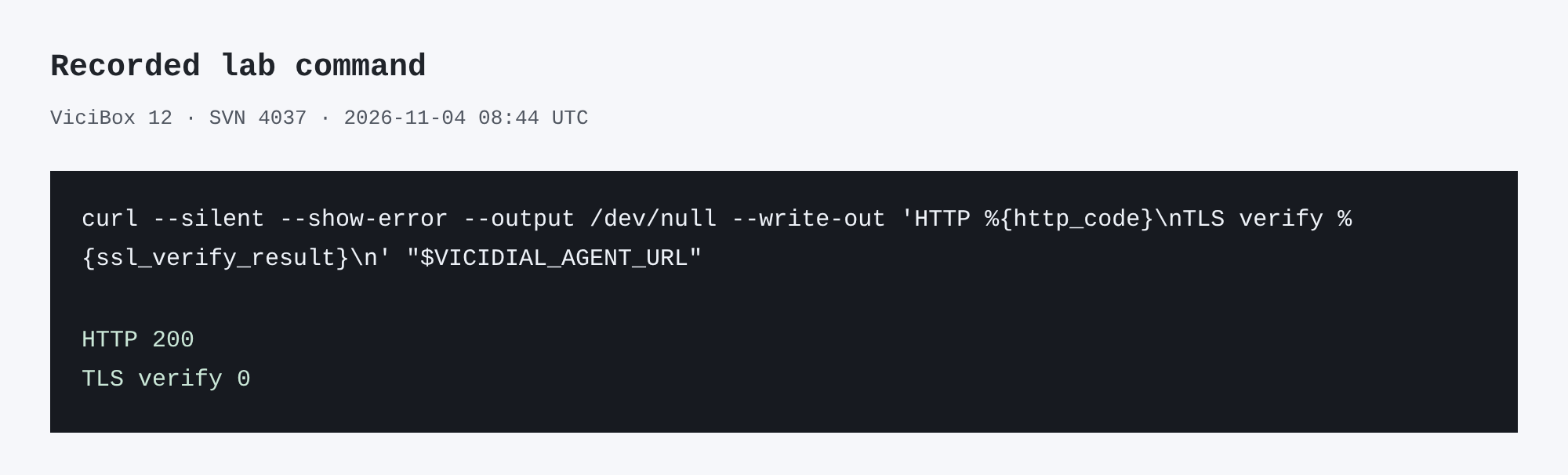
Capture details
This inspection does not establish a completed call or restore.You should seeYou have separate observations for the public web endpoint and the intended Asterisk WSS endpoint.
Sources for this section
- ViciBox 12 SSL setupVICIdial Group · Checked November 6, 2026
- ViciBox 13 SSL and renewalVICIdial Group · Checked November 6, 2026
08 / 16
8. Compare what real HTTPS and WSS clients receive
This check uses ordinary TLS trust and hostname verification. Run from a client allowed to reach each endpoint. A timeout on 8089 can reflect an access policy; it is not a reason to expose that port publicly. A reverse proxy’s certificate can legitimately differ from the origin’s, so record which endpoint you tested.
- Replace dial.example.com with the actual hostname. Test the web endpoint, then the intended Asterisk HTTPS/WebSocket endpoint from an allowed client. If your deployment uses another WSS host or port, use the saved server WebSocket URL instead of assuming 8089.
- For each curl invocation record its exit status and ssl_verify_result. Exit 0 with TLS verify 0 indicates that this client accepted the TLS connection; compare the actual certificate in its browser certificate viewer with the intended name and validity dates.
- An HTTP 400 or 426 at /ws can follow a successful TLS handshake because curl is not completing a WebSocket upgrade. That is different from certificate verification error 60, a timeout, or connection refused. Use the table to choose the next check.
- Check asterisk -rx 'http show status' for the listener and /ws URI. Then test actual phone registration and an approved call separately if WebRTC is in scope; HTTP/TLS checks cannot establish those outcomes.
- Before you use it
- Use your real host and configured WSS port from an allowed external client. Do not add -k/--insecure. This is an HTTPS request to the WSS path, not a WebSocket registration test.
VICIBOX_TLS_HOST='dial.example.com'curl --silent --show-error --output /dev/null --connect-timeout 10 --max-time 20 --write-out 'HTTPS status=%{http_code} TLS verify=%{ssl_verify_result}\n' "https://$VICIBOX_TLS_HOST/"printf 'HTTPS curl exit=%s\n' "$?"curl --silent --show-error --output /dev/null --connect-timeout 10 --max-time 20 --write-out 'WSS endpoint status=%{http_code} TLS verify=%{ssl_verify_result}\n' "https://$VICIBOX_TLS_HOST:8089/ws"printf 'WSS curl exit=%s\n' "$?"This example has no recorded result here. Follow its preparation, expected result and stop conditions before using it.
- Success looks like
- Each intended TLS connection is accepted by the client. Interpret its HTTP status separately and inspect the presented certificate; an application error at /ws need not be a TLS failure.
- Stop if
- Exit 60: inspect chain, hostname, validity and client trust. Timeout/refused: inspect route/access policy and the configured listener. A missing /ws handler needs Asterisk HTTP configuration review.
You should seeYou have separate client observations for HTTPS and the configured WSS transport, plus the server’s listener state. Record failure as failure even if the wizard printed success.
Continue with phone and WebRTC checks
Sources for this section
- ViciBox 12 SSL setupVICIdial Group · Checked November 6, 2026
- ViciBox 13 SSL and renewalVICIdial Group · Checked November 6, 2026
09 / 16
9. Inspect renewal scheduling before running it
The legacy scheduled job normally invokes /usr/share/vicibox-ssl/acme-renew.sh, which calls /root/.acme.sh/acme.sh --renew-all. A check can skip certificates that are not due; that is not a reason to force a new order.
Source inspection matters here: the reviewed revision 47 wrapper can stop firewalld, reload Apache and immediately restart Asterisk even if no certificate was renewed. Its final shell exit status is not reliable evidence that ACME succeeded.
- Privately inspect root’s crontab and identify the active renewal entry; do not add a second ACME or Certbot job blindly.
- Read the installed wrapper before scheduling it. Compare its firewall, logging, reload and Asterisk restart behavior with the cited version.
- Review every certificate managed by that client. --renew-all covers its saved certificates, not just the hostname in the browser tab.
- Confirm that the scheduled time is a real maintenance window if your installed wrapper has the immediate-restart behavior.
- Before you use it
- Inspect locally as root. Crontabs and client inventories can contain private deployment information; do not paste them unredacted into support messages.
crontab -lsed -n '1,180p' /usr/share/vicibox-ssl/acme-renew.sh/root/.acme.sh/acme.sh --listls -l /root/.acme.sh/acme.shsha256sum /usr/share/vicibox-ssl/vicibox-ssl /usr/share/vicibox-ssl/acme-renew.shThis example has no recorded result here. Follow its preparation, expected result and stop conditions before using it.
- Success looks like
- The active entry points to the intended wrapper, the client resolves correctly, and the listed certificates match the renewal scope. A different file hash identifies different contents; compare the installed behavior with the pinned source links.
- Stop if
- A missing job, wrong client home, broken link or unexpected restart/firewall code requires repair or a different reviewed renewal plan before automation is trusted.
You should seeYou know what runs, when it runs, what it can affect and where its ACME output goes.
Sources for this section
- acme-renew.sh source, OBS revision 47VICIdial Group · Checked November 6, 2026
- vicibox-ssl package paths and ACME dependencyVICIdial Group · Checked November 6, 2026
10 / 16
10. Preserve root’s other jobs when adding renewal
VICIdial depends on existing scheduled jobs. The inspected wizard saves the old crontab to one temporary filename but installs another temporary file without explicitly merging the saved jobs. Do not accept that automatic branch on the assumption it preserves your schedule.
- Save a private copy of crontab -l before any edit; if root has no crontab, confirm that absence rather than replacing an unreadable schedule.
- Use crontab -e to retain the existing entries and add one reviewed renewal line. The worksheet below is the legacy weekly example, not a universal safe time.
- Read crontab -l again and compare with your private backup. Confirm the VICIdial jobs remain and there is no duplicate renewal entry.
- Confirm the cron service is enabled/running and monitor the next scheduled attempt in the renewal log. Update the schedule when the maintenance window or renewal implementation changes.
- Before you use it
- Edit root’s existing crontab, not a replacement file. This Sunday-midnight example uses the server’s time zone; choose a window consistent with the installed wrapper’s actual behavior.
0 0 * * 0 /usr/share/vicibox-ssl/acme-renew.shThis sample is a template or reading aid, not a terminal command. There is no output to show.
- Success looks like
- A private before/after comparison preserves existing jobs and contains exactly the renewal entries you intended.
- Stop if
- If application jobs disappear or the wrapper would restart active calls at that time, stop and restore the reviewed schedule before relying on automation.
You should seeOne intended renewal job exists alongside the preserved application jobs; successful future execution still needs monitoring.
Sources for this section
- vicibox-ssl source, OBS revision 47VICIdial Group · Checked November 6, 2026
- acme-renew.sh source, OBS revision 47VICIdial Group · Checked November 6, 2026
11 / 16
11. Run a reviewed renewal in a maintenance window
This is an operational renewal attempt, not a dry run. The legacy wrapper can affect all saved certificates and running services. Check the installed code and call state first; zero calls at one moment does not prevent a new call from starting.
- Use the planned maintenance procedure to prevent new work and confirm that active calls are drained. Record whether firewalld and Apache were running beforehand.
- Run the installed wrapper once with its verbose option if its reviewed behavior is acceptable for this window.
- Inspect /var/log/acme-renew.log for the actual ACME result. The wrapper’s verbose mode does not guarantee that the client’s detailed output appears in the console.
- Check the firewall state, Apache configuration/service and Asterisk after the attempt, including failure or skipped renewal. If a normally running firewall was left stopped, restore its expected state from the console using the established management-access policy.
- Verify the certificate presented on 443 and the intended 8089 endpoint. Do not infer activation from an updated file timestamp or the wrapper’s exit code.
- Before you use it
- Run only after reviewing the installed wrapper and authorizing its firewall and immediate-Asterisk-restart effects in a drained maintenance window. No renewal was executed for this article.
/usr/share/vicibox-ssl/acme-renew.sh --verboseThis example has no recorded result here. Follow its preparation, expected result and stop conditions before using it.
- Success looks like
- Either ACME renews a due certificate or explicitly skips one not due. Read the log and verify both services independently before recording success.
- Stop if
- On validation, client or service errors, stop repeated attempts, preserve the private log and diagnose the specific stage below. A zero wrapper exit code does not settle the result.
You should seeThe ACME result, certificate validity and serving endpoints agree, and the expected service/firewall state has been restored.
Sources for this section
- acme-renew.sh source, OBS revision 47VICIdial Group · Checked November 6, 2026
12 / 16
12. Debug the stage that actually failed
Start with read-only evidence and the exact error time. Keep certificate private keys, account configuration, tokens and unredacted logs off public support threads.
- Check the renewal log, Apache configuration and the recent Apache/Asterisk service journals.
- Use the symptom table to identify whether the failure is before issuance, during validation, while binding files or when the service presents them.
- Fix one identified cause and repeat only the necessary check. Stop forced retry loops and respect the CA’s error and retry information.
- Before you use it
- Inspect the intended host locally. Some messages and addresses are private. A missing unit name or log is an observation to resolve against this installation.
tail -n 100 /var/log/acme-renew.logapachectl configtestsystemctl is-active firewalld apache2 asterisk cronjournalctl -u apache2 -u asterisk --since '30 minutes ago' --no-pagerasterisk -rx 'http show status'This example has no recorded result here. Follow its preparation, expected result and stop conditions before using it.
- Success looks like
- You have the relevant ACME error, configuration-test result, service states and HTTPS listener status for the same attempt.
- Stop if
- If the log is stale or absent, verify the cron entry, client path and wrapper implementation before assuming that renewal ran.
You should seeYou can name the failing stage and its next concrete check rather than treating every error as an expired certificate.
Sources for this section
- acme-renew.sh source, OBS revision 47VICIdial Group · Checked November 6, 2026
- Let’s Encrypt HTTP-01 validationInternet Security Research Group · Checked November 6, 2026
- Let’s Encrypt IPv6 validationInternet Security Research Group · Checked November 6, 2026
- SUSE Apache configuration tests and service controlSUSE · Checked November 6, 2026
- Let’s Encrypt rate limitsInternet Security Research Group · Checked November 6, 2026
13 / 16
13. Get ACME debug detail without confusing it with deployment
Use this only when ordinary logs do not explain a due renewal failure. It runs the client directly, covers its stored certificates and can write renewed files; it is not a read-only diagnostic or the ViciBox deployment wrapper.
The direct client does not supply the wrapper’s firewall handling or its service reload/restart sequence. Arrange validation access while keeping the intended firewall policy active. Do not add --force merely because a certificate is not yet due.
- Review the client’s --list output and confirm the renewal scope and maintenance authorization.
- Save debug output to a private root-owned log with a restrictive umask. Do not enable insecure secret output.
- Find the actual CA error and fix its cause. Afterwards follow a reviewed activation procedure and repeat the 443/8089 checks; debug output is not deployment evidence.
- Before you use it
- Only run for an authorized renewal investigation after reviewing all stored certificate names, validation access and installed client options. This bypasses the wrapper and is not a dry run.
umask 077/root/.acme.sh/acme.sh --renew-all --debug 2 --log /root/vicibox-acme-debug.logThis example has no recorded result here. Follow its preparation, expected result and stop conditions before using it.
- Success looks like
- The private log contains the detailed ACME result. Verify activation separately; a client renewal does not itself prove that Apache or Asterisk serves the new certificate.
- Stop if
- Do not publish the raw debug log or repeat forced orders. Return to DNS, HTTP challenge, client-path or rate-limit diagnosis as indicated by the actual error.
You should seeThe additional log explains the client failure without being mistaken for a successfully deployed certificate.
Sources for this section
- acme.sh debug optionsacme.sh maintainers · Checked November 6, 2026
- acme-renew.sh source, OBS revision 47VICIdial Group · Checked November 6, 2026
- Let’s Encrypt rate limitsInternet Security Research Group · Checked November 6, 2026
14 / 16
Reference: check the files each service actually uses
ViciBox 11/12 commonly uses /etc/apache2/ssl.crt/vicibox.crt and /etc/apache2/ssl.key/vicibox.key as common links. The reviewed wizard also writes certificate paths directly into Apache and /etc/asterisk/http.conf. Inspect both the links and the active configuration; do not assume one path proves every service was updated.
The package and docs differ in chain-file naming across releases. Follow the actual Apache directives and installed release rather than creating a guessed chain file. Never display or paste private-key contents.
- Resolve the common links and check that their targets exist and have the permissions required by the intended service.
- Read the certificate directives in the active Apache virtual host and Asterisk HTTP configuration. Keep paths and host details private when sharing a report.
- Run the configuration test before a service change. Use the planned reload/restart procedure only after reviewing its impact, then recheck what clients actually receive.
- Before you use it
- Inspect file paths and directives locally; these commands do not print private-key contents.
readlink -f /etc/apache2/ssl.crt/vicibox.crtreadlink -f /etc/apache2/ssl.key/vicibox.keygrep -nE '^[[:space:]]*(SSLCertificateFile|SSLCertificateKeyFile|SSLCACertificateFile)' /etc/apache2/vhosts.d/*ssl.confgrep -nE '^[[:space:]]*(tlsenable|tlsbindaddr|tlscertfile|tlsprivatekey)' /etc/asterisk/http.confapachectl configtestThis example has no recorded result here. Follow its preparation, expected result and stop conditions before using it.
- Success looks like
- The common links resolve, configured certificate/key paths are understood, and the syntax test passes before any activation step.
- Stop if
- If paths are stale, files are missing or syntax fails, correct the specific configuration from the reviewed backup and release documentation before restarting services.
You should seeThe configured files and actual serving endpoints match the intended certificate; registration and audio remain separate checks.
Sources for this section
- ViciBox 12 SSL setupVICIdial Group · Checked November 6, 2026
- vicibox-ssl source, OBS revision 47VICIdial Group · Checked November 6, 2026
- SUSE Apache configuration tests and service controlSUSE · Checked November 6, 2026
15 / 16
ViciBox 13 branch: use the manager workflow
The currently published ViciBox 13 manual replaces the legacy wizard with vicibox → SSL certificate. Enter the FQDN and email, review the redirect choice, then select Get certificate only after the prerequisites and change window are ready.
That manual describes nightly ACME checks, temporary validation access while the firewall remains up, renewal logging at /var/log/acme-renew.log, Apache reload and an Asterisk restart when no calls are up. Do not attribute those behaviors to the legacy wrapper inspected above.
- Check /etc/vicibox-version before choosing this branch.
- Use the manager’s Security panel for expiry and View logs for renewal diagnostics.
- On ViciBox 13 inspect /etc/pki/ssl/vicibox.crt and /etc/pki/ssl/vicibox.key. The older common paths may be compatibility links.
- Treat the current /en/latest/ manual as release-specific documentation; it is not the ViciBox 12 command reference.
You should seeYou use the SSL mechanism documented for the installed release instead of mixing legacy and manager behavior.
Sources for this section
- ViciBox 13 SSL and renewalVICIdial Group · Checked November 6, 2026
16 / 16
Finish with a verified result or restore the pre-change state
- If issuance failed before activation, decline activation and cron changes. Compare the common certificate links and configured paths with your baseline: the generation branch can still move ACME directories, so declining activation alone is not proof that disk state stayed intact.
- If a moved or nested certificate directory broke a link, use the private backup to restore the exact pre-change target and link. If activation changed Apache, Asterisk HTTP settings or the VICIdial server WebSocket URL, restore those specific recorded values as part of the approved maintenance procedure, then run apachectl configtest before the corresponding service reload. Do not restore a guessed directory or overwrite unrelated newer configuration.
- Recheck firewall state, the expected web and telephony processes, the prior/current certificate fingerprint and both permitted client endpoints. Keep the previous certificate and backup until the replacement is independently verified.
- For a successful replacement, record the certificate expiry, tested HTTPS/WSS names, renewal command/schedule and the person monitoring the next attempt. Use the ACME log plus endpoint comparison to verify that next attempt; a cron entry alone does not prove renewal.
- For an unresolved failure, hand off the package/version, UTC attempt time, first ACME error, public A/AAAA observations, external marker result, candidate-file result and whether activation was declined. Remove secrets and private host details before sharing.
You should seeDone is either a verified serving certificate with an observed renewal follow-up plan, or a preserved/restored prior service with the exact unresolved failure documented. This guide’s lab evidence remains in the failed-issuance branch.
- Release and installed implementation identified; legacy and manager commands were not mixed.
- Actual ACME outcome and candidate file agree before activation.
- HTTPS and the configured WSS endpoint were tested separately with normal verification.
- Existing application cron entries and expected firewall/service state were preserved.
- Expiry, renewal owner and next observation are recorded, or the failed stage and recovery are documented.
Sources for this section
- vicibox-ssl source, OBS revision 47VICIdial Group · Checked November 6, 2026
- acme-renew.sh source, OBS revision 47VICIdial Group · Checked November 6, 2026
- SUSE Apache configuration tests and service controlSUSE · Checked November 6, 2026
Checks and sources
What was checked
- Setup and legacy behavior were checked against the ViciBox 12 manual and the public vicibox-ssl package source at OBS revision 47 on November 4, 2026. Installed packages can differ; compare their paths, version and contents before execution.
- The inspected legacy wrapper can stop firewalld, reload Apache and issue an immediate Asterisk restart regardless of whether a certificate was renewed. The inspected wizard’s cron branch can install a temporary crontab without preserving existing jobs. These observations are specific to the reviewed source, not a claim about every ViciBox package.
- On November 4, 2026, the installed ViciBox 12 wizard attempted a real HTTP-01 issuance on the demo server. The CA could not fetch the validation data. Despite this, the wizard reported success; an independent file check found no usable new certificate, so activation was declined and the original certificate directory restored. HTTPS and the Asterisk TLS listener still presented the prior certificate. This did not demonstrate successful issuance, renewal or a WebRTC call.
- A later controlled retry used a temporary HTTP-only firewall exception and a challenge-only Apache policy. An external marker returned its exact content, ordinary HTTP returned 403, and HTTPS remained reachable, yet the CA again could not fetch validation data. No CA challenge request appeared in the checked Apache access log. The temporary policy was removed and the original vhost hash and firewall state verified. The precise cause remains unconfirmed; investigate validation vantage points and upstream filtering before another attempt.
- The tested wizard moves an _ecc directory into the hostname directory; if the destination already exists, the new directory can be nested beneath it. Review and back up the installed certificate state before attempting a change, and verify the actual certificate rather than relying on the success message.
Primary references
Sources
- ViciBox 12 SSL setupVICIdial Group · accessed November 6, 2026
- ViciBox 11 SSL setupVICIdial Group · accessed November 6, 2026
- vicibox-ssl source, OBS revision 47VICIdial Group · accessed November 6, 2026
- acme-renew.sh source, OBS revision 47VICIdial Group · accessed November 6, 2026
- vicibox-ssl package paths and ACME dependencyVICIdial Group · accessed November 6, 2026
- ViciBox 13 SSL and renewalVICIdial Group · accessed November 6, 2026
- Let’s Encrypt HTTP-01 validationInternet Security Research Group · accessed November 6, 2026
- Let’s Encrypt IPv6 validationInternet Security Research Group · accessed November 6, 2026
- acme.sh debug optionsacme.sh maintainers · accessed November 6, 2026
- Let’s Encrypt rate limitsInternet Security Research Group · accessed November 6, 2026
- SUSE Apache configuration tests and service controlSUSE · accessed November 6, 2026
- OpenSSL certificate inspection optionsOpenSSL Project · accessed November 6, 2026