01 / 04
1. Sign in to Admin
Open the Admin HTTPS address you recorded in lesson 3. Sign in with the administrator account you configured during installation, not the learner1 account or the 8001 phone login.
- Enter the Admin address in your browser.
- Enter the administrator username and password in the login prompt.
- Check that the page shows ADMINISTRATION and the left navigation menu.
You should seeThe Admin page is open and its navigation menu is visible.
02 / 04
2. Find the setup menus
Use the left navigation to find the places you will visit in the next lessons. For now, look around without saving changes.
- Select User Groups to find the area for LABTEAM.
- Select Users to find the area for learner1.
- Select Campaigns for LAB01 and Lists for 90001.
- Select Admin, then Phones, to find the area for station 8001.
The Admin menu
Open to enlarge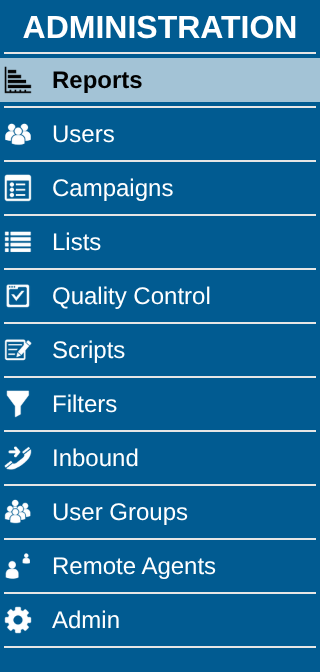
03 / 04
3. Check the result
You are ready to continue when you can find the menu for each practice record.
- User Groups and Users are visible.
- Campaigns and Lists are visible.
- Admin → Phones is visible.
04 / 04
4. If you cannot get in
If the login prompt repeats, retype the administrator credentials; passwords are case-sensitive. For an initial password-change screen, follow the first-login procedure linked below.
If the browser reports a certificate problem, stop and correct the HTTPS certificate or hostname using the setup reference in lesson 3. If a menu is missing, this account does not have the required administration permission; use the administrator account from installation rather than granting learner1 more rights.
Primary references
Sources
- VICIdial demonstrationVICIdial Group · accessed November 3, 2026
- VICIdial project overviewVICIdial Group · accessed November 3, 2026