01 / 04
1. Create the user group
A user group controls which campaigns its members may use. First create the lab group.
- In VICIdial Admin, click User Groups.
- Click Add A New User Group.
- Complete the fields below, then submit the form.
- Open User Groups again and select LABTEAM.
- In Allowed Campaigns, uncheck ALL-CAMPAIGNS and every individual campaign. Save the group.
- Group
- LABTEAMThe course group ID.
- Description
- ViciGeek training groupA readable name.
Steps and result4 steps
Actual VICIdial form entry with fictional examples. The recording stops before saving; follow the field notes for deployment-specific values.
Entry shownThe actual Add New Users Group form contains LABTEAM and a description. SUBMIT was not clicked; no group was created.
Read the chapter notes
- Actual VICIdial form — not submitted
The actual Add New Users Group form contains LABTEAM and a description. SUBMIT was not clicked; no group was created.
- Enter Group LABTEAM
Group is the short ID. This is a fictional training example; the recording does not submit the form.
- Give the group a readable name
Description is ViciGeek training group. Save and restrict a real group before using it for an agent.
- Review before any real save
The actual Add New Users Group form contains LABTEAM and a description. SUBMIT was not clicked; no group was created.
November 4, 2026 · VICIdial Admin 2.14-969a build 261102-0125. The actual Add New Users Group form contains LABTEAM and a description. SUBMIT was not clicked; no group was created. ViciGeek attribution is encoded in the video and poster. Use fullscreen to read the original field labels.
View a still screenshot
Enter a user group
Open to enlarge
You should seeReopen LABTEAM: no Allowed Campaigns boxes are checked. In lesson 7 you will check only LAB01.
02 / 04
2. Add the agent
The agent account belongs to a person. Its password is separate from the phone station passwords in the next lesson.
The course uses LABTEAM, the restricted user group created in the preceding step. The separate entry recording selects the existing AGENTS group and fills optional phone autofill only to demonstrate the controls; that example is not the course’s saved configuration.
- Click Users, then Add A New User.
- Enter the fields below. Choose LABTEAM in User Group; leave Phone Login and Phone Pass empty for this course.
- Select SUBMIT. Open learner1 from Show Users, set Agent Call Manual to 1, then save.
- Reopen learner1 and check User Group LABTEAM, User Level 1, Active Y and Agent Call Manual 1.
- User Number
- learner1The agent login.
- Password
- Choose a strong, unique passwordStore it privately.
- Full Name
- Practice agentA readable name.
- User Level
- 1A low-privilege agent.
- User Group
- LABTEAMConnects the agent to the lab group.
- Phone Login
- Leave emptyOptional phone-login autofill.
- Phone Pass
- Leave emptyOptional phone-password autofill.
Steps and result5 steps
Actual VICIdial form entry with fictional examples. The recording stops before saving; follow the field notes for deployment-specific values.
Entry shownThe agent form was filled in browser state only. Existing AGENTS is shown instead of the course-created LABTEAM group. No user was saved, enabled or logged in.
Read the chapter notes
- Actual VICIdial form — not submitted
The agent form was filled in browser state only. Existing AGENTS is shown instead of the course-created LABTEAM group. No user was saved, enabled or logged in.
- Enter the agent identity
User Number learner1 and Full Name Practice agent are fictional values. User Level 1 is an agent-level example.
- Choose an existing restricted agent group
This lab already contains AGENTS, so the demo selects it. The course instead uses LABTEAM after you create that restricted group. Do not choose an administrator group for a training agent.
- Understand optional station autofill
Phone Login 8001 and the fictional DemoStationOnly83 illustrate optional station autofill. The beginner course leaves these two fields blank; neither choice proves registration. Never reuse displayed demo passwords.
- Review before any real save
The agent form was filled in browser state only. Existing AGENTS is shown instead of the course-created LABTEAM group. No user was saved, enabled or logged in.
November 4, 2026 · VICIdial Admin 2.14-969a build 261102-0125. The agent form was filled in browser state only. Existing AGENTS is shown instead of the course-created LABTEAM group. No user was saved, enabled or logged in. ViciGeek attribution is encoded in the video and poster. Use fullscreen to read the original field labels.
View a still screenshot
Enter the agent account
Open to enlarge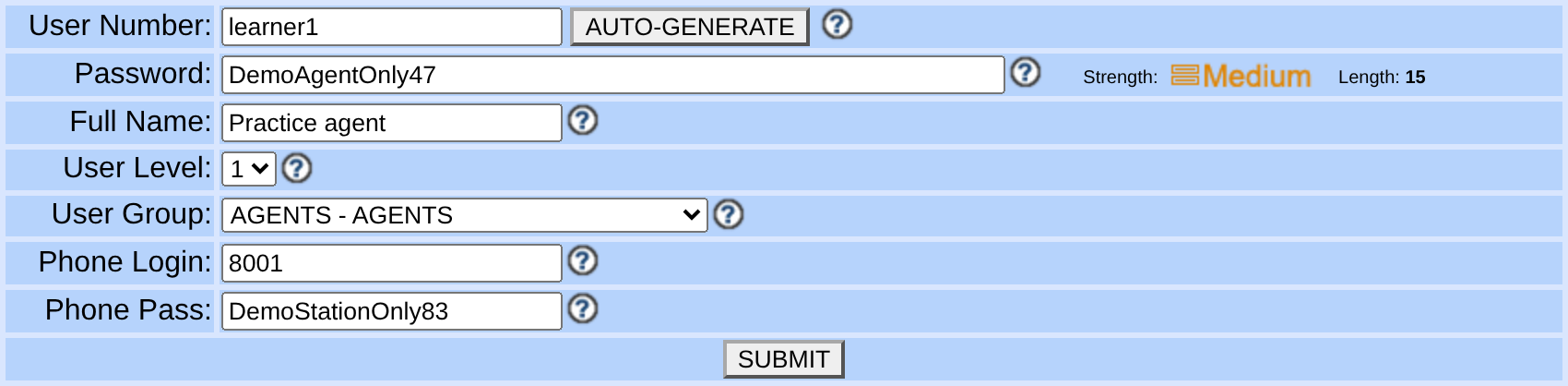
Capture details
The course instead uses restricted LABTEAM and leaves both autofill fields empty. Displayed passwords are fictional filming strings; choose private passwords. Actual browser capture, November 4, 2026; Admin 2.14-969a build 261102-0125.You should seeThe saved learner1 record shows LABTEAM, level 1, Active Y and Agent Call Manual 1.
03 / 04
3. Check the saved records
- Open User Groups and select LABTEAM. Confirm its name.
- Open Users and select learner1. Confirm the group, level and manual calling permission.
- Save any corrections and reopen the record.
Steps and result4 steps
Actual native VICIdial controls, filled with example values in the browser. This recording stops before submission. Use the field notes to distinguish lab fixtures, missing prerequisites and deployment-specific values.
Entry shownReal native Modify controls with example values entered only in browser state. The form was not submitted; no configuration, route, permission, registration or call was changed.
Read the chapter notes
- Actual native form — not submitted
Real native Modify controls with example values entered only in browser state. The form was not submitted; no configuration, route, permission, registration or call was changed.
- Set Agent Call Manual to 1
The native Modify User control uses 1 for the course manual-call permission. This is an unsaved example, not a learner1 account creation.
- Review inherited manual-dial controls
Other policy controls depend on the campaign and installation. No permission was saved.
- Review the unsaved example
Real native Modify controls with example values entered only in browser state. The form was not submitted; no configuration, route, permission, registration or call was changed.
November 4, 2026 · VICIdial 2.14-969a build 261102-0125. Real native Modify controls with example values entered only in browser state. The form was not submitted; no configuration, route, permission, registration or call was changed. ViciGeek attribution is encoded in the video and poster. Use fullscreen to read the original field labels.
View a still screenshot
Find the agent manual-call permission
Open to enlarge
Capture details
The crop intentionally omits the test account identity and private values. It identifies a permission control without establishing a saved learner1 record, login or call. Actual browser capture, November 4, 2026; VICIdial 2.14-969a build 261102-0125.You should seeBoth records are present. The agent will receive campaign access in lesson 7.
04 / 04
If it fails
If LABTEAM or learner1 already exists, open the record to identify it. Reuse it only if it is the practice record you created earlier; otherwise choose an unused ID and use that ID in the remaining lessons.
If a menu is missing, sign back in with the administrator account used in lesson 4. If SUBMIT shows a field error, correct that named field and submit again; reopen the record to check it saved.
Checks and sources
What was checked
- During the approved November 6, 2026 fixture setup, native forms created LABTEAM with access only to LAB01 and level-one learner1 with Agent Call Manual1. After the single internal attempt, learner1 was disabled and LAB01 group access removed; records were retained.
- The supplied blank official-demo images identify the form fields; they do not themselves show the saved course records.
Primary references
Sources
- VICIdial public demonstrationVICIdial · accessed November 3, 2026
- VICIdial nightly sourceVICIdial · accessed November 3, 2026