01 / 07
1. Understand the two phone passwords
Login Password signs the station into the Agent screen. Registration Password authenticates the browser phone to Asterisk. The learner1 password signs the person into VICIdial. Keep three different private passwords, with labels identifying their purpose.
This ViciBox12 branch uses Client Protocol SIP and the course-only LABSIP8001 copy of VICIphoneSIP, adding context=default. SIP names the installed channel driver; the browser still uses secure WebSocket and encrypted media. Do not pair PJSIP with a SIP-format template.
02 / 07
2. Complete the template prerequisite
Open Admin → Templates and inspect VICIphoneSIP. On the reviewed lab this shared template omits context=default, so a new station inherits trunkinbound. Preserve the shared template. Use Add A New Template to create LABSIP8001, name it Course8001 SIP WebRTC, and paste the full body below. This course-only copy adds context=default; assign it only to the new course phone.
If LABSIP8001 already exists, identify its owner before reusing it. This is a ViciBox 12 chan_sip/WebRTC template with the inspected certificate paths. It assumes a working secure WebSocket listener and generated station credentials. It does not install TLS or switch the SIP stack. Keep the private key private.
- Before you use it
- Use only the matching chan_sip/ViciBox 12 branch after the HTTPS and transport checks. Record any prior template text before editing.
type=friendhost=dynamicencryption=yesavpf=yesicesupport=yesdirectmedia=notransport=wssforce_avp=yesdtlsenable=yesdtlsverify=nodtlscertfile=/etc/apache2/ssl.crt/vicibox.crtdtlsprivatekey=/etc/apache2/ssl.key/vicibox.keydtlssetup=actpassrtcp_mux=yescontext=default- Success looks like
- The reopened template retains these settings and its certificate paths exist on the dialer.
- Stop if
- A missing certificate, transport or menu is a preparation failure. Keep LAB01 inactive and use the preparation guide; changing protocol labels will not repair it.
03 / 07
3. Complete the browser settings prerequisite
Open Admin → Settings Containers and select VICIPHONE_SETTINGS. The inspected lab already has this container. Preserve its language strings and existing reviewed settings. These five options are the course values: automatic gain control, echo cancellation and noise suppression are off for the Echo listening exercise; dialRegExten connects the agent extension after registration.
If the container is absent on a separate lab, use Add A New Settings Container, set Container ID to VICIPHONE_SETTINGS, name it Course browser settings, and enter the five lines below in Container Entry. Save and reopen it. Leave existing containers unchanged. The browser integration supplies connection and credential values; do not paste passwords into this shared container.
- Before you use it
- Create this only in the course lab when the named container is absent.
autoGain : 0echoCan : 0noiseSup : 0dialRegExten : 1progReg : na- Success looks like
- The saved container is offered under the phone’s Webphone Extra Settings.
- Stop if
- If the saved container is not selectable, reopen the phone after saving and check administrator visibility. Do not choose an unrelated container.
04 / 07
4. Create phone 8001
Search Show Phones for 8001 first. If it is already your practice station, open it and check the saved values. If it belongs to another station, choose an unused extension and use that number throughout the exercise.
- Open Admin → Phones and choose Add A New Phone.
- Complete the fields below and select SUBMIT.
- Open 8001 from Show Phones. The webphone fields in the next section are on this saved record.
- Phone Extension
- 8001The lab phone ID.
- Dial Plan Number
- 8001Matches this station.
- Voicemail Box
- 8001Reserved example mailbox number; this exercise does not use voicemail.
- Outbound CallerID
- 8001An internal practice identifier, not a public caller-ID number.
- Admin User Group
- ---ALL---Administrative visibility for this separate practice installation.
- Server IP
- The active Server IP recorded in lesson 3Select the matching entry from Admin → Servers.
- Agent Screen Login
- 8001Station login for the Agent screen.
- Login Password
- Choose a strong station passwordKeep it separate from the agent password.
- Registration Password
- Choose a different strong passwordUsed by the browser phone to register.
- Status
- ACTIVEMakes this station available.
- Active Account
- YEnables the station account.
- Phone Type
- SIPMatches the SIP-format LABSIP8001 template and this lab’s existing WebSocket stack.
- Full Name
- Lab phoneA readable label.
- Client Protocol
- SIPMatches the SIP-format LABSIP8001 template and this lab’s existing WebSocket stack.
- Local GMT
- Your standard UTC offsetFor example UTC is 0.00. Follow the form’s “Do NOT Adjust for DST” instruction.
Steps and result5 steps
Actual VICIdial form entry with fictional examples. The recording stops before saving; follow the field notes for deployment-specific values.
Entry shownNative phone fields show fictional entries and PJSIP. Server IP is intentionally unselected; the form is incomplete for saving. No phone, registration, agent session or call was created.
Read the chapter notes
- Actual VICIdial form — not submitted
Native phone fields show fictional entries and PJSIP. Server IP is intentionally unselected; the form is incomplete for saving. No phone, registration, agent session or call was created.
- Use station 8001 consistently
Phone Extension, Dial Plan Number and Agent Screen Login use the fictional station 8001. Optional voicemail and caller ID stay empty until real values are assigned.
- Keep the two passwords distinct
Login Password is the station password used at Agent login. Registration Password belongs to the SIP endpoint. These readable strings are only filming examples; generate private values for a real station.
- Select the actual client protocol
Client Protocol PJSIP is shown. Match it to the installed server driver, and select the actual assigned Server IP on your own system; this recording leaves Server IP unselected.
- Review before any real save
Native phone fields show fictional entries and PJSIP. Server IP is intentionally unselected; the form is incomplete for saving. No phone, registration, agent session or call was created.
November 4, 2026 · VICIdial Admin 2.14-969a build 261102-0125. Native phone fields show fictional entries and PJSIP. Server IP is intentionally unselected; the form is incomplete for saving. No phone, registration, agent session or call was created. ViciGeek attribution is encoded in the video and poster. Use fullscreen to read the original field labels.
View a still screenshot
Enter the phone station
Open to enlarge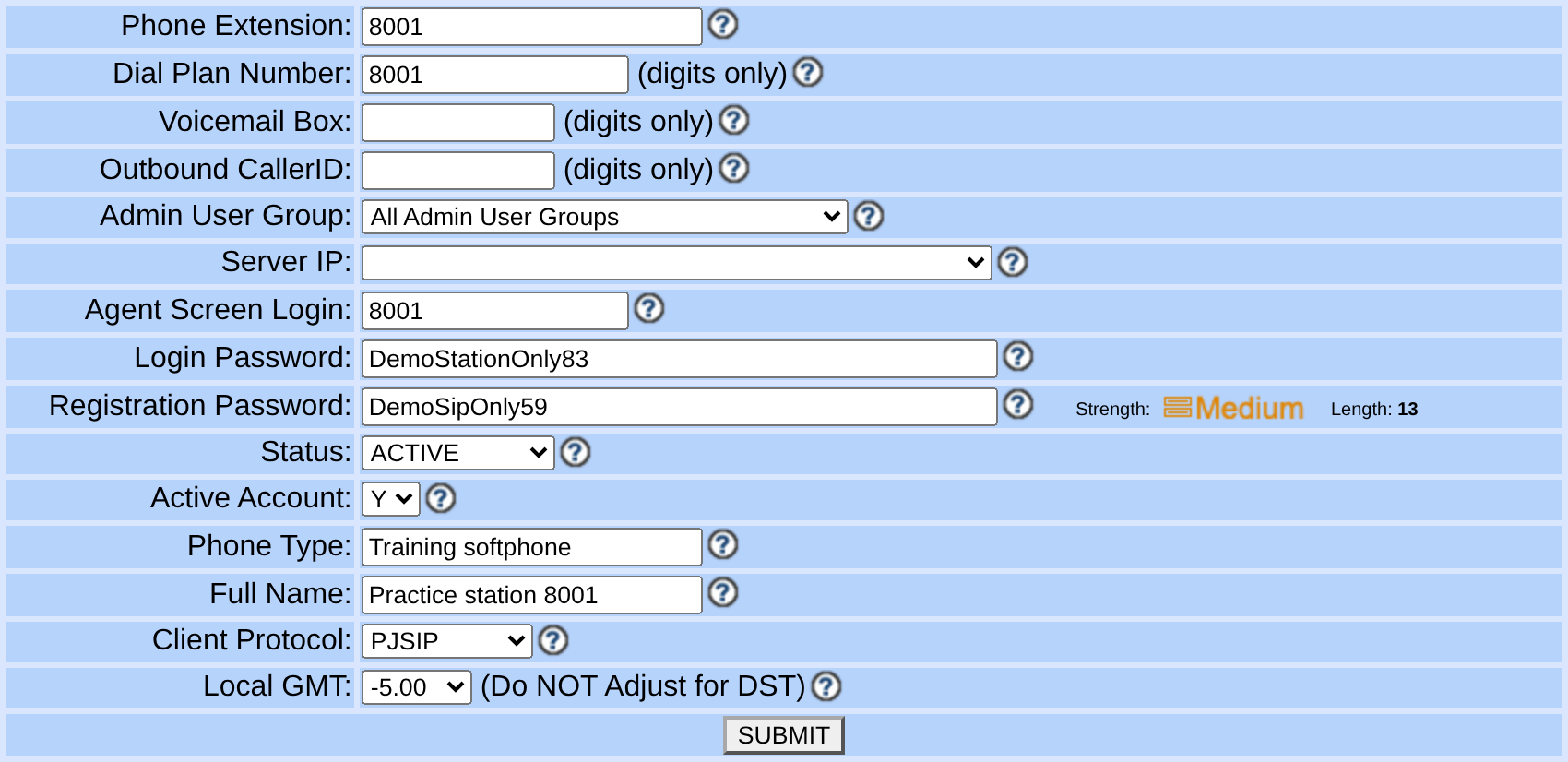
Capture details
Shown passwords are fictional and must not be reused. Voicemail and caller ID are empty; −5.00 is an illustrative standard UTC offset. This is not a saved or registered phone. Actual browser capture, November 4, 2026; Admin 2.14-969a build 261102-0125.You should seeThe phone appears in the Phones list as 8001.
05 / 07
5. Configure the saved phone
These fields appear after you create and reopen the phone.
- Set the fields below on phone 8001.
- Select SUBMIT, then reopen 8001 and compare the saved values.
- Template ID
- LABSIP8001
- Set As Webphone
- Y
- Allowed Codecs
- ulaw
- Codecs With Template
- 1Applies Allowed Codecs even when a template is selected; the inspected default 0 retained additional codecs.
- Webphone Extra Settings
- VICIPHONE_SETTINGS
- Webphone Auto-Answer
- Y
- Webphone Debug
- N
Historical inspection: WEBRTC_PJSIP was unavailable. Follow the current LABSIP8001 recipe in the guide.
Steps and result4 steps
Actual native VICIdial controls, filled with example values in the browser. This recording stops before submission. Use the field notes to distinguish lab fixtures, missing prerequisites and deployment-specific values.
Entry shownThe native Modify Phone fields contain unsaved webphone examples. VICIPHONE_SETTINGS exists, but the previously suggested WEBRTC_PJSIP template is absent; the current guide creates LABSIP8001 and its control is unselected. No phone was saved, registered or used for a call.
Read the chapter notes
- Actual native form — not submitted
The native Modify Phone fields contain unsaved webphone examples. VICIPHONE_SETTINGS exists, but the previously suggested WEBRTC_PJSIP template is absent; the current guide creates LABSIP8001 and its control is unselected. No phone was saved, registered or used for a call.
- Select webphone and auto-answer
Set As Webphone Y and Webphone Auto-Answer Y illustrate native controls on a Modify Phone screen.
- Select the real VICIphone settings container
VICIPHONE_SETTINGS exists in this lab. It is not proof that the required template, TLS or registration is ready.
- Review the unsaved example
The native Modify Phone fields contain unsaved webphone examples. VICIPHONE_SETTINGS exists, but the previously suggested WEBRTC_PJSIP template is absent; the current guide creates LABSIP8001 and its control is unselected. No phone was saved, registered or used for a call.
November 4, 2026 · VICIdial 2.14-969a build 261102-0125. The native Modify Phone fields contain unsaved webphone examples. VICIPHONE_SETTINGS exists, but the previously suggested WEBRTC_PJSIP template is absent; the current guide creates LABSIP8001 and its control is unselected. No phone was saved, registered or used for a call. ViciGeek attribution is encoded in the video and poster. Use fullscreen to read the original field labels.
View still screenshots
The saved course-only template
Open to enlarge
Apply codecs when a template is selected
Open to enlarge
You should seeReopen8001 and compare every field. A saved phone record is a prerequisite; it is not proof that a browser registered.
06 / 07
6. Verify the station before agent login
- Open Admin → Phones → 8001.
- Check Agent Screen Login8001, Client Protocol SIP, Template ID LABSIP8001 and Set As Webphone Y.
- Check Server IP matches the active practice server, Status is ACTIVE and Active Account is Y.
You should seeThe saved record contains the course values. Use its Login Password at the first Agent login form.
07 / 07
If it fails
If LABSIP8001 or VICIPHONE_SETTINGS is missing, complete the recipes above. Do not edit a shared template to repair only the course phone. A PJSIP-only installation requires its own matching template and transport checks; this SIP body is not interchangeable.
If8001 already exists, identify its owner and choose an unused extension when necessary. A rejected first Agent login concerns Agent Screen Login/Login Password. A later Registration Failed message concerns the separate registration credentials, certificate, secure WebSocket connection and generated SIP peer. Use the preparation checks before retrying.
To undo an unused course station, set Active Account N and Status SUSPENDED (or the supported inactive status on your build), then reopen it. Preserve the record; do not delete a station with call history or shared use.
Read-only native phone-field inspection; no submitted change or registration.
Steps and result2 steps
Read-only native phone-field inspection; no submitted change or registration. The frames come from the actual pinned VICIdial demo, not a recreated form.
Observed scopeRead-only native phone-field inspection; no submitted change or registration.
Read the chapter notes
- Inspect the saved native field
Read-only native phone-field inspection; no submitted change or registration.
- Observe the field without submitting
The brief focus inspection does not save a setting, place a call or establish runtime acceptance.
November 7, 2026 · ViciBox 12 / Asterisk 18.26.4-vici; read-only native Admin. Read-only native phone-field inspection; no submitted change or registration. Use fullscreen to read the original field labels.
View still screenshots
The actual native station Status field
Open to enlarge
Capture details
This shows an available native value; it does not prove the course station 8001 or a phone connection is working.Active Account on the retired test station
Open to enlarge
Capture details
This is an inactive baseline, not the target state for a new approved calling exercise.Checks and sources
What was checked
- The November 6, 2026 approved setup used ViciBox 12/Asterisk 18.26.4-vici, Client Protocol SIP and a new course-only LABSIP8001 template copied from VICIphoneSIP with context=default. The shared template and existing phones were preserved.
- Native screenshots show the reopened station’s saved fields. VICIphone later connected to course conference 9600000; receiver-track instrumentation was used for the one internal attempt. Afterward8001 was disabled, its template unassigned and temporary credentials invalidated.
- This is the chan_sip/WebRTC branch actually exercised. It does not establish that an unrelated PJSIP configuration works.
Primary references
Sources
- VICIdial public demonstrationVICIdial · accessed November 3, 2026
- VICIdial nightly sourceVICIdial · accessed November 3, 2026
- VICIdial PJSIP support and version notesVICIdial · accessed November 6, 2026