01 / 05
1. Create the campaign
The campaign holds the rules for the lab exercise. Create it inactive while you configure it.
- Click Campaigns in VICIdial Admin.
- Click Add A New Campaign.
- Complete the fields below and submit.
- Open LAB01 from Show Campaigns.
- Campaign ID
- LAB01The course campaign ID.
- Campaign Name
- Lab practiceA readable name.
- Campaign Description
- Manual practiceA short description.
- Admin User Group
- ---ALL---Administrative visibility for this separate practice system; agent access is granted below.
- Active
- NKeep it inactive while configuring.
Steps and result4 steps
Watch the actual VICIdial form being filled, submitted and confirmed. The campaign is kept inactive, with Auto Dial Level 0.
Observed resultVICIdial returned CAMPAIGN ADDED: LAB01. An independent database check confirms Active N and Auto Dial Level 0.
Read the chapter notes
- Open Add A New Campaign
Open the actual Administration form.
- Enter LAB01 and the campaign name
Type Campaign ID LAB01, Campaign Name Lab campaign and the synthetic demo description.
- Set Active N and Auto Dial Level 0
Keep this synthetic campaign inactive throughout the import demonstration.
- Submit and read CAMPAIGN ADDED
Submit the real form and read the returned confirmation for LAB01.
November 4, 2026 · VICIdial Admin 2.14-969a · SVN 4037. Synthetic lab records; campaign LAB01 stays inactive. ViciGeek watermark is burned into the recording. Use fullscreen to read the original field labels.
View a still screenshot
Fill the initial campaign form
Open to enlarge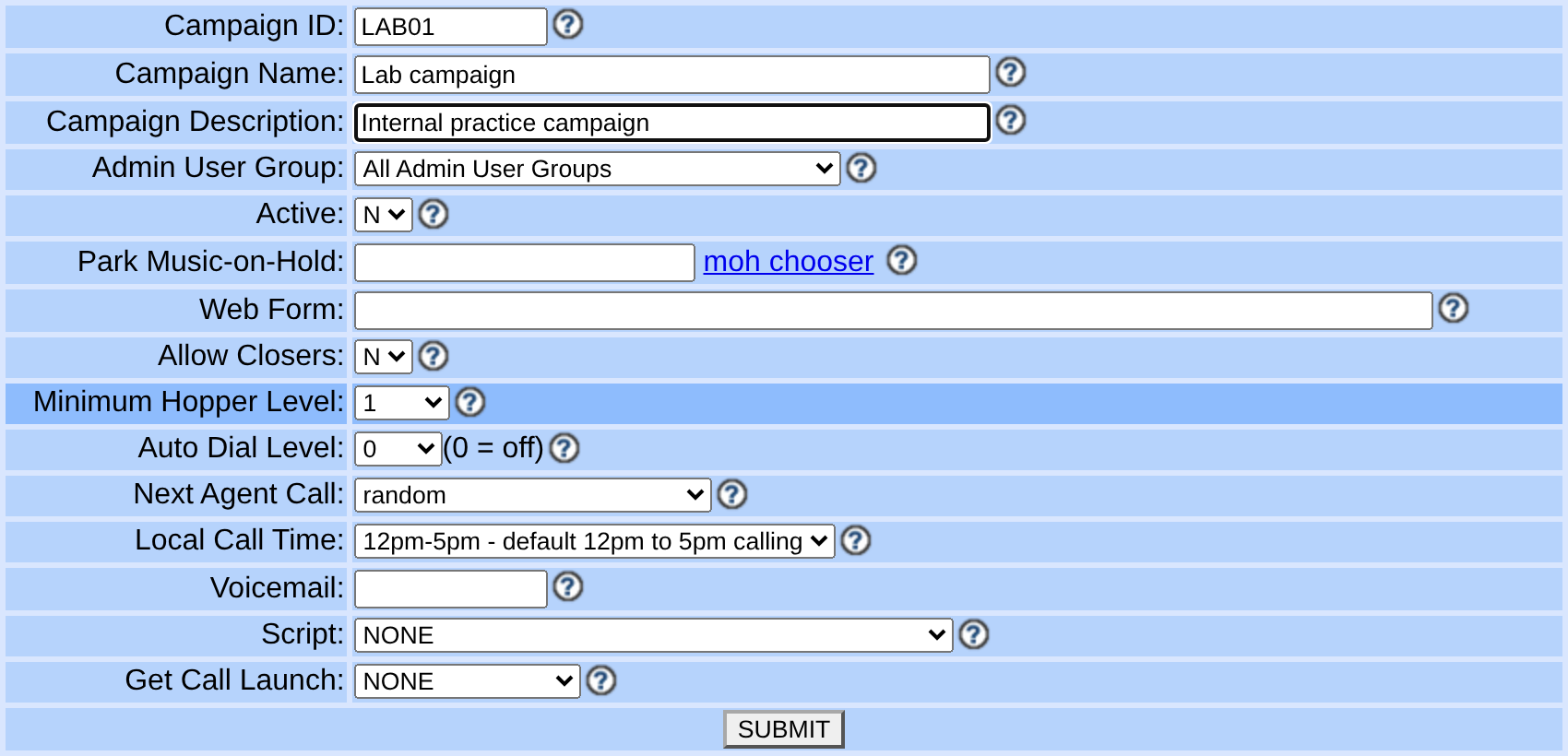
Capture details
Review the Local Call Time for your actual window. LAB01 already exists in the capture lab, so no duplicate was submitted. The earlier saved-workflow recording retains separate confirmation evidence. November 4, 2026; Admin 2.14-969a build261102-0125.You should seeLAB01 appears in the campaign list.
02 / 05
2. Configure manual dialing
Use these settings only with the isolated internal route prepared in lesson 3. Use the dialplan inspection in the preparation guide to check that 19001001 reaches Echo and no carrier route handles it.
- On the saved LAB01 campaign, find the manual dialing settings.
- Enter the values below.
- Save your changes.
- Reopen LAB01 and verify every saved value. Keep Active N until the first-call preflight passes.
- After the main settings save, reopen LAB01 and check its current Dial Statuses. If NEW is absent, choose NEW - New Lead in Add A Dial Status to Call and use that row’s ADD control. Reopen and confirm NEW is retained. ADD and the main SUBMIT button are distinct controls; recheck NEW after any later settings save.
- Dial Method
- MANUALThe agent initiates each call.
- Auto Dial Level
- 0No automatic dialing for the manual exercise.
- Manual Preview Dial
- PREVIEW_AND_SKIPLets the agent inspect a lead before choosing DIAL LEAD.
- Dial Prefix
- xThe course fixture uses no added prefix.
- Manual Dial Prefix
- Leave emptyThe campaign falls back to Dial Prefix.
- Omit Phone Code
- NIncludes the phone code in the dialed digits.
- Pause After Each Call
- YReturn to pause after saving a disposition.
- Local Call Time
- 24hoursOnly for this internal synthetic exercise; it is not a customer-calling policy.
Steps and result4 steps
Actual native VICIdial controls, filled with example values in the browser. This recording stops before submission. Use the field notes to distinguish lab fixtures, missing prerequisites and deployment-specific values.
Entry shownReal native Modify controls with example values entered only in browser state. The form was not submitted; no configuration, route, permission, registration or call was changed.
Read the chapter notes
- Actual native form — not submitted
Real native Modify controls with example values entered only in browser state. The form was not submitted; no configuration, route, permission, registration or call was changed.
- Choose MANUAL
Dial Method MANUAL means agents initiate each call; this unsaved example keeps LAB01 inactive.
- Keep Auto Dial Level at 0
Zero prevents this example from illustrating automatic pacing. No call is started.
- Review the unsaved example
Real native Modify controls with example values entered only in browser state. The form was not submitted; no configuration, route, permission, registration or call was changed.
November 4, 2026 · VICIdial 2.14-969a build 261102-0125. Real native Modify controls with example values entered only in browser state. The form was not submitted; no configuration, route, permission, registration or call was changed. ViciGeek attribution is encoded in the video and poster. Use fullscreen to read the original field labels.
You should seeWith no prefix (x), phone code 1 and number 9001001 will request19001001. This does not create or prove the Asterisk route. After list 90001 exists, finish Manual Dial List ID in lesson8.
03 / 05
3. Give the group access
- Click User Groups and open LABTEAM.
- Under Allowed Campaigns, leave ALL-CAMPAIGNS unchecked and check only LAB01.
- Save, then reopen LABTEAM to confirm the selection.
- Return to LAB01 and confirm Active N. The campaign stays inactive through list creation and lead import; activate it only after lesson10 preflight.
Steps and result4 steps
Actual native VICIdial controls, filled with example values in the browser. This recording stops before submission. Use the field notes to distinguish lab fixtures, missing prerequisites and deployment-specific values.
Entry shownReal native Modify controls with example values entered only in browser state. The form was not submitted; no configuration, route, permission, registration or call was changed.
Read the chapter notes
- Actual native form — not submitted
Real native Modify controls with example values entered only in browser state. The form was not submitted; no configuration, route, permission, registration or call was changed.
- Clear ALL-CAMPAIGNS
The browser-only example clears all campaign checkboxes before selecting LAB01. The course instead uses its own restricted LABTEAM group.
- Select the actual LAB01 option
Only LAB01 is checked in the unsaved browser form. No access policy is saved.
- Review the unsaved example
Real native Modify controls with example values entered only in browser state. The form was not submitted; no configuration, route, permission, registration or call was changed.
November 4, 2026 · VICIdial 2.14-969a build 261102-0125. Real native Modify controls with example values entered only in browser state. The form was not submitted; no configuration, route, permission, registration or call was changed. ViciGeek attribution is encoded in the video and poster. Use fullscreen to read the original field labels.
You should seeOnly LAB01 is allowed for LABTEAM; LAB01 stays inactive. Administrative visibility and agent Allowed Campaigns are separate controls.
04 / 05
4. Check before continuing
- Reopen LAB01: Active N, Dial Method MANUAL, Auto Dial Level 0, Manual Preview Dial PREVIEW_AND_SKIP and Dial Prefix x.
- Reopen LABTEAM: only LAB01 is allowed. Continue to list creation while the campaign remains inactive.
You should seeThe inactive campaign is ready for list setup. Activation is a separate gate immediately before the internal call.
05 / 05
If it fails
If LAB01 is missing from Allowed Campaigns, reopen Show Campaigns and confirm LAB01 exists. If the Admin account cannot see it, inspect its Admin User Group and the administrator’s viewable groups.
If the route check fails, keep Active N. Complete the preparation guide’s check before continuing; prefix values do not create an Asterisk route.
Checks and sources
What was checked
- The November 6 initial campaign had Active N, MANUAL, Auto Dial Level 0, Dial Prefix9 and Manual Dial List ID 998. During the approved exercise the course values and NEW dial status were saved and independently reopened, then the captured prior campaign fields were restored.
Primary references
Sources
- VICIdial public demonstrationVICIdial · accessed November 3, 2026
- VICIdial nightly sourceVICIdial · accessed November 3, 2026