Reader setup
Before you start
Run each step in order and move only when the outcome is confirmed.
- Root or sudo access to the VICIdial server, plus a way to reach it that does not depend on the SSH session you are about to change, such as a cloud console, IPMI or physical access.
- The IPv4 address or range your SIP trunk carrier calls from, and your own administrative IPv4 address, both confirmed in writing with whoever runs your network.
- A maintenance window where a short interruption to inbound calls or the admin screen is acceptable, in case a rule needs a second try.
- What you will prove
- A server where SSH accepts only keys, the firewall matches exactly what this build needs using its own tools — firewalld and VB-firewall, not ufw — fail2ban is watching SSH, SIP and the web login forms, and every one of those controls has been checked against what the server is actually running.
- Safety boundary
- Test every access change from a second, still-open session before you close the first one. A mistake here can lock out the only way in, and the recovery path is your cloud provider's console, not another SSH attempt. Every install, config or service change in this article is written to be read and adapted, not run unmodified against a shared or production box.
Reader path
How to use this article
- Use it when: You need a fixed sequence to make a deployment or configuration change now.
- Expected result: Follow each step and verify the outcome before changing the next layer.
- Start here: Start at the first section and complete every checkpoint before moving to the next.
01 / 09
Work this checklist in order
Fast answer: lock down SSH, or Secure Shell, first, because a stolen root password ends this checklist before it starts. Then confirm which firewall backend and which SIP transport this build actually runs before writing a single rule, add fail2ban for repeated SIP (Session Initiation Protocol) and web login attempts, confirm every management port is actually closed, tighten who can write to the web directory and who can reach the database, and verify each control against what the server is actually running, not what you meant to configure.
This is the executable half of the work. Read VICIdial hardening priorities and their limits first for what to prioritize and where a checklist like this one stops mattering on its own; that article draws the line between a hardened server and a secure one. This article is the commands you run, in the order that keeps you from locking yourself out, with a way to check each one actually took effect.
Two-factor authentication (2FA) for the admin and agent web screens is covered there too, along with IP allow-lists inside the VICIdial application itself. This article stops at the server perimeter: SSH, the firewall, fail2ban and the accounts that reach the web root and the database.
In plain language: a carrier is the phone company that carries your calls to the public telephone network; a trunk is the connection between your server and that carrier; a channel is one call leg inside Asterisk, meaning one live audio path, in or out; an agent is the person logged into the VICIdial agent screen taking calls; a campaign is one calling project, meaning which leads get dialed, by which agents, under which dialing settings; a DID, or direct inward dial number, is the phone number your carrier hands you so a call can ring into your system from outside.
- Confirm root or sudo access plus a recovery path that does not depend on the SSH session you are about to change.
- Write down your carrier's IPv4 address and your own administrative IPv4 address before you touch the firewall.
- Read VICIdial hardening priorities and their limits first if you have not; this article works through its priorities in order.
Visual walkthrough
Follow three real demo screens
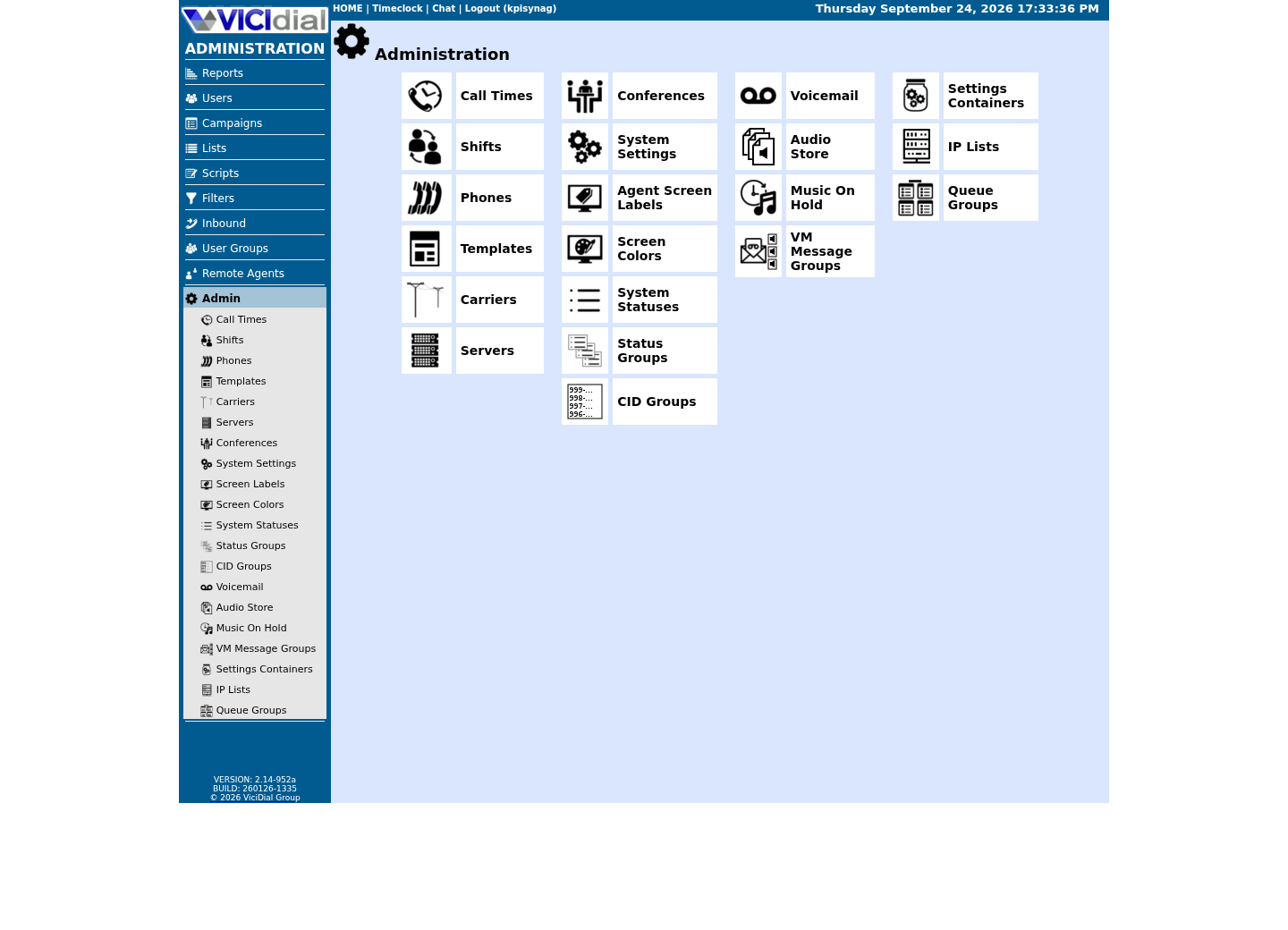
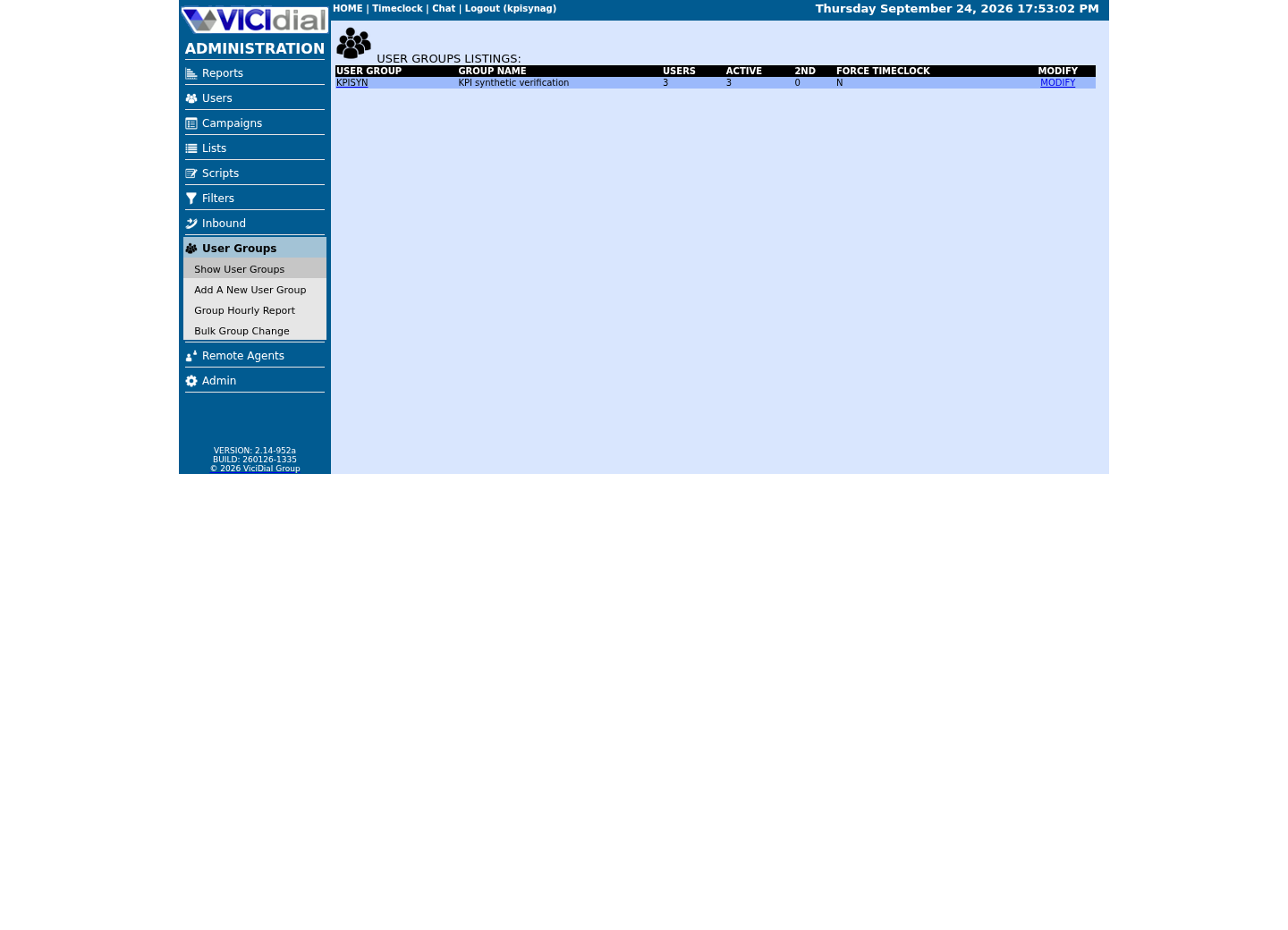
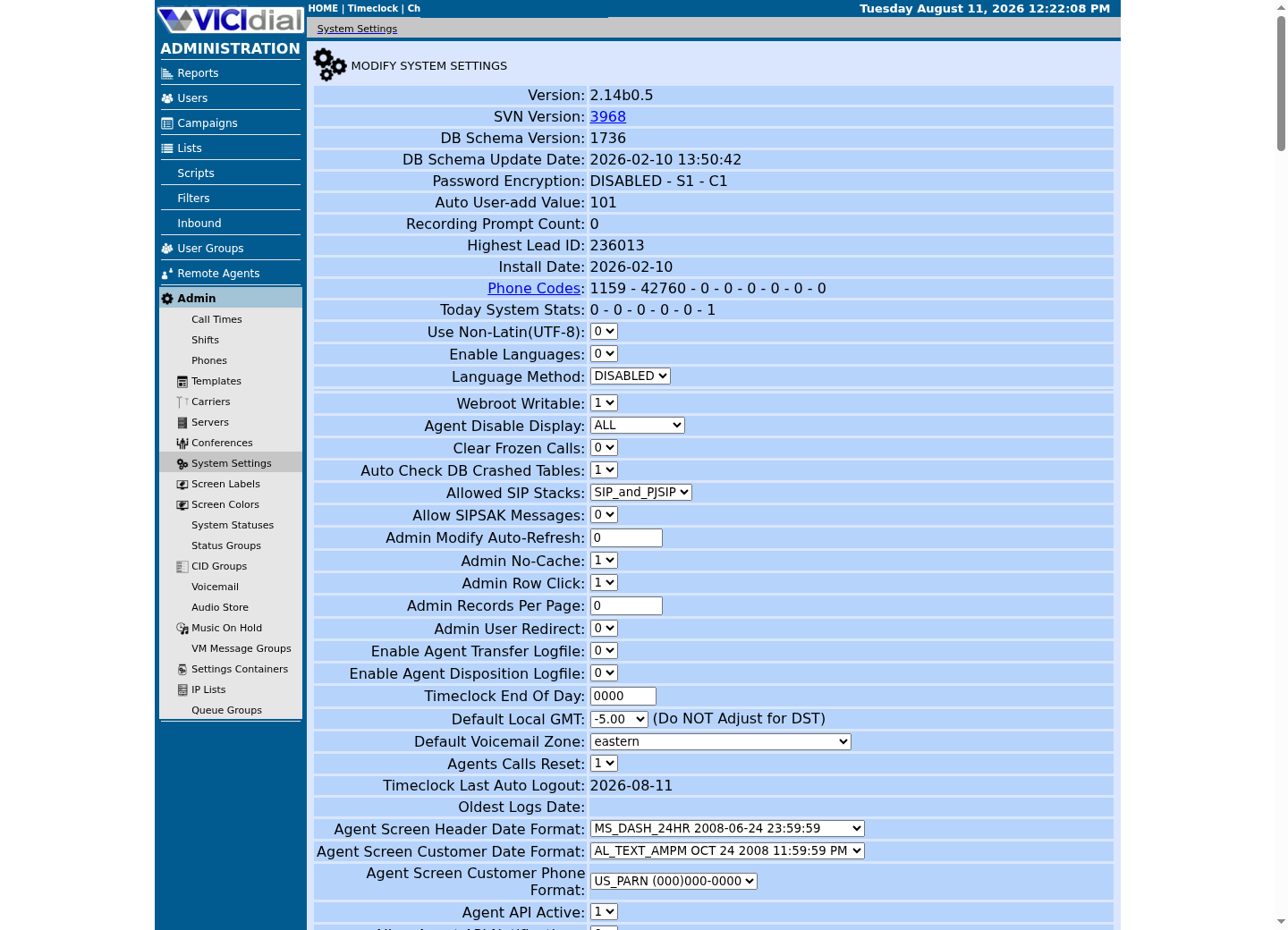
Captured on an isolated VICIdial demo: Administration screens on September 24, 2026, and the idle Agent screen on August 11, 2026. Each caption states its own capture time, and every sanitized image helps you recognize a related screen; none proves that this article's call, command, or result occurred.Use the Administration map
Review user-group boundaries
Inspect system-wide security and API context
02 / 09
Step 1 — Lock down SSH before anything else
Move to key-based login, close password login, and add two SSH-level rate-limiting settings before you touch the firewall or fail2ban. Do this first: every later step assumes the only way into the server is a key you control.
Generate or reuse an ed25519 key, copy it to the server, and confirm it logs in from a second terminal before editing anything. Only after that works should you disable password authentication; disabling it first and finding out the key does not work is how people lock themselves out of their own server.
Set PermitRootLogin to prohibit-password at minimum, which keeps root's password login closed while still allowing a root key if you genuinely need one. Set it to no instead if every administrator already has a named account with sudo, which removes root login entirely.
MaxAuthTries and LoginGraceTime are the rate-limiting half of this step: the first disconnects a session after a handful of failed attempts instead of letting it keep guessing, and the second cuts off anyone who opens a connection and stalls at the login prompt. Neither replaces the firewall-level throttling in Step 2 or the persistent banning fail2ban adds in Step 3; each layer stops something the other two do not.
- Keep the original SSH session open until a brand-new key-based session is confirmed working.
- Protect the private key with a passphrase; an unencrypted key on a laptop is a single point of failure.
- Repeat this same test from any other administrator's machine before you consider the server locked down.
# 1. Confirm you have a key that will get you back in; generate one if you do not.ls -l ~/.ssh/id_ed25519.pub || ssh-keygen -t ed25519 -C 'vicidial-admin' # 2. Copy it to the server (run this from your workstation, not the server itself).ssh-copy-id -i ~/.ssh/id_ed25519.pub roy@203.0.113.10 # 3. In a SECOND terminal, confirm key login works before changing anything else.ssh -o PasswordAuthentication=no roy@203.0.113.10 'echo key login works' # 4. Only after step 3 succeeds: back up sshd_config, then tighten it.sudo cp /etc/ssh/sshd_config /etc/ssh/sshd_config.baksudo sed -i 's/^#\?PermitRootLogin.*/PermitRootLogin prohibit-password/' /etc/ssh/sshd_configsudo sed -i 's/^#\?PasswordAuthentication.*/PasswordAuthentication no/' /etc/ssh/sshd_configsudo sed -i 's/^#\?PubkeyAuthentication.*/PubkeyAuthentication yes/' /etc/ssh/sshd_configsudo sed -i 's/^#\?MaxAuthTries.*/MaxAuthTries 3/' /etc/ssh/sshd_configsudo sed -i 's/^#\?LoginGraceTime.*/LoginGraceTime 20/' /etc/ssh/sshd_config # 5. Validate the file before restarting; a syntax error here can drop every session at once.sudo sshd -t && sudo systemctl restart sshdThis sample changes a system, contacts an outside service, needs a live call, or would print real data from a shared server, so it was not run on the demo. Run it only where you are authorized, and compare the result with the success and stop guidance.
- Before you run it
- Run step 3 from a brand-new terminal window without closing your original session or console tab; that original connection is your safety net for the rest of this step.
- Success looks like
- Step 3 prints the confirmation without a password prompt, sudo sshd -t reports no error, and a fresh SSH connection using your key still works after the restart.
- Stop if
- If sshd -t reports a syntax error, fix it and re-run before restarting the service. If you already restarted and are locked out, restore the backup from your still-open original session with sudo cp /etc/ssh/sshd_config.bak /etc/ssh/sshd_config; if that session is gone too, use your cloud provider's web console, which reaches the server outside the network entirely, not another SSH attempt.
03 / 09
Confirm your firewall backend and SIP transport before you write a rule
Do not reuse another guide's firewall commands without checking what this server actually runs first. This build ships firewalld and its own helper, VB-firewall; it has no ufw installed, and a ufw command simply fails with command not found here. Detect the backend before you act on it, on any VICIdial host, ViciBox or otherwise.
The SIP port your firewall rule needs is a build-specific fact, not a VICIdial constant. Asterisk's own transport configuration decides it, and this build loads chan_pjsip and chan_sip at the same time. Confirm your own with `sudo asterisk -rx 'pjsip show transports'`, then cross-check with `sudo ss -lnup | grep asterisk` before writing any rule below — on this build that shows PJSIP's transport-udp bound to 0.0.0.0:5061 while chan_sip still answers 5060, the pre-activation state PJSIP_SUPPORT.txt's own activation steps describe. Present 5061 as this build's value, never as a fixed VICIdial port, and expect one Asterisk SIP listener per channel driver you have loaded; investigate a listener you cannot account for, on any port.
Once you know the backend, note which zone carries VICIdial's own traffic. The zones that matter here are public (the default), external and drop — external is the one that already allows Apache, Apache over TLS, the stock asterisk service, RTP and SSH — but other software on the box can register zones of its own, so read `--get-active-zones` for what it actually lists rather than expecting exactly these three.
- Detect firewall-cmd, VB-firewall, ufw and iptables before assuming which one is active.
- Run pjsip show transports and cross-check with ss before writing a rule that names a port.
- Note this build's active firewalld zones; do not assume external is universal without checking.
# 1. Which firewall tools does this host actually have installed?command -v firewall-cmd; systemctl is-active firewalldcommand -v VB-firewallcommand -v ufw; command -v iptables # 2. Which port does PJSIP actually use on this build? Never assume 5061 or 5060.sudo asterisk -rx 'pjsip show transports'sudo ss -lnup | grep asterisk # 3. Firewalld's own state, without dumping the default zone's full ruleset.sudo firewall-cmd --statesudo firewall-cmd --get-default-zonesudo firewall-cmd --get-active-zonesCaptured demo response · 2026-09-24 22:25 UTC. The displayed command is the command that ran; a safe subset label means it was filtered, redacted, or fixture-scoped. Replays only after you select Replay transcript.
- Before you run it
- Run all three groups as root; every command here only reads current state, whether or not firewalld or VB-firewall is even installed.
- Success looks like
- firewall-cmd and VB-firewall both resolve and firewalld reports running, ufw is absent, pjsip show transports names the UDP port and address this build's PJSIP transport is actually bound to, and get-active-zones lists the zone you will use in the next step. ss will also show IAX2 (4569) and DUNDi (4520) sockets alongside the SIP ports — expected on a stock build, not every UDP line ss prints is SIP, so match each one to a known service before treating it as a listener you cannot account for.
- Stop if
- If firewall-cmd is absent but ufw resolves, you are not on a ViciBox-style host and the rest of this article's commands do not apply as written; adapt them to ufw instead. If pjsip show transports and ss disagree with each other, trust ss for what is actually listening and treat the mismatch itself as worth investigating before you open a port for it.
04 / 09
Step 2 — Open exactly what a new SIP carrier needs, without ufw
This build's native path for trusting a new source is VICIdial's own IP List screen, not a firewall rule you write from scratch. Add the carrier's signaling address to the ViciWhite IP list under Admin → IP Lists, and this build's own cron job — /usr/bin/VB-firewall, run with --white — loads every address in that list into a firewalld ipset named whiteips. Firewalld's external zone already trusts sources in that ipset, plus a dynamiclist ipset for remote agents who authenticate through this build's own dynamic portal, for every service the zone allows: Apache, Apache over TLS, the stock asterisk service, RTP and SSH.
That native path is necessary but not sufficient here. The stock asterisk firewalld service — the one this build's own package ships unmodified — opens 5060/udp, 4569/udp and 8089/tcp. It does not include 5061/udp. So even once the carrier's address is in ViciWhite, this build's own PJSIP transport, confirmed in the previous step, still has no rule admitting it. You need one explicit rule for the port the stock service leaves out, scoped to that carrier's address the same way ViciWhite scopes everything else.
A rich rule does both in one line: source address and destination port together, so you are never tempted to open 5061/udp to everyone just because ViciWhite already trusts the carrier for its other traffic. Apply it twice — once with --permanent so it survives a reboot, once without so it takes effect immediately — instead of calling --reload. VB-firewall's own ipsets, including whiteips and dynamiclist, load only at runtime, so a --reload empties them until VB-firewall's cron entry runs again; on this build that is a per-minute job, but there is no reason to open even that short a gap for a rule that does not need it.
- Add the carrier's address to ViciWhite (Admin → IP Lists) so VB-firewall's --white pass loads it into whiteips.
- Never assume ViciWhite alone opens 5061/udp; the stock asterisk service stops at 5060/udp, 4569/udp and 8089/tcp.
- Apply a firewalld change with --permanent and again without it; do not call --reload just to make a rule live.
# Add the carrier to ViciWhite first (Admin -> IP Lists); this rule only fills the# port gap the stock asterisk firewalld service leaves open for 5061/udp.# Confirm ZONE (external on this build) and the port (5061 on this build) against# the previous step's own output before running either line below. sudo firewall-cmd --permanent --zone=external --add-rich-rule='rule family="ipv4" source address="198.51.100.20" port port="5061" protocol="udp" accept'sudo firewall-cmd --zone=external --add-rich-rule='rule family="ipv4" source address="198.51.100.20" port port="5061" protocol="udp" accept'This sample changes a system, contacts an outside service, needs a live call, or would print real data from a shared server, so it was not run on the demo. Run it only where you are authorized, and compare the result with the success and stop guidance.
- Before you run it
- Confirm your own zone and port against the previous step's own output before running either line — external and 5061 are this build's values, not universal constants. Add the carrier to ViciWhite first; this rule only closes the port gap ViciWhite leaves open.
- Success looks like
- sudo firewall-cmd --zone=external --list-rich-rules shows the rule, the carrier's calls set up over PJSIP, and no other source can reach 5061/udp.
- Stop if
- A carrier that still cannot register after this rule usually means the zone or port did not match what the previous step actually showed, or the carrier's address is not yet in ViciWhite, so the rest of that zone's services are still closed to it.
05 / 09
Step 3 — Add fail2ban for SIP and the two VICIdial login surfaces
fail2ban is confirmed not installed on stock ViciBox 12 — `rpm -q fail2ban` reports it absent — so treat it as an add-on you install and own, never something this build ships or already protects you with. Install it with `zypper` first; none of its filter or action files exist until you do. Its default ban action targets iptables directly, which does not match a firewalld host, so pair it with a firewalld-aware action — banaction = firewallcmd-ipset — instead of the ufw action a Debian-based guide would show you.
VICIdial's two login surfaces fail differently, so one filter cannot watch both. admin.php uses real HTTP Basic Auth checked against vicidial_users, so a rejected admin login is a genuine 401 status logged wherever the web server writes its access log — /var/log/apache2/access_log on this build, confirmed live. agc/vicidial.php, the agent login, is a PHP form: it answers 200 whether or not the credentials were right, so counting repeated POSTs to it is the only signal available, which is why that jail's filter matches POST only rather than any request method.
Scope the asterisk jail to every port this build's own SIP transports could use — 5060 for chan_sip, 5061 for the PJSIP transport confirmed two steps back — rather than guessing one. The access-log path below is confirmed on this build; what still needs confirming is whether that 401 is logged there by the web server itself or only inside VICIdial's own application log, since that distinction decides whether the vicidial-admin-401 jail is watching the right file at all.
- Run rpm -q fail2ban first — stock ViciBox 12 does not install it — before assuming any fail2ban file or command already exists.
- Confirm which port(s) this build's own SIP transports use before setting the asterisk jail's port list.
- The access-log path is confirmed at /var/log/apache2/access_log; still confirm where the admin.php 401 is actually logged before trusting either web-login jail.
# 1. Confirmed absent from stock ViciBox 12; this command always runs first here.rpm -q fail2ban || sudo zypper install -y fail2ban # 2. admin.php is real HTTP Basic Auth: a rejected login is a genuine 401.sudo tee /etc/fail2ban/filter.d/vicidial-admin-401.conf > /dev/null <<'EOF'[Definition]failregex = ^<HOST> -.*"(GET|POST) /vicidial/admin\.php[^"]*" 401ignoreregex =EOF # 3. agc/vicidial.php is a PHP form: it always answers 200, so count POSTs instead.sudo tee /etc/fail2ban/filter.d/vicidial-agent-login.conf > /dev/null <<'EOF'[Definition]failregex = ^<HOST> -.*"POST /agc/vicidial\.phpignoreregex =EOF # 4. Confirm the firewalld ban action ships before you reference it below.[ -f /etc/fail2ban/action.d/firewallcmd-ipset.conf ] && echo 'firewallcmd-ipset action is available' || echo 'STOP: pick a different banaction, this one is not installed' # 5. Four jails: SSH, SIP against both this build's ports, and the two web logins.sudo tee /etc/fail2ban/jail.local > /dev/null <<'EOF'[DEFAULT]banaction = firewallcmd-ipset [sshd]enabled = trueport = sshmaxretry = 4findtime = 600bantime = 3600 [asterisk]enabled = trueport = 5060,5061protocol = udpfilter = asterisk# Confirm this path against your own logger.conf.logpath = /var/log/asterisk/fullmaxretry = 5findtime = 600bantime = 86400 [vicidial-admin-401]enabled = trueport = http,httpsfilter = vicidial-admin-401# Path confirmed on this build; confirm the 401 itself is logged here (see prose above).logpath = /var/log/apache2/access_logmaxretry = 5findtime = 600bantime = 3600 [vicidial-agent-login]enabled = trueport = http,httpsfilter = vicidial-agent-loginlogpath = /var/log/apache2/access_logmaxretry = 8findtime = 120bantime = 3600EOF sudo systemctl enable --now fail2bansudo fail2ban-client statusThis sample changes a system, contacts an outside service, needs a live call, or would print real data from a shared server, so it was not run on the demo. Run it only where you are authorized, and compare the result with the success and stop guidance.
- Before you run it
- Every step here installs a package or writes a config file. fail2ban is confirmed absent from a stock install, so step 1 always runs first; confirm your own build still logs the admin.php 401 at /var/log/apache2/access_log before trusting that jail, and run this only as a deliberate change, not a copy-paste against a shared or production server.
- Success looks like
- fail2ban-client status lists sshd, asterisk, vicidial-admin-401 and vicidial-agent-login, and each shows zero or more currently banned addresses without an error.
- Stop if
- If a jail is missing from the status output, check journalctl -u fail2ban for the filter or logpath that failed to load; a bad logpath disables that one jail without stopping the others, so fail2ban looks healthy while one attack surface goes unwatched.
06 / 09
Close and verify the management ports
Five ports need checking on this build: 3306 (MariaDB), 4577 (FastAGI, the internal path Asterisk uses to hand a call to a script), 5038 (the AMI, or Asterisk Manager Interface, which can originate and monitor calls), and 8088 and 8089 (Asterisk's own HTTP and HTTPS listeners). 5038 is a hard stop on its own the moment it shows anything but 127.0.0.1 — nothing outside this host has a legitimate reason to reach the AMI directly. 3306 and 4577 need a different test: a public or 0.0.0.0 bind on either one is not itself disqualifying, because whether the network can actually reach it depends on the firewall, the same question this build already has to answer for 8088 and 8089 below.
On this build, MariaDB's own /etc/my.cnf sets bind-address to 127.0.0.1, but /etc/my.cnf.d/general.cnf sets it to 0.0.0.0 and wins, since MariaDB reads its config directory after the main file — check every config file that touches bind-address, not only my.cnf, before trusting what it says. That override file belongs to no package here, so treat it as this build's own install-time or local choice, never as a stock MariaDB default. FastAGI's 4577 listens on every address the same way, by its own design, not a misconfiguration. Confirmed live on this build: firewalld's external zone allows only apache2, apache2-ssl, asterisk, dhcpv6-client, rtp and ssh, and public — the zone eth0 actually sits in by default — allows only rtp and a short site-specific list; neither admits 3306, 4577 or 5038, so the firewall, not either bind address, is what actually keeps them off the network here.
8088 and 8089 use a different safety model, and it is not a loopback bind. Confirmed live on this build, both listen on 0.0.0.0: there is no reverse proxy in front of them, and the browser-based agent phone (ViciPhone) connects straight to Asterisk's own HTTPS/WSS listener at wss://<host>:8089/ws (servers.web_socket_url). What actually limits who can reach them is the firewall, not the bind address: the stock asterisk firewalld service is enabled only in the external zone, which admits traffic only from sources in the whiteips and dynamiclist ipsets. A public 0.0.0.0 bind on 8088/8089 is this build's normal, expected state — `ss` alone cannot tell you whether they are protected, only the firewall check below can.
Firewalld groups ports under a named service rather than listing them individually, so check each zone's service list — external, and your interface's own default zone — not a raw port dump, to see what any of them actually admits.
- Re-run these checks after every reboot; a configuration regression can quietly re-open a bind address.
- 5038 is a hard stop the moment it shows anything but 127.0.0.1 — the AMI has no reason to be reachable off this host at all.
- A 0.0.0.0 bind on 3306 or 4577 is not a stop condition by itself; confirm that no reachable firewalld zone — external or your interface's own default zone — actually admits that port before calling it safe.
- 8088 and 8089 are expected to show 0.0.0.0 on this build; judge them the same way, by the zone service lists, not the bind address alone.
# 1. 3306, 4577 and 5038 must show 127.0.0.1 only. 8088 and 8089 are confirmed to# show 0.0.0.0 on this build -- the firewall protects them, not this bind address.sudo ss -lntp | grep -E ':(3306|4577|5038|8088|8089)\b' # 2. Firewalld groups ports under named services; check the service list, not a raw# port dump, for the zone that carries VICIdial's own traffic (external on this build).sudo firewall-cmd --zone=external --list-servicessudo firewall-cmd --zone=external --list-portsCaptured demo response · 2026-09-24 22:25 UTC. The displayed command is the command that ran; a safe subset label means it was filtered, redacted, or fixture-scoped. Replays only after you select Replay transcript.
- Before you run it
- Run both groups as a user who can read process and socket state, and confirm the zone name against the backend-confirmation step earlier in this article; none of these commands change anything. Repeat the firewall-cmd group with --zone=public as well as --zone=external — eth0 sits in public by default, and any source outside the whitelist ipsets lands there instead — since 3306 and 4577's safety depends on neither zone admitting them, not just one.
- Success looks like
- 5038 shows 127.0.0.1 only — the AMI has no reason to be reachable off this host. 3306 and 4577 can legitimately show 0.0.0.0 on this build, since /etc/my.cnf.d/general.cnf overrides MariaDB's own bind-address and FastAGI listens on every address by design; that is safe here only because neither the external zone nor public — the zone eth0 actually sits in by default — admits a connection to 3306, 4577 or 5038 from the network. 8088 and 8089 both show 0.0.0.0 — this build's confirmed, normal state, since ViciPhone connects to 8089 directly with no reverse proxy — and list-ports should show only a port someone here opened on purpose; Step 2's own rule is a rich rule and appears under list-rich-rules, not here — treat anything unexplained the way you would an unexplained listener.
- Stop if
- Stop the moment any zone that could actually receive the connection — external, or the interface's own default zone, public here — admits 3306, 4577 or 5038, or if 5038 itself shows anything other than 127.0.0.1; any of those is a direct path into the database or Asterisk's control interface that skips the admin login and the carrier restriction entirely. A public 8088/8089 is not itself a stop condition on this build — but if list-services ever drops asterisk from the external zone while 8088/8089 still show 0.0.0.0, that combination is the real leak, since nothing is restricting them anymore. If this install never needs a remote database client, the more direct fix for 3306 is correcting or removing general.cnf's override so MariaDB itself stops listening beyond 127.0.0.1, rather than depending on the firewall alone.
07 / 09
Tighten who can write to the web directory
The admin and agent screens run over HTTPS, so TLS, or Transport Layer Security, already protects login traffic in transit; this step is about who can write to the files behind that page, not the certificate itself. On this build the web root is /srv/www/htdocs/vicidial.
A world-writable web directory has shown up in VICIdial deployments generally: a directory mode of 777 lets any local account replace a root-owned file underneath it, including a file a cron or monitoring process trusts, no matter what mode the individual file itself has. Check the directory's own mode, not only the files inside it.
This build's own backup-and-restore procedure sets ownership to wwwrun:www when it restores the web directory — the ownership convention to expect on a build like this one, though it describes a restore step rather than a freshly installed system, so confirm your own install's actual ownership rather than assuming it already matches. Fix a bad mode by first listing every account and process that legitimately writes into the directory, such as Apache, the recording-mover jobs and any deploy step, then narrow to the tightest mode and group that still lets them work, and test one real recording move and one real admin-page save before you call it finished.
- Check the directory's own mode first, not only the files inside it.
- Confirm actual ownership against wwwrun:www rather than assuming a restore-time convention already matches a live install.
- Test a real recording move and a real admin save after any change, not just a directory listing.
# 1. Check the web root's own mode; a safe file mode underneath an unsafe directory mode is not safe.stat -c '%U:%G:%a %n' /srv/www/htdocs/vicidial # 2. A mode of 777 here lets any local account replace a root-owned file underneath it.[ "$(stat -c '%a' /srv/www/htdocs/vicidial)" = '777' ] && echo 'STOP: web directory is world-writable' || echo 'directory mode is not 777, keep checking individual files'Captured demo response · 2026-09-24 22:25 UTC. The displayed command is the command that ran; a safe subset label means it was filtered, redacted, or fixture-scoped. Replays only after you select Replay transcript.
- Before you run it
- Run as a user who can stat the web root on the VICIdial server; nothing here changes a file yet.
- Success looks like
- The directory itself is not 777, and its owner:group is a real, deliberate value you can name — wwwrun:www is this build's restore-time convention, so treat a mismatch as worth explaining, not automatically wrong.
- Stop if
- Stop and do not chmod the directory blind if step 2 prints STOP; inventory every legitimate writer first, narrow permissions deliberately, and retest a real recording move and admin save before you trust the fix.
08 / 09
Tighten who can reach the database
The previous step's own checks show whether MariaDB binds to 127.0.0.1 or something wider on your build — on this lab it is 0.0.0.0, held safe only by the firewall rather than the bind address itself. Either way, this step is about the accounts allowed to use that connection, not the network path to it. Root reaches MariaDB over the local socket on this build, so the check below runs directly as root rather than through the SELECT-only credential file the rest of this library's SQL samples use — auditing the database's own account list is a superuser task, not a query that account is scoped for.
A stock VICIdial database setup creates two narrowly scoped accounts instead of one broad one: cron, which reads, writes and runs stored routines but cannot change the schema, and custom, which additionally alters and creates the per-list custom_<list_id> tables the custom-fields feature needs. Both are meant to exist only at localhost. VICIdial's own custom-fields reference documentation ships an example grant for a wildcard host, custom@'%', marked for reference only, do not use — treat any account you actually find at '%' as that exact mistake made real, not a stock default.
Confirm the account list is still narrow on your server, not just on the day it was installed. An account later created at a wildcard host, or an anonymous user that reappears after a restore, turns a database that only local processes can reach into one any host on the network can attempt to reach. Reviewing each account's actual privilege grants is a useful next step beyond this one, but do it only from an interactive root session and never paste or capture that output — on MariaDB it prints each account's password hash inline, which is also why it is not shown as a runnable sample here.
- Confirm cron and custom exist only at localhost, never at a wildcard host like the reference documentation's own do-not-use example.
- Confirm no anonymous account exists in mysql.user.
- Re-run this check after any database restore; a restore can reintroduce a wildcard-host or anonymous account.
SELECT User, Host, plugin FROM mysql.user WHERE User IN ('cron', 'custom', 'root') OR User = '';SHOW VARIABLES LIKE 'bind_address';This sample changes a system, contacts an outside service, needs a live call, or would print real data from a shared server, so it was not run on the demo. Run it only where you are authorized, and compare the result with the success and stop guidance.
- Before you run it
- Run this yourself, as root over mysql's local socket, not the read-only application credential file used elsewhere in this library; auditing the database's own account list is a superuser task on this build. It is deliberately not run on our shared lab: the output is this server's own account list, exactly the kind of detail that must never appear in a published capture, so treat the success and failure guidance below as what to check against your own server.
- Success looks like
- cron and custom exist only at localhost, no row has an empty User column, and bind_address reads 127.0.0.1 on an all-in-one build — a multi-server cluster's database host legitimately binds its own private cluster address instead, so judge that case against its own network, not against 127.0.0.1.
- Stop if
- Stop if cron or custom exist at a wildcard host, if an anonymous user row exists, or if bind_address reads 0.0.0.0 or a public address; any one of those lets a network client reach the database directly instead of only through the local processes meant to be the only path in.
09 / 09
Verify every control, then rehearse rollback
Run every check from the steps above in one pass after you finish, not only once while you were mid-change; a rule from Step 2 and a permission from the web-directory step can each look fine in isolation and still disagree once both are in place.
Troubleshoot problems in order of how reversible they are. An address fail2ban banned by mistake is fixed in seconds from the server console, no reboot required. A bad firewalld rule is removed the same way it was added, once permanent and once live, never by disabling the firewall and never with --reload, which would only strip VB-firewall's own runtime ipsets without touching a rule you added directly. A bad sshd_config is fixed by restoring the backup from Step 1. Only a fully wrong default policy with no working SSH rule at all needs your cloud provider's own console, so confirm you know how to open that console before you need it, not after.
- Keep the sshd_config backup from Step 1 until you have confirmed the server survives a reboot with the new settings.
- Record which carrier IPv4 address maps to which firewalld rich rule, so a rule can be identified and removed quickly later.
- Re-run the full set of checks after any upgrade, migration or restore, not only right after this checklist.
# 1. Unban an address fail2ban blocked by mistake; jail names match the [section] headers in jail.local.sudo fail2ban-client statussudo fail2ban-client set sshd unbanip 203.0.113.10 # 2. Remove one bad rich rule the same way it was added: once permanent, once live.# Never call --reload just to make this take effect; that only clears VB-firewall's# own runtime ipsets until its cron entry repopulates them.sudo firewall-cmd --permanent --zone=external --remove-rich-rule='rule family="ipv4" source address="198.51.100.20" port port="5061" protocol="udp" accept'sudo firewall-cmd --zone=external --remove-rich-rule='rule family="ipv4" source address="198.51.100.20" port port="5061" protocol="udp" accept' # 3. Restore the SSH configuration you backed up in Step 1 if a mistake slipped through.sudo cp /etc/ssh/sshd_config.bak /etc/ssh/sshd_configsudo sshd -t && sudo systemctl restart sshdThis sample changes a system, contacts an outside service, needs a live call, or would print real data from a shared server, so it was not run on the demo. Run it only where you are authorized, and compare the result with the success and stop guidance.
- Before you run it
- Run fail2ban-client and firewall-cmd commands only over a working session on the server itself; the cp/sshd/systemctl rollback is the same recovery path described in Step 1.
- Success looks like
- The address no longer shows as banned, the rich rule no longer appears for that zone, and a fresh SSH connection using your key still works after any sshd_config rollback.
- Stop if
- If none of these commands reach the server at all, the network layer itself is the problem, and the fix is your cloud provider's web console, not a repeated SSH attempt or a longer timeout.
Evidence ledger
Verification basis
- On this build (checked live), PJSIP's transport-udp binds 0.0.0.0:5061 and chan_sip still answers 5060 — the pre-activation state PJSIP_SUPPORT.txt's own PJSIP activation steps describe — firewalld is active, and /usr/bin/VB-firewall is present; there is no ufw on this host.
- The stock asterisk firewalld service, shipped unmodified by this build's own asterisk package, opens 5060/udp, 4569/udp and 8089/tcp; it does not include 5061/udp, which is why Step 2 adds a separate rule for it.
- docs.vicibox.com's own firewall pages describe VB-firewall's --white mode loading VICIdial's ViciWhite IP list into a whiteips ipset, and its dynamic-portal mode adding a remote agent's own IP to a dynamiclist ipset; both back the firewalld external zone rather than replacing it.
- fail2ban is confirmed not installed on stock ViciBox 12 — `rpm -q fail2ban` reports it absent live on this build — so every fail2ban step in this article is something you add yourself; it never protects a fresh install by default.
- Confirmed live on this build: Asterisk's 8088 (HTTP) and 8089 (HTTPS/WSS) both listen on 0.0.0.0 with no reverse proxy in front of them, and ViciPhone's own servers.web_socket_url points straight at wss://<host>:8089/ws. The stock asterisk firewalld service, admitted only in the external zone, is what actually restricts who can reach them — not a loopback bind.
- This build's own backup-and-restore guide sets the web root at /srv/www/htdocs and restores its ownership to wwwrun:www; VICIdial's own custom-fields reference document's example grant for the custom database account targets a wildcard host and is marked for reference only, do not use.
Primary references
Sources
- VICIdial Two-Factor AuthenticationVICIdial · accessed August 5, 2026
- VICIdial PJSIP SupportVICIdial · accessed September 24, 2026
- Official VICIdial custom fields documentVICIdial · accessed September 24, 2026
- Black ListViciBox · accessed September 24, 2026
- Dynamic PortalViciBox · accessed September 24, 2026
- firewalld: the dynamic firewallfirewalld project · accessed September 24, 2026
- fail2ban projectfail2ban · accessed August 5, 2026