Reader setup
Before you apply
Use the lab result as evidence scope, not a universal recipe.
- A completed ViciBox Express lab from the previous lesson, powered on and reachable
- Root or sudo access on that lab host, since asterisk -rx needs it
- No production system — this tour is written for the disposable lab you built in this curriculum
- What you will prove
- You can list the lab's detached screen sessions, ask Asterisk directly about its own uptime and channel count, and confirm MariaDB and Asterisk are both active, using only read-only commands.
- Safety boundary
- Every command in this lesson only reads status. Run it on the disposable lab from the ViciBox Express lesson, never against a system taking real calls.
Reader path
How to use this article
- Use it when: You need a bounded proof before changing a live environment.
- Expected result: This helps you decide whether a specific migration or test path is ready for production.
- Start here: Read the purpose and scope section first, then treat every command as an evidence collector—not a universal recipe.
Why tour the host at all
A working Admin login proves the web server answered a request. It does not prove Asterisk is healthy, that the database is reachable, or that the background processes VICIdial depends on are still running. Those live below the browser, on the host itself.
This lesson is a walkthrough of a lab you already built: the ViciBox Express install from the previous lesson. Every command below reads status only. The goal is a habit — when something looks wrong later, you check the host directly instead of guessing from a web page.
Reading a host directly is a transferable skill, not a ViciBox-specific trick. The same three questions apply anywhere you administer a system: which processes are supposed to be running, does the software you rely on actually answer when asked directly, and are the services underneath it active. This tour asks all three questions of one lab, in order, so the habit sticks before you ever need it under pressure.
- Which processes should be running on a healthy Express lab
- Whether Asterisk answers a direct question, not just a web page load
- Whether the database service underneath is active
Visual walkthrough
Follow three real demo screens
Captured on an isolated VICIdial demo: Administration screens on September 24, 2026, and the idle Agent screen on August 11, 2026. Each caption states its own capture time, and every sanitized image helps you recognize a related screen; none proves that this article's call, command, or result occurred.Start at Administration home
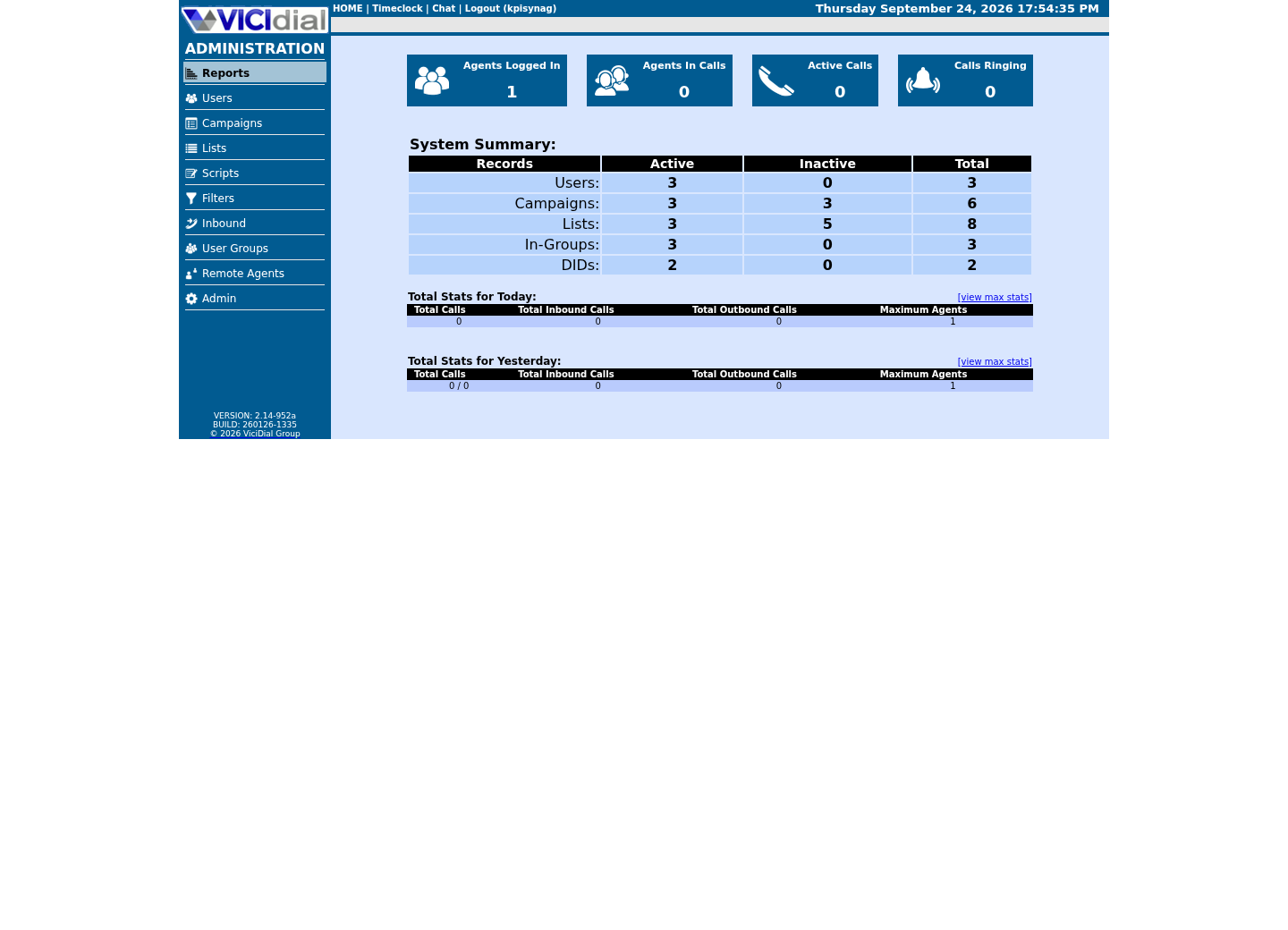
Use the Administration menu as a map
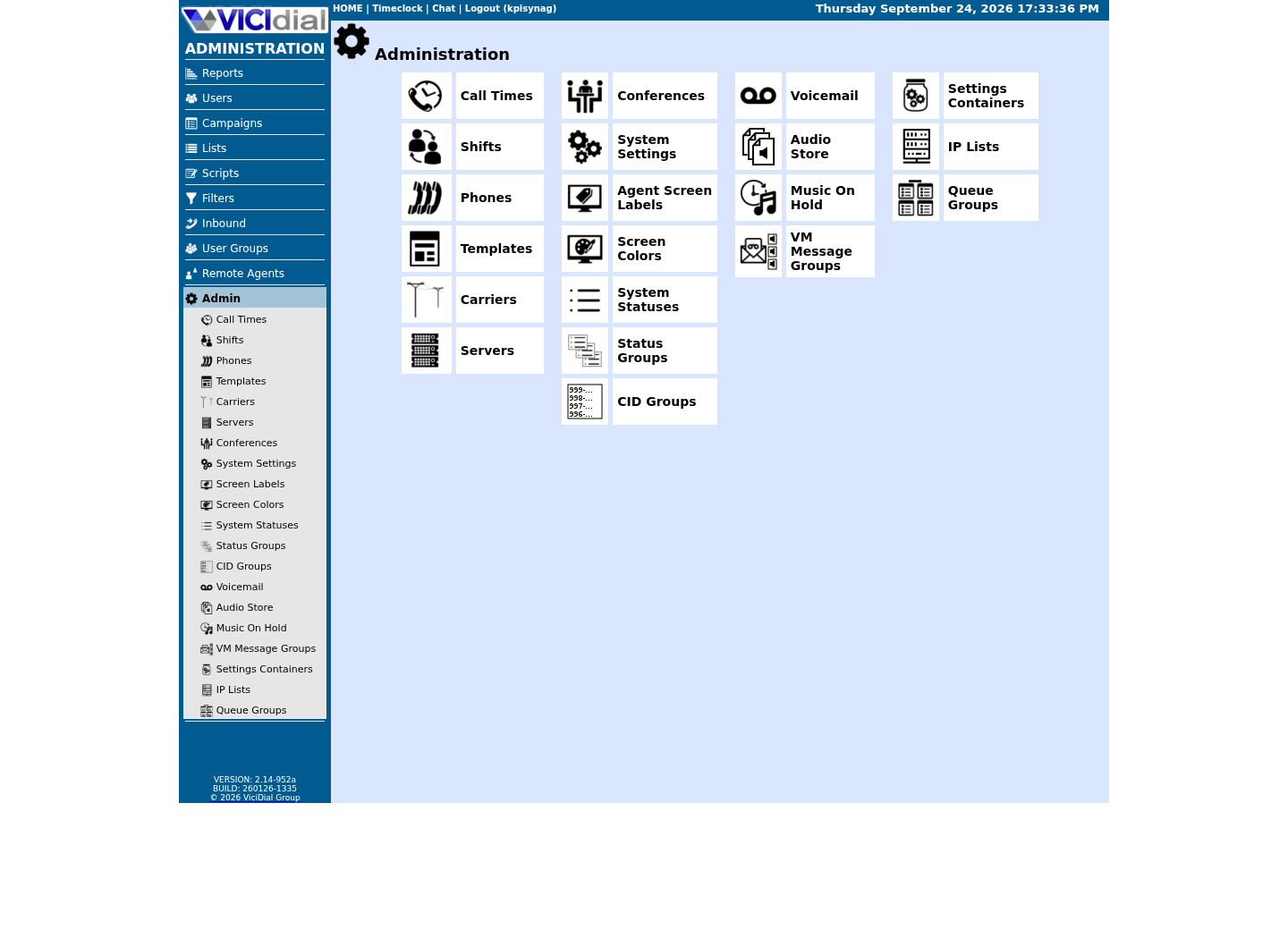
Confirm version and system-wide context
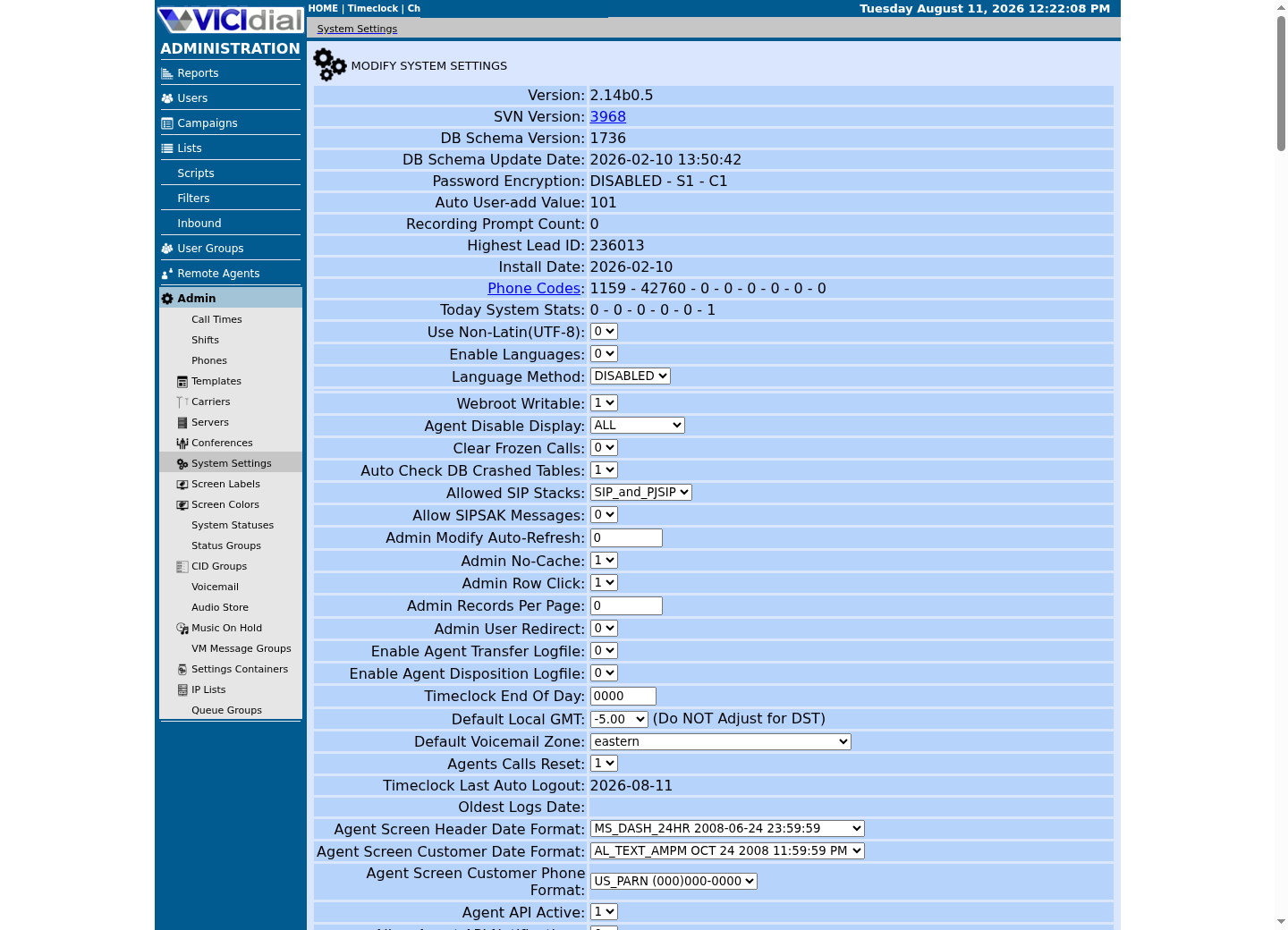
Find the screen sessions astguiclient runs
ViciBox keeps its dialer-control processes running inside detached `screen` sessions rather than as ordinary background services. A detached session keeps running after you log out, which is exactly what a call-control process needs — nobody has to stay logged in for the dialer to keep working.
`screen -ls` opens with a `There are screens on:` line, lists one line per session in the form `PID.name` alongside a state such as `(Detached)`, and ends with a line counting the sockets it found. A detached state is the healthy one here: it means the session is running unattended, with no terminal currently attached to it, which is exactly how a background dialer-control process should look on a lab nobody is actively working inside.
- The socket count on the closing line
- Whether each session reports (Detached) rather than (Attached) or (Dead)
- Any name pattern you do not recognize, to look up before your next visit
screen -lsCaptured demo response · 2026-09-23 21:35 UTC. The displayed command is the command that ran; a safe subset label means it was filtered, redacted, or fixture-scoped. Replays only after you select Replay transcript.
- Before you run it
- Run this on the ViciBox Express lab from the previous lesson. It only lists existing sessions; it attaches to nothing and starts nothing.
- Success looks like
- Expect roughly a dozen detached sessions with astguiclient-style names — the exact count depends on your build's configuration and uptime, so treat any specific number as a rough expectation, not a pass/fail threshold.
- Stop if
- A near-empty list on a lab that has been running for a while suggests the astguiclient processes were never started or were stopped; that is a fault to investigate before continuing, not something to restart blindly.
What actually runs inside them
On this build, the sessions carry real names, not generic labels. ASTupdate runs `AST_update_AMI2.pl` and ASTlisten runs `AST_manager_listen_AMI2.pl`. ASTsend runs `AST_manager_send.pl`, which delivers the AMI actions VICIdial queues in its own manager table. ASTVDauto runs `AST_VDauto_dial.pl`, which places the auto-dial calls, and ASTVDadapt runs `AST_VDadapt.pl`, which adjusts the dial level for the ADAPT dialing methods. ASTVDadFILL runs `AST_VDauto_dial_FILL.pl` and ASTVDremote runs `AST_VDremote_agents.pl`. ASTfastlog runs `FastAGI_log.pl`, the FastAGI server on port 4577 that the dialplan's `AGI(agi://127.0.0.1:4577/call_log)` lines call. ASTConfUpdater runs `AST_conf_update_screen.pl`, and ASTemail runs `VD_email_inbound.pl`. Two further sessions round out a typical list: `asterisk` itself, and one `astshell` session named for the timestamp it was opened.
None of these accepts a call by itself — Asterisk does that — but VICIdial's dialing behavior depends on all of them staying up. Housekeeping is deliberately not one more screen session: root's own crontab runs it instead, on its own schedule, separate from anything these processes start themselves. That same crontab restarts a missing screen session within a minute, so a single dead session is often self-healing before you would ever notice it from the outside.
You do not need to memorize every daemon's name to use this curriculum. The point of this section is narrower: knowing that this layer exists means a paused campaign or a stuck hopper is sometimes a process problem, not a configuration problem, and the two need different fixes — restarting the wrong thing wastes time, and editing a campaign setting to fix a dead process wastes more.
Ask Asterisk directly, not just the web page
Asterisk's `-rx` flag stands for remote execute: it connects briefly to the already-running Asterisk instance, runs the single command you give it in quotes, prints the result, and disconnects. No interactive console session is left open behind you, which makes it safe to use for a quick health read without risking an accidental follow-up command.
`core show uptime` prints two lines: the system's uptime since it started, and separately the time since its last configuration reload — the two can differ if you reloaded Asterisk without a full restart. `core show channels count` prints a short block of counts, including active channels and active calls; a channel is one leg of a call, so these numbers reflect calls in progress, not agents logged in or leads loaded.
- The reported uptime, to notice if Asterisk restarted recently without your knowledge
- The active-channels and active-calls counts — zero on both is the expected, healthy result with no agent logged in and no call in progress
asterisk -rx 'core show uptime'asterisk -rx 'core show channels count'Captured demo response · 2026-09-23 21:35 UTC. The displayed command is the command that ran; a safe subset label means it was filtered, redacted, or fixture-scoped. Replays only after you select Replay transcript.
- Before you run it
- Run both lines on the lab host. Neither places a call, changes a configuration file, or restarts the service.
- Success looks like
- The first command reports how long Asterisk has been running since its last restart; the second reports zero active channels and zero active calls on an idle lab with no agents logged in and no test call in progress.
- Stop if
- A connection-refused or permission error here means the Asterisk service itself is not running or you lack CLI access — confirm with the supporting-services check below before assuming a deeper fault.
Confirm the supporting services are active
VICIdial's processes depend on MariaDB, so a health tour is incomplete without checking it. Asterisk itself is not checked here — on this build, Asterisk is not a systemd service at all; it runs inside the `asterisk` screen session you already found, and `systemctl is-active asterisk` reports `inactive` even while Asterisk is fully healthy. The previous section's direct question to Asterisk is the real health check; systemd's opinion of it is not.
ViciBox instead ships a `vicidial` systemd unit that launches Asterisk and the dialer screens at boot. Its enabled/disabled state tells you whether it starts automatically on the next reboot — it does not describe whether anything is running right now. Do not read `is-active vicidial` as a health signal either: on our lab it reports `inactive` while Asterisk and every dialer screen are running.
systemctl is-active mariadbsystemctl is-enabled vicidialCaptured demo response · 2026-09-23 21:35 UTC. The displayed command is the command that ran; a safe subset label means it was filtered, redacted, or fixture-scoped. Replays only after you select Replay transcript.
- Before you run it
- Run this on the lab host. Neither command starts, stops, or restarts anything; both only report state.
- Success looks like
- The first line should report active — that is a genuine health signal for the database. The second line typically reports enabled, confirming the vicidial unit will run at the next boot; it says nothing about whether anything is running at this moment.
- Stop if
- If MariaDB reports anything other than active, expect Admin screens that load with empty data rather than an outright error. Do not treat vicidial reporting inactive as a fault by itself — cross-check with the previous section's direct Asterisk query before concluding anything is actually down.
Ready for the next lesson
Continue to the filesystem tour next: the same lab, seen through the files and directories astguiclient reads and writes instead of through its running processes. Keep the session count and service states you recorded here — the filesystem tour occasionally refers back to what a healthy process layer looks like when it explains where each process's own files live.
If anything in this lesson's four checks surprised you — an unexpectedly low session count, an uptime shorter than you expected, a channel or call count above zero on an idle lab, or MariaDB reporting anything other than active — resolve that before moving on. The filesystem tour assumes the processes underneath are healthy; it does not re-check them.
Evidence ledger
Verification basis
- Every command here is read-only and its expected result is described as a range or a status, never a fixed value, because lab uptime and configuration vary.