Reader setup
Before you start
Run each step in order and move only when the outcome is confirmed.
- Linux terminal basics from Stage 1
- Access to any Ubuntu or Debian host or VM you want to identify
- No expectation that this curriculum installs VICIdial on it
- What you will prove
- You can confirm that a host is Ubuntu or Debian by its own identification file and its package tool, and explain why those commands must not be used on a ViciBox host.
- Safety boundary
- This lesson only reads status. Do not run a package command on a server carrying any existing website, Asterisk, database, or customer data.
Reader path
How to use this article
- Use it when: You need a fixed sequence to make a deployment or configuration change now.
- Expected result: Follow each step and verify the outcome before changing the next layer.
- Start here: Start at the first section and complete every checkpoint before moving to the next.
01 / 05
Start here
Ubuntu and Debian are Linux distributions built around the `apt` package manager. This curriculum's hands-on lab path is the ViciBox appliance instead, which is openSUSE-based and uses `zypper`. The two tool sets are not interchangeable, and this lesson exists to help you recognize which family a host belongs to before you assume either one.
If you arrived here already running Ubuntu or Debian, nothing in this lesson asks you to change that. It asks you to recognize it accurately, so that a command copied from a different guide does not silently target the wrong package manager on your machine.
The two checks in this lesson are the same two habits this curriculum asks you to repeat on every new host you meet, regardless of which platform lesson eventually follows: read the identification file first, then confirm the tool second. Everything after that point becomes safer because those two answers are already settled.
Keep both results somewhere you can refer back to. The very next lesson asks you to run the same style of identification check on a different platform family, and comparing the two side by side is part of what makes the contrast between them concrete rather than abstract.
Visual walkthrough
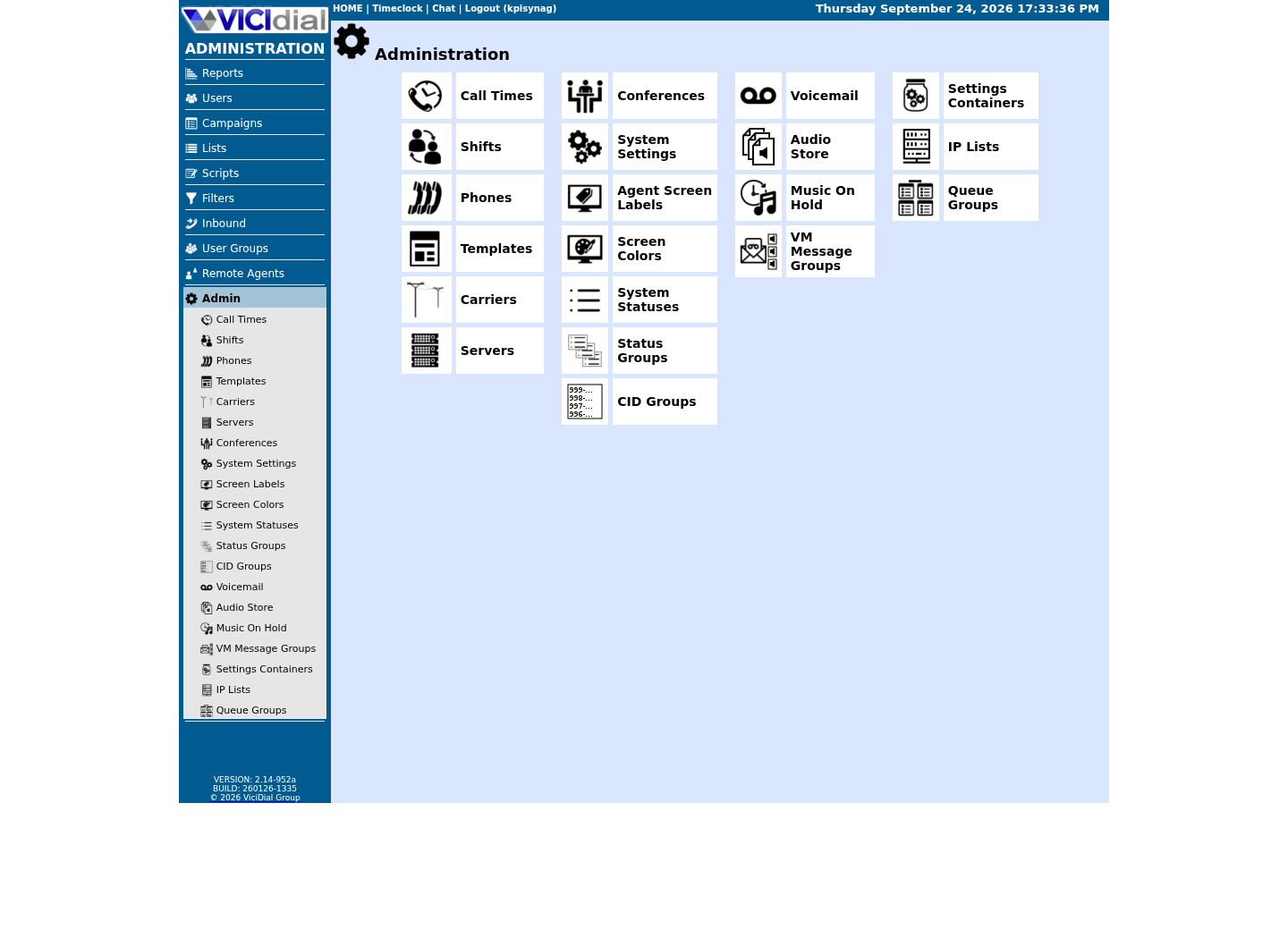
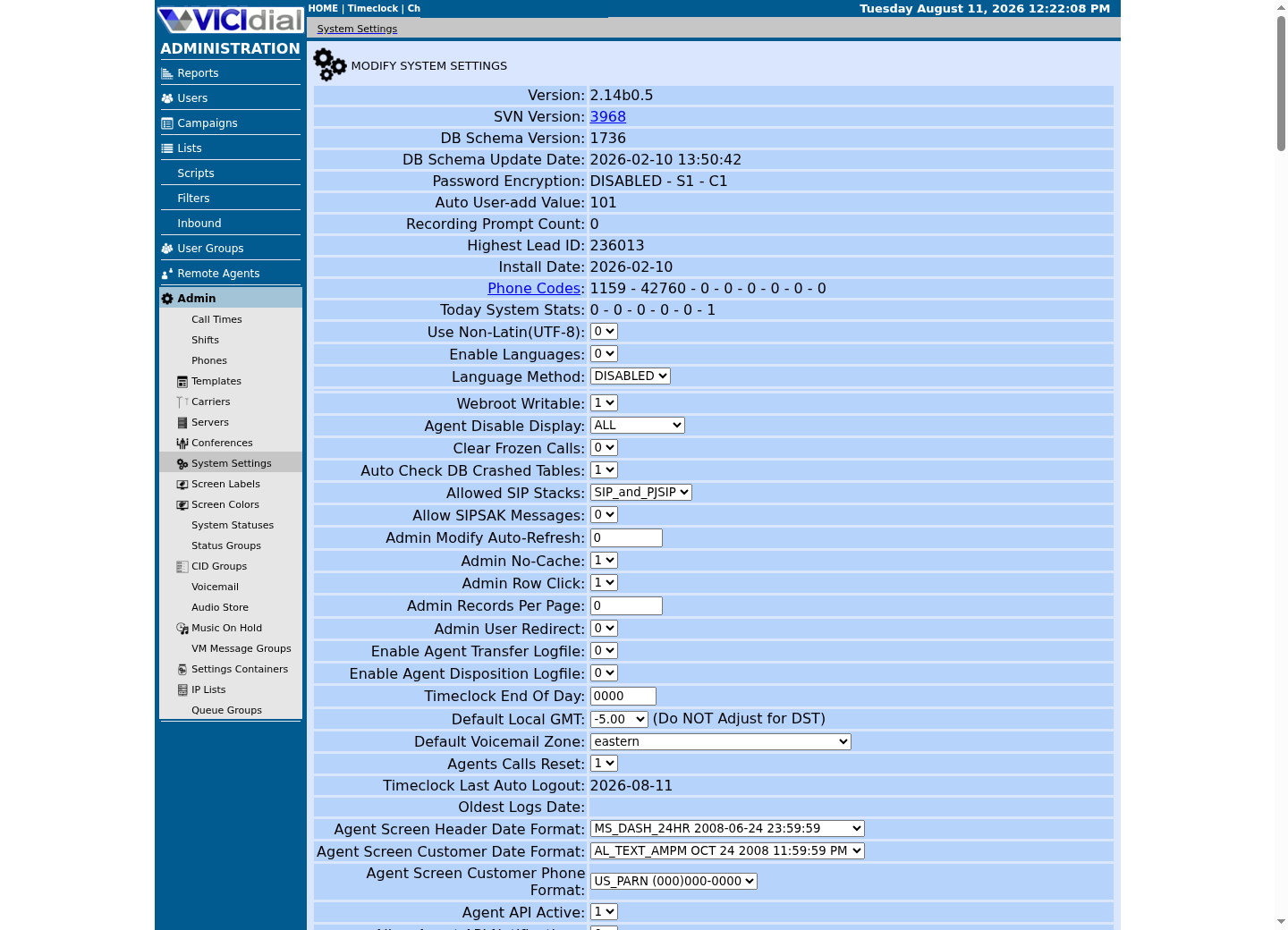
Follow three real demo screens
Captured on an isolated VICIdial demo: Administration screens on September 24, 2026, and the idle Agent screen on August 11, 2026. Each caption states its own capture time, and every sanitized image helps you recognize a related screen; none proves that this article's call, command, or result occurred.Start at Administration home
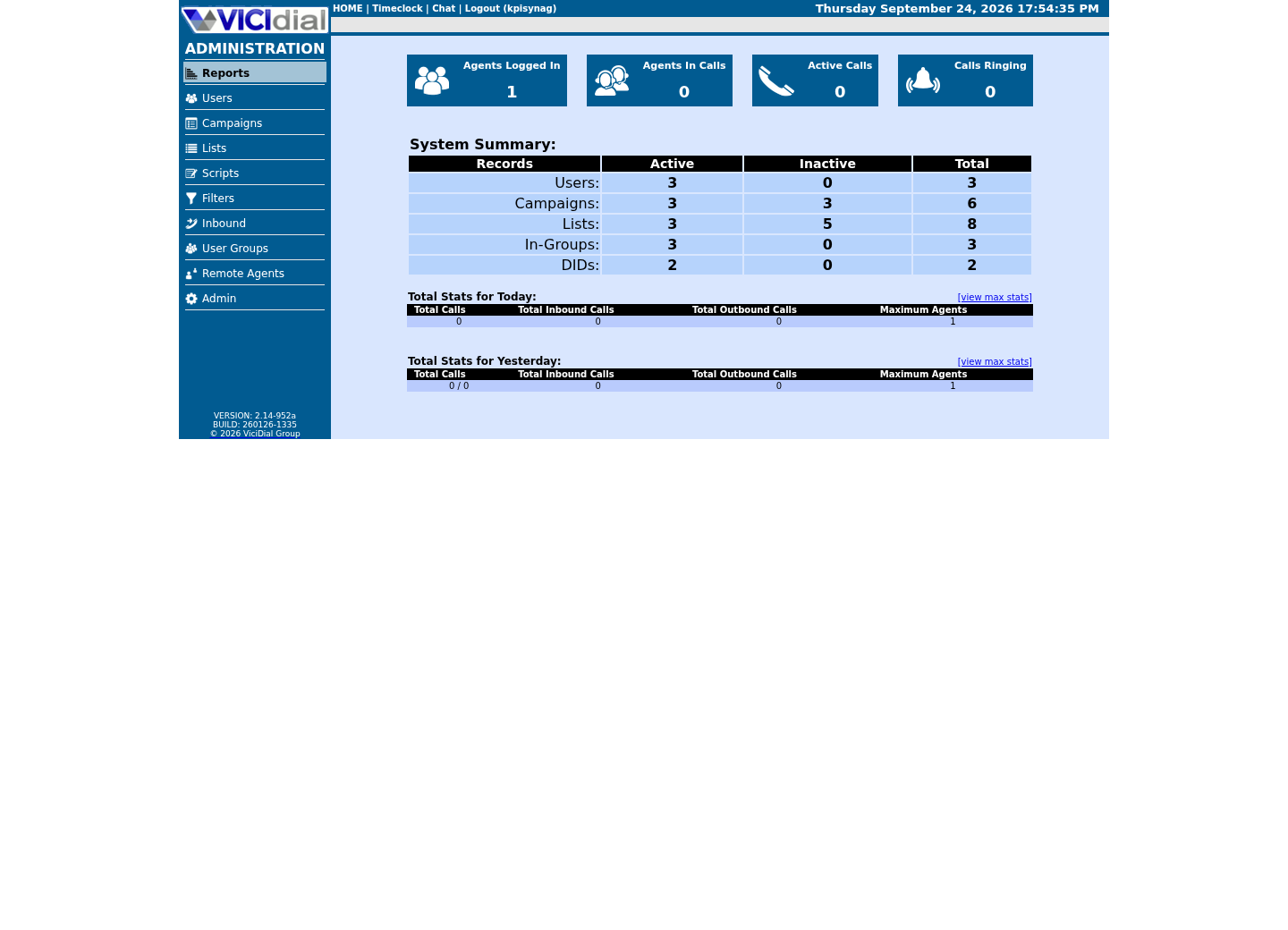
Use the Administration menu as a map
Confirm version and system-wide context
02 / 05
The idea in plain language
A distribution bundles the Linux kernel with a package manager and a set of defaults. `apt` installs and updates software on Debian-family systems; `systemctl` controls services on both Debian-family systems and modern openSUSE, but the package commands underneath differ completely. Running an apt command on a ViciBox host, or a zypper command on a Debian host, will simply fail — usually loudly, with 'command not found', which is a safer failure than a command that runs but targets the wrong package database.
This matters more than it sounds like it should, because so much VICIdial guidance circulating outside this curriculum was written years ago against a specific distribution and never updated. A reader who cannot tell Ubuntu from openSUSE at a glance has no way to know whether a given forum post's install commands apply to their own host at all.
Ubuntu and Debian are closely related — Ubuntu is itself built from Debian — which is why they share `apt` and much of their package ecosystem. They still differ in release cadence, default package versions, and some system defaults, so 'Debian-family' is a useful umbrella term for this lesson's purposes, not a claim that the two are identical.
`systemctl` is worth calling out specifically because it crosses the boundary this lesson otherwise draws carefully: it controls services in essentially the same way on Ubuntu, Debian and openSUSE alike, since all three use the same underlying systemd init system. Package management is where the two families genuinely diverge, not service management.
03 / 05
Try one safe check
Read the operating system's own identification file. This is the fastest way to confirm which family a host belongs to before you copy a single command into it, and it works the same way on every modern Linux distribution, which is what makes it a good first habit rather than a distribution-specific trick.
- The ID field, which names the distribution in a script-friendly, lowercase form
- The PRETTY_NAME field, which is the human-readable version of the same fact
- The VERSION_ID field, so you know not just the family but the specific release
cat /etc/os-releaseCaptured demo response · 2026-09-23 21:35 UTC. The displayed command is the command that ran; a safe subset label means it was filtered, redacted, or fixture-scoped. Replays only after you select Replay transcript.
- Before you run it
- Run this on any host you want to identify. It only prints a text file.
- Success looks like
- The `ID` and `PRETTY_NAME` fields name the distribution directly — `ubuntu`, `debian`, or, on the ViciBox lab this curriculum builds later, `opensuse-leap`.
- Stop if
- If the file is missing entirely, you are likely on a minimal or unusual system; do not guess the family from appearance alone before running a package command.
04 / 05
Confirm which package tool is actually present
The operating-system name tells you the family; checking for the package tool itself confirms it, and doubles as a safe habit before running any install instruction you find online. A guide that says 'install this with your package manager' is only useful once you know which package manager that phrase actually refers to on your machine.
`command -v` is itself a useful tool worth knowing beyond this one check: it tells you whether a given program exists on the current user's path without running it, which makes it a safe first step before trying any unfamiliar command a guide asks you to run.
- Which of the two tools actually reports a path on this host
- Whether the result matches the family the previous check already named
command -v apt zypperCaptured demo response · 2026-09-23 21:35 UTC. The displayed command is the command that ran; a safe subset label means it was filtered, redacted, or fixture-scoped. Replays only after you select Replay transcript.
- Before you run it
- Run this on any host. `command -v` only reports whether a program exists on the path; it installs nothing.
- Success looks like
- Exactly one of the two paths prints on a normal Debian-family or openSUSE host; seeing both would be unusual and worth a closer look at how the host was built.
- Stop if
- If neither prints, the host may not expose either tool on the current user's path — check with an administrator before assuming the family from other clues.
05 / 05
Ready for the next lesson
This curriculum does not build VICIdial from scratch on Ubuntu or Debian. Continue to the generic-openSUSE lesson next, then the platform-choice lesson, to see why ViciBox is this library's lab path instead. Keep whatever you recorded about this host's family and tooling — the platform-choice lesson asks you to compare it against two other options before you commit to one.
Evidence ledger
Verification basis
- Both samples read standard, distribution-agnostic identification points; neither installs, updates, or removes a package.
Primary references
Sources
- VICIdial open source contact center suiteVICIdial Group · accessed September 23, 2026