01 / 05
Before login: pass the activation gate
Lessons 7–9 leave LAB01 inactive. Before opening the agent session, complete the checks below and activate only this manual practice campaign. Loading leads did not require activation.
- Confirm list 90001 belongs to LAB01, is Active Y and contains the intended synthetic leads; Manual Dial List ID is 90001.
- Confirm MANUAL, Auto Dial Level0, PREVIEW_AND_SKIP, no prefix (x), empty Manual Dial Prefix and Omit Phone Code N; verify NEW appears in the campaign’s current Dial Statuses.
- Confirm the effective 19001001 route reaches the local Echo applications with no provider match and station 8001 uses the correct saved template.
- Set only LAB01 Active Y, use the main SUBMIT control, and reopen it. Recheck its saved settings and NEW eligibility. If a prerequisite fails, leave it inactive.
You should seeThe verified manual campaign is active for this authorized session; no customer call has started.
02 / 05
First: identify the phone
Open the Agent HTTPS address saved in lesson 3. Enter station 8001 and the Login Password you chose for it in lesson 6.
- Open the agent address supplied by your lab administrator.
- Enter the phone login and its login password, then select SUBMIT.
- Phone Login
- 8001
- Phone Password
- The phone login password supplied for 8001This differs from the phone registration password and the agent user password.
First: sign in to the phone station
Open to enlarge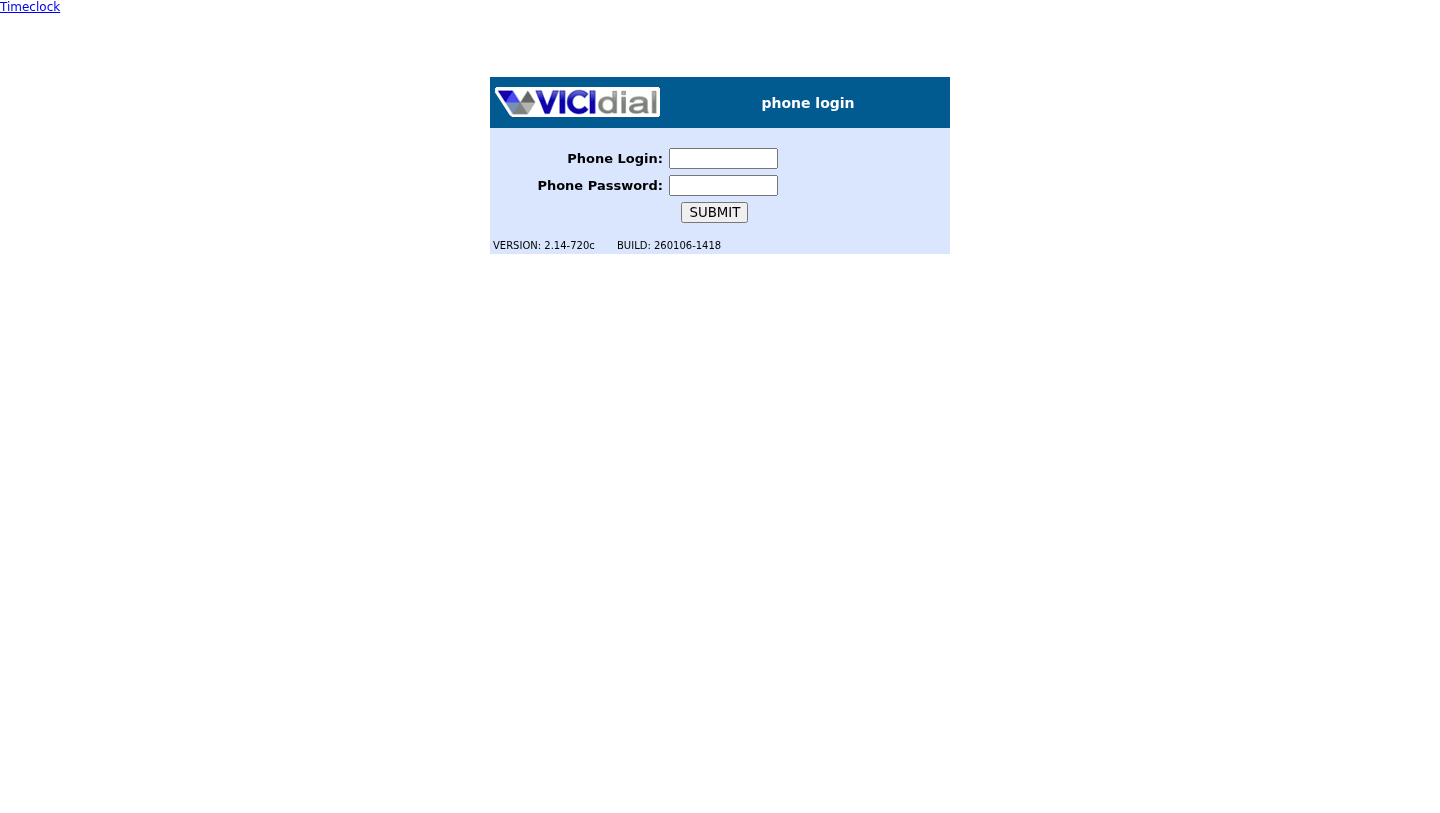
You should seeThe Campaign Login screen appears.
03 / 05
Next: identify the agent and campaign
This second login identifies you and the campaign you will work in.
- Enter learner1 and its separate agent password.
- Focus or open the Campaign dropdown after entering both credentials so VICIdial loads the allowed campaigns; select LAB01 and SUBMIT.
- User Login
- learner1
- User Password
- Your learner1 user password
- Campaign
- LAB01
Then: sign in as the agent
Open to enlarge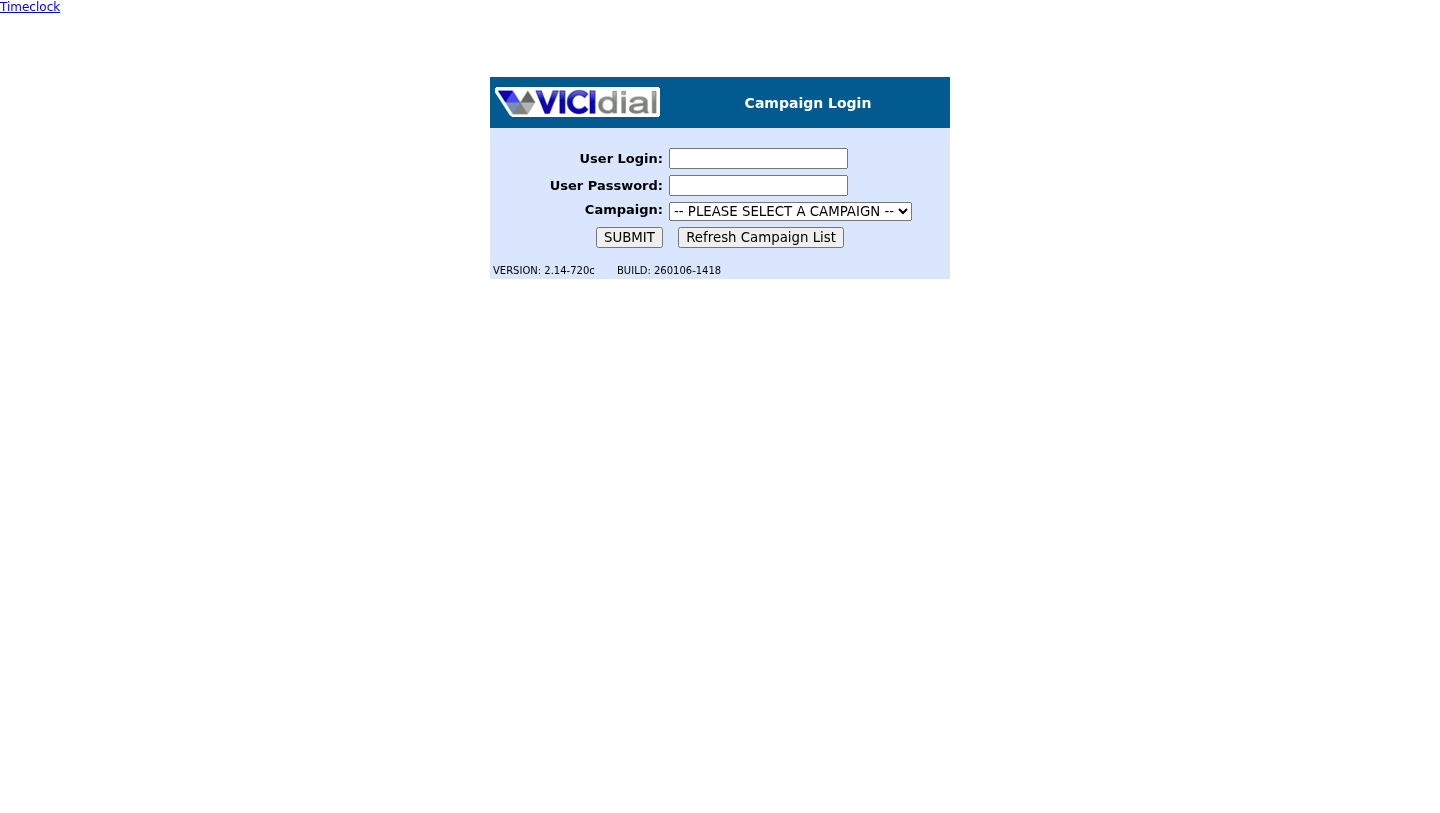
You should seeThe agent workspace opens. Stay PAUSED while you connect the phone.
04 / 05
Join the phone session
VICIphone provides audio; the Agent page supplies call controls. The named setup uses dialRegExten 1 and Webphone Auto-Answer Y to call and answer the agent conference after registration.
The Agent station form uses phone 8001’s Login Password. The browser phone uses its separate Registration Password. The learner1 user password is a third credential.
- After the second login, wait for the embedded VICIphone panel or browser window to open. Allow a pop-up for this server if the browser blocks it.
- Allow microphone access and select your headset. Keep the Agent page and phone panel open.
- If the phone offers an incoming conference call, select Answer. Keep the agent PAUSED; a registration label alone does not establish that audio joined the conference.
- If the panel or registration fails, ask the administrator to check the installed Webphone URL, secure WebSocket endpoint and the saved phone settings; never guess the server address or registration password.
- Confirm the browser phone displays the connected conference call, and record the observable connection state. Keep the agent PAUSED. If it never connects, stop and troubleshoot the station before advancing.
- A connected conference alone does not prove usable microphone and speaker audio. Complete the next lesson’s authorized internal Echo test and report the heard result separately.
You should seeThe Agent screen is PAUSED and the browser phone shows a connected conference. This connection does not establish usable audio; the next lesson’s authorized Echo test checks that separately.
05 / 05
If login or audio readiness fails
For a failed first login, reopen Admin → Phones → 8001 and check Agent Screen Login, Login Password and Active Account Y. For a failed second login, check learner1 Active Y and LABTEAM → Allowed Campaigns → LAB01.
If no phone panel opens, check the browser’s blocked-pop-up notice and Admin → System Settings → Webphone URL. For registration errors, check the saved webphone fields in lesson 6 and the browser microphone permission before trying the Echo call.
“Sorry, there are no leads in the hopper for this campaign” was an actual first-login stop in this run. Check the active list, NEW eligibility and call-time window, then allow normal hopper refresh; the inspected queue subsequently contained one READY lead. Do not raise Auto Dial Level or repeatedly submit. Keep this campaign manual.
Checks and sources
What was checked
- The approved November 6 run signed station 8001 and learner1 into LAB01 and connected the embedded VICIphone conference. The login initially stopped on an empty hopper; normal refresh supplied one READY synthetic lead.
- The actual connected conference is shown in lesson11. It does not establish an answered Echo destination or usable call quality by itself. After the exercise the session was logged out and the temporary user/phone disabled.
Primary references
Sources
- VICIdial official source snapshotsVICIdial Group · accessed November 3, 2026
- VICIdial official demoVICIdial Group · accessed November 3, 2026