Reader setup
Before you start
Run each step in order and move only when the outcome is confirmed.
- A running VICIdial install you can already reach at Admin and Agent (see the first-login article) — this article is optional, so come back to it once you have a real provider account
- Your provider's SIP trunk paperwork: host or IP, port, authentication model, credentials if any, allowed codecs, and caller ID rules
- Root or Admin access to the VICIdial server, the Asterisk command line, and the read-only database account from Create a read-only database account for safe VICIdial queries
- What you will prove
- One active, database-managed carrier whose PJSIP endpoint and address of record show correctly in Asterisk, proven by one completed test call leaving the server.
- Safety boundary
- Never paste a real SIP username, secret, or registration string into a ticket, chat log, or this guide's own examples; a leaked trunk credential lets someone else place calls that bill straight to your account.
Reader path
How to use this article
- Use it when: You need a fixed sequence to make a deployment or configuration change now.
- Expected result: Follow each step and verify the outcome before changing the next layer.
- Start here: Start at the first section and complete every checkpoint before moving to the next.
01 / 10
What a carrier is, and why a working install still cannot call anyone
Fast answer: a SIP carrier is the outside phone company your VICIdial server hands calls to once they leave the building, and until you tell VICIdial about one, every outbound call your agents place has nowhere to go. You add it once, in Admin, as a database row; VICIdial itself writes the matching Asterisk configuration, reloads it, and from then on your dial plan can route calls through that carrier by name.
This article is optional: skip it until you have a real SIP trunk account from a provider — a trunk being the specific connection a carrier gives you, the pipe your calls actually travel through. Every later article in this path, including your first agent call, is written to work against VICIdial's own internal test destination instead, so nothing downstream is blocked on finishing this one first.
Carrier is defined in the beginner terminology guide.
Session Initiation Protocol (SIP) is the signaling language phones and trunks use to set up, manage, and tear down a call; PJSIP is the modern SIP implementation Asterisk, the open-source telephony engine underneath VICIdial, uses to speak it. Neither one is VICIdial-specific: they are the same protocols any carrier, softphone, or PBX in the industry understands.
- A running VICIdial install with no carrier configured yet.
- One approved SIP trunk from a real provider, ready to be tested — or stop here until you have one.
- This article adds exactly one carrier and proves one call; it does not configure a campaign, agent, or lead yet.
Visual walkthrough
Follow three real demo screens
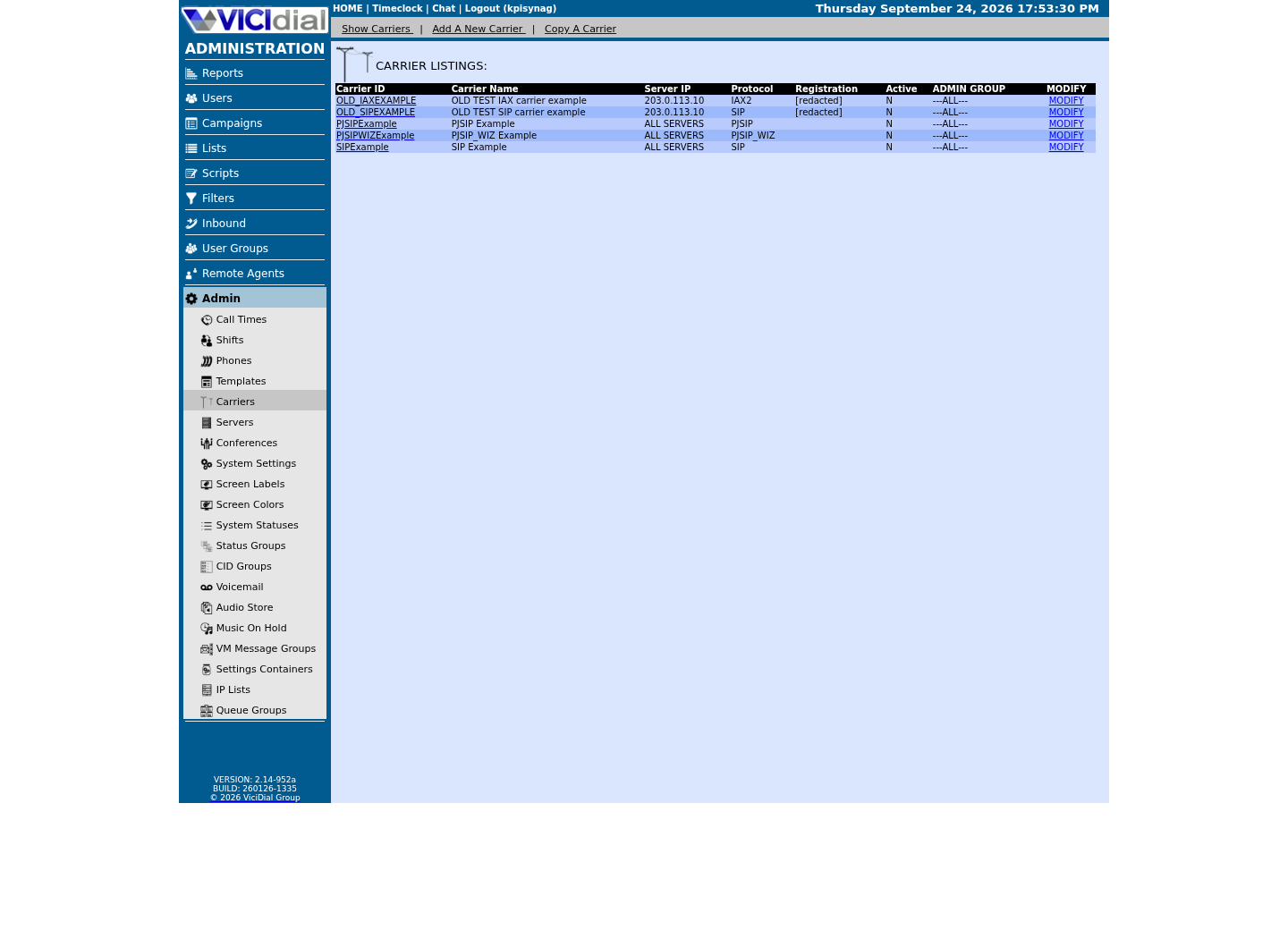
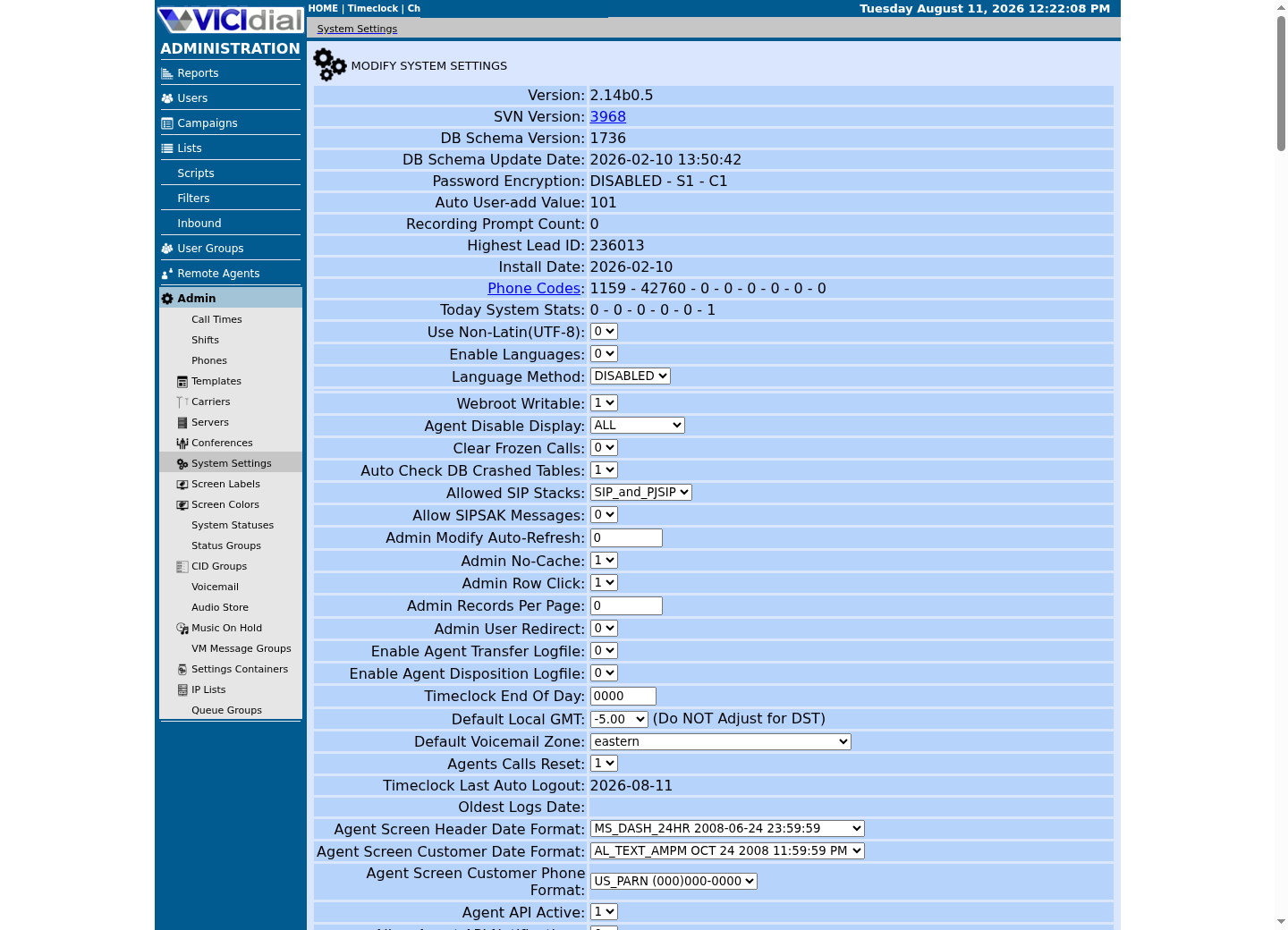
Captured on an isolated VICIdial demo: Administration screens on September 24, 2026, and the idle Agent screen on August 11, 2026. Each caption states its own capture time, and every sanitized image helps you recognize a related screen; none proves that this article's call, command, or result occurred.Find carrier administration
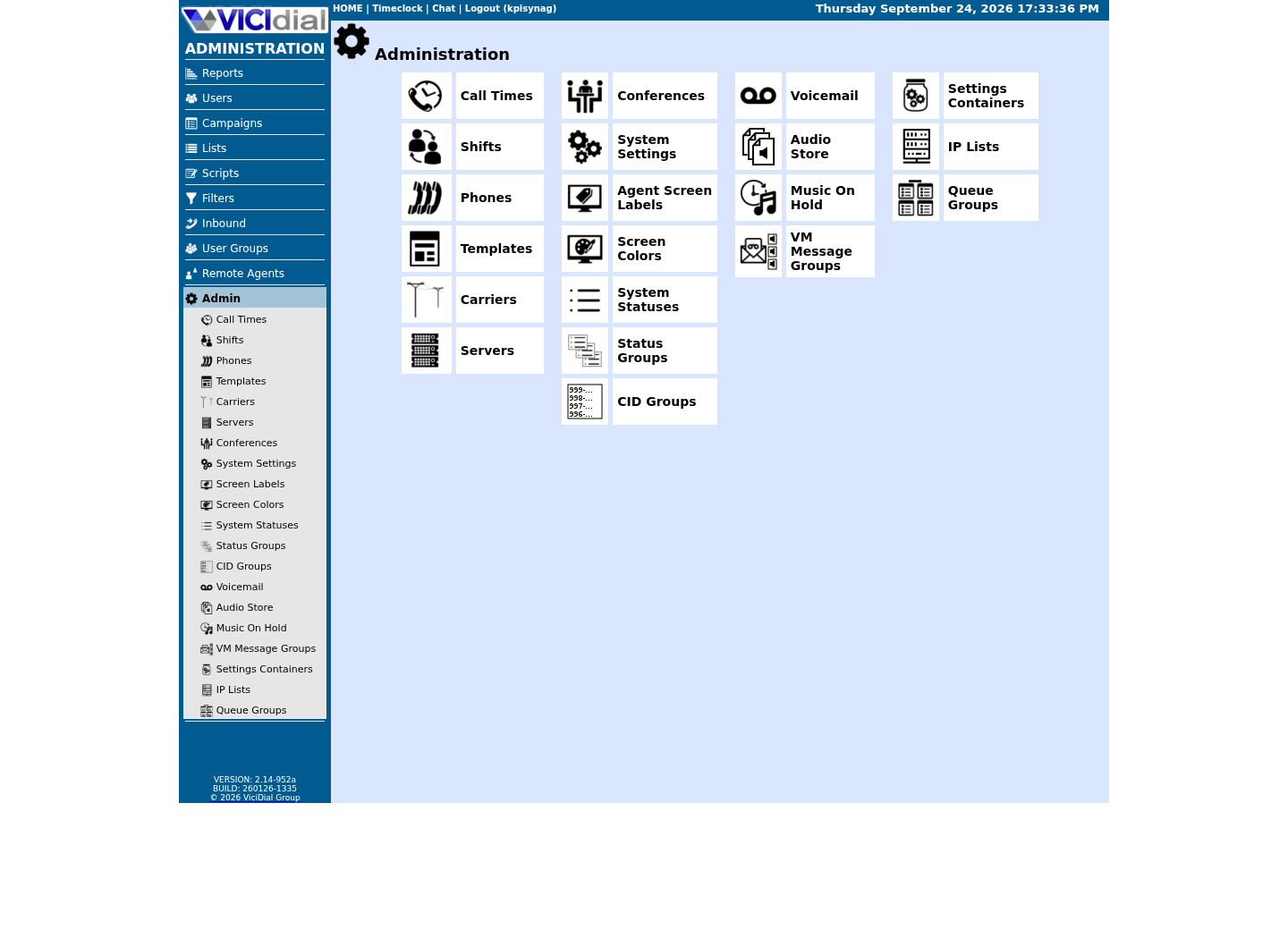
Open Carrier Listings
Check the allowed SIP-stack setting
02 / 10
Step 1 — Get the exact facts from your provider before you touch Admin
Every SIP trunk provider asks you to work under one of two authentication models, and guessing wrong wastes an entire troubleshooting session. Registration-based trunks issue you a SIP username and a secret; your Asterisk server sends a periodic REGISTER message announcing where it is, the same way a phone checks in with an office phone system, and the carrier only routes calls to a location that is currently registered. IP authentication skips that entirely: the provider allowlists your server's exact public IP address and accepts calls from it without ever checking a username or password. Ask your provider directly which model your account uses; do not assume.
Beyond the authentication model, collect six more facts before opening Admin: the exact host or IP address and port their side listens on; the allowed codecs, meaning the audio compression formats both ends must agree on, commonly G.711 (also written as ulaw or alaw) or G.729; how they expect DTMF (Dual-Tone Multi-Frequency, the touch-tone digits a caller presses) to be signaled, almost always the RFC 4733 method rather than sending tones as audio; their caller ID rules, since many carriers reject or silently overwrite a caller ID number that was never provisioned on your account; and the number of channels, meaning simultaneous calls, your account is licensed for.
If the trunk is registration-based, the provider also hands you a long secret alongside the username. Treat it like a root password: a leaked SIP credential lets a stranger place calls that bill straight to your account, a pattern commonly called toll fraud, and it can run up a large bill in a single weekend before anyone notices. Every endpoint you ever configure, carrier or phone, needs its own long, unique, randomly generated secret, never a short or reused one.
- Confirm whether the trunk registers or is authenticated by IP address.
- Write down host, port, codecs, DTMF method, caller ID rules, and channel count.
- Store any secret only in a protected credential manager, never in this worksheet.
authentication_model = registration | ip-authenticationhost_or_ip = [provider value]port = [provider value]codecs_allowed = [provider value]dtmf_method = [provider value]caller_id_rules = [provider value]channels_licensed = [provider value]did_numbers_assigned = [provider value]This sample is a template or reading aid, not a terminal command. There is no output to show.
- Before you run it
- Fill this in from your provider's own onboarding documentation or account portal before creating anything in Admin; it holds no secret by itself.
- Success looks like
- Every line has a concrete answer from the provider, not a guess, and you know which authentication model applies.
- Stop if
- Stop and contact the provider if the authentication model, host, or codec support is still unclear; guessing here is the single most common cause of a carrier that never registers.
03 / 10
Step 2 — Create the carrier in Admin, not in Asterisk's configuration files
VICIdial stores every carrier as one row in its own database, in a table historically named vicidial_server_carriers, not as a file you edit by hand on the server. Open Admin → Carriers and add a new entry there. Its fields are Carrier ID, Carrier Name, Registration String, Template ID, Account Entry, Protocol, Globals String, Dialplan Entry, Server IP, and Active.
Set Protocol to PJSIP. Pick a short Carrier ID such as a provider abbreviation, since this exact value is what your dial plan will reference later. If the trunk is IP-authenticated, leave the Registration String blank and instead write an Account Entry containing an AOR (address of record) object, an identify object matching the provider's exact signaling IP, for example the documentation-only address 198.51.100.20, and an endpoint object naming your allowed codecs and DTMF mode. If the trunk registers instead, fill in the Registration String using the exact format your provider's own documentation supplies, since that format varies by provider.
Some builds also offer a Template ID field with preset stanzas for well-known carriers. Leaving it at its none setting and writing your own Account Entry, exactly as your provider specified, is the safer default until you have verified a stock template's assumptions actually match your provider.
Set Server IP to the machine that should actually place calls through this trunk, and set Active to Y once you are ready to test. Saving the row marks that server for a configuration rebuild; the keepalive script that runs from root's crontab once a minute notices the flag, regenerates the PJSIP and dial plan configuration from your database rows, clears the flag, and reloads Asterisk — so expect the change to take effect within about a minute, not instantly. You should never need to sign in over SSH and hand-edit the generated PJSIP include file yourself, and doing so will not survive the next regeneration anyway.
This database-first design matters once you have more than one carrier: every active carrier's dial plan entry gets concatenated together into one generated file in carrier order, so a change to one carrier can, in principle, affect where another carrier's fragment lands. Keep each carrier's account details and dial plan entry self-contained, and have each one reopen its own shared context by name rather than assuming an earlier carrier already did it.
- Use Admin's Carriers screen for every change; never hand-edit a generated PJSIP file.
- Match Server IP to the exact machine that should place calls through this trunk.
- Give each carrier its own self-contained account details and dial plan entry.
SELECT carrier_id, carrier_name, protocol, server_ip, active, user_groupFROM vicidial_server_carriersWHERE carrier_id = '<CARRIER_ID>';Captured demo response · 2026-09-23 21:35 UTC. The displayed command is the command that ran; a safe subset label means it was filtered, redacted, or fixture-scoped. Replays only after you select Replay transcript.
- Before you run it
- Run this read-only query using the read-only database account after saving the carrier in Admin; replace <CARRIER_ID> with your own Carrier ID.
- Success looks like
- One row returns with protocol PJSIP, the server_ip matching the machine you expect, and active set to Y.
- Stop if
- Stop and re-check the Admin form if no row returns, server_ip does not match the machine you expect, or active is still N.
04 / 10
Worksheet — the literal Account Entry field content
PJSIP_SUPPORT.txt, VICIdial's own PJSIP reference, ships one example carrier configuration. The worksheet below is that same aor/identify/endpoint shape with the carrier name swapped for a placeholder, the example's non-routable address replaced by 198.51.100.20 (a documentation-only address from RFC 5737), and dtmf_mode corrected to rfc4733. Paste it into the carrier's Account Entry field with your own Carrier ID and your provider's real signaling address in place of the placeholders.
One deliberate correction from the upstream example: its dtmf_mode = none passes no DTMF (Dual-Tone Multi-Frequency) signaling through this endpoint at all, which means call menus and keypad transfers placed through that carrier would never receive a caller's key presses. rfc4733 is the DTMF method most carriers actually expect; confirm your own provider's documented method rather than assuming either value.
Each stanza plays a different role: the aor (address of record) block tells Asterisk where to send calls for this carrier; the identify block tells Asterisk which inbound signaling to recognize as coming from this carrier; the endpoint block sets the codecs, timers, and NAT-survival options this trunk actually uses. All three share the same bracketed name on purpose — that name is your Carrier ID.
[<CARRIER_ID>]type = aorcontact = sip:198.51.100.20qualify_frequency = 15maximum_expiration = 3600minimum_expiration = 60default_expiration = 120 [<CARRIER_ID>]type = identifyendpoint = <CARRIER_ID>match = 198.51.100.20 [<CARRIER_ID>]type = endpointcontext = trunkinbounddtmf_mode = rfc4733disallow = allallow = ulawrtp_symmetric = yesrewrite_contact = yesrtp_timeout = 60use_ptime = yesmoh_suggest = defaultdirect_media = notrust_id_inbound = yessend_rpid = yesinband_progress = notos_audio = eflanguage = enaors = <CARRIER_ID>This sample is a template or reading aid, not a terminal command. There is no output to show.
- Before you run it
- Replace every <CARRIER_ID> with the same short Carrier ID you set in Admin, and replace 198.51.100.20 with your provider's real signaling address once you have it. Nothing here is run as shown — it is a template for the Account Entry field.
- Success looks like
- All three stanzas share the same bracketed name, and that name matches the Carrier ID you saved on the Admin screen.
- Stop if
- If your provider's paperwork specifies different codecs, a different DTMF mode, or different timers, use theirs instead of copying this worksheet unchanged; a mismatch here is a common cause of one-way or missing audio, or of DTMF that never reaches the far end, not a registration failure.
05 / 10
Step 3 — Understand the dial plan entry and the dial prefix
Two different settings both shape which digits actually leave through your new carrier, and beginners regularly confuse them. The dial plan entry lives on the carrier row itself, inside Admin; it is the raw Asterisk dial plan text deciding how a call reaches that specific carrier's endpoint once VICIdial has chosen it. The dial prefix lives on a campaign or list instead, and it is simply digits VICIdial glues onto the front of a lead's phone number before dialing.
The worksheet below is the shipped VICIdial dialplan pattern from PJSIP_SUPPORT.txt, with the carrier name swapped for your placeholder. Line 1 is not optional decoration: `AGI(agi://127.0.0.1:4577/call_log)` is VICIdial's own call-logging hook, and replacing it with a plain `NoOp(...)` silently stops outbound call logging for every call through this carrier. `${CAMPDTO}` is the campaign's own dial timeout — leave it as a variable, not a hard-coded number, so each campaign's own setting applies.
That dialplan pattern, `_91NXXNXXXXXX`, is three things concatenated, not one arbitrary string: Dial Prefix (`9`), then phone_code (`1`, the default a US/Canada lead uses when Omit Phone Code is left at its own default of N), then the lead's 10-digit NANP number. With this exact pattern, Dial Prefix and Manual Dial Prefix on the campaign must both be `9` — an empty Manual Dial Prefix simply falls back to whatever Dial Prefix holds, and phone_code is inserted after whichever prefix applies, unless Omit Phone Code is set to Y. The `x` sentinel (add no prefix, since VICIdial replaces any prefix containing the letter x with nothing before dialing) only fits a carrier pattern you have written yourself with no leading digit. Whichever prefix and pattern you use, they have to agree: if the campaign prepends a digit the carrier's pattern was never built to expect, or the pattern expects a leading digit the campaign never adds, calls will fail even though the carrier itself is registered and healthy.
This mismatch is one of the most common reasons a search for VICIdial outbound calls not working turns up nothing wrong with the carrier at all: the endpoint is fine, registration is fine, and the call still never leaves, because the number VICIdial actually sent never matched anything in the dial plan. Reconcile the two settings deliberately instead of guessing at either one.
- Read the exact number pattern the carrier's dial plan entry matches before setting a campaign's dial prefix.
- With the shipped `_91NXXNXXXXXX` pattern, Dial Prefix and Manual Dial Prefix are both `9`.
- Test the reconciled prefix and pattern with one call before trusting a whole campaign to it.
exten => _91NXXNXXXXXX,1,AGI(agi://127.0.0.1:4577/call_log)exten => _91NXXNXXXXXX,n,Dial(PJSIP/${EXTEN:1}@<CARRIER_ID>,${CAMPDTO},To)exten => _91NXXNXXXXXX,n,Hangup()This sample is a template or reading aid, not a terminal command. There is no output to show.
- Before you run it
- Replace <CARRIER_ID> with your own Carrier ID and paste this into the carrier's Dialplan Entry field in Admin. Nothing here is run as shown — VICIdial writes it into the generated configuration when you save the carrier.
- Success looks like
- The pattern, the AGI call-logging line, and ${CAMPDTO} are all present unchanged; only the carrier name was replaced.
- Stop if
- If you replace the AGI line or hard-code a timeout in place of ${CAMPDTO}, outbound calls through this carrier will stop being logged, or will ignore the campaign's own configured timeout; restore both before trusting this pattern.
06 / 10
Step 4 — Prove registration, then place exactly one test call
Before any of the carrier-specific checks, confirm which transport Asterisk is actually using — never assume a port. Which port PJSIP listens on depends on how a given install was configured; the first sample below asks Asterisk directly, so use whatever it reports rather than a number from a provider's paperwork or an old guide.
Do the carrier checks from the Asterisk command line before you ever point a real campaign at the new carrier. Three separate things matter, and they are not the same: does the endpoint exist at all, is its contact considered reachable, and, only for a trunk that registers, did the REGISTER attempt actually succeed.
asterisk -rx is the read-only Asterisk command console; none of the checks below change any configuration. Look for your exact Carrier ID in the endpoint and address-of-record output, look for a contact status of Avail rather than Unavail, and, only if your trunk registers, look for a Registered state rather than Rejected or no entry at all.
Once every check above looks healthy, place exactly one outbound test call: from a phone registered to this VICIdial server, dial a number you own or a provider-supplied echo test number, using the exact dial prefix and pattern reconciled in Step 3. Confirm you can hear the far end and, if it is an echo test, that it can hear you back, then hang up deliberately rather than letting the call time out.
- Check endpoint, address of record, and contact status before assuming registration.
- Only expect a Registered state on a trunk that actually registers.
- Hang up the test call deliberately once two-way audio is confirmed.
asterisk -rx 'pjsip show transports'ss -lnup | grep asteriskasterisk -rx 'pjsip show endpoint <CARRIER_ID>'asterisk -rx 'pjsip show aor <CARRIER_ID>'asterisk -rx 'pjsip show contacts'asterisk -rx 'pjsip show registrations'# Run this again while your one test call is active:asterisk -rx 'core show channels concise'Captured demo response · 2026-09-23 21:35 UTC. The displayed command is the command that ran; a safe subset label means it was filtered, redacted, or fixture-scoped. Replays only after you select Replay transcript.
- Before you run it
- Run the first six checks any time; run the last one again only while your one test call is actually active. Replace <CARRIER_ID> with your own Carrier ID.
- Success looks like
- The transport check shows the UDP port your PJSIP transport is actually bound to on this build — on our ViciBox 12 lab that is transport-udp on 0.0.0.0:5061, with chan_sip separately holding 5060, so both can be active at once. Your exact Carrier ID appears in the endpoint and address-of-record output, a contact shows Avail, a registering trunk shows Registered, and the channel line during the test call shows your carrier's PJSIP technology.
- Stop if
- Stop before placing a real campaign call if the endpoint is missing, the contact stays Unavail, a registering trunk never reaches Registered, or the test call shows no channel at all.
07 / 10
The firewall reality: find your backend before you open anything
Do not assume which firewall backend a given VICIdial host runs. ViciBox ships firewalld with its own `VB-firewall` helper and no ufw at all, but nothing stops a self-built install from using ufw or raw iptables instead. Detect the backend first, with the read-only sample below, and use whichever branch actually applies to your box.
On ViciBox, firewalld's own `asterisk` service definition — unmodified, straight from the package — opens 5060/udp, 4569/udp (IAX2), and 8089/tcp; a separate `rtp` service opens 10000-20000/udp. Neither one includes 5061/udp, so a PJSIP trunk on that port (see Step 4's transport check) needs its own explicit rule beyond just allowing the `asterisk` service. The external zone only accepts any of this from source addresses in specific ipsets — whiteips/whitenets, populated from Admin → IP Lists' ViciWhite list, and a dynamic list for validated agents — never from the whole internet.
Regardless of backend, three ports have no legitimate reason to be reachable from outside this box at all: 3306 (the database), 4577 (the AGI call-logging port the dialplan worksheet above uses, meant for 127.0.0.1 only), and 5038 (the Asterisk Manager Interface). Confirm none of those three show as externally reachable in whichever tool's output you just printed — that check does not depend on knowing your SIP port.
If this server sits behind a cloud provider's own network firewall, commonly called a security group, that layer has to mirror whatever rule you add locally: your web ports open, the RTP range open, and your SIP port scoped to the carrier's address, with everything else left closed there too. A security group that silently blocks your SIP port is indistinguishable, from the carrier's side, from a server that never answers at all.
- Detect the firewall backend before writing any rule; do not assume firewalld, VB-firewall, or ufw.
- A PJSIP trunk on 5061 needs its own rule; the stock asterisk service only covers 5060/udp, 4569/udp and 8089/tcp.
- Confirm 3306, 4577, and 5038 are unreachable from outside regardless of backend.
- Mirror the same rule in any cloud provider security group in front of this server.
firewall-cmd --statefirewall-cmd --get-active-zonesfirewall-cmd --info-service=asteriskfirewall-cmd --zone=external --list-servicescommand -v ufw >/dev/null && echo 'ufw present' || echo 'no ufw on this build'Captured demo response · 2026-09-23 21:35 UTC. The displayed command is the command that ran; a safe subset label means it was filtered, redacted, or fixture-scoped. Replays only after you select Replay transcript.
- Before you run it
- Run this before adding any rule; it only reports status and changes nothing. This does not print the default zone's full rule set — only the external zone's service list, which is the one a carrier rule actually needs.
- Success looks like
- firewalld reports running, the external zone appears active, --info-service=asterisk lists the ports that service opens on this build (5060/udp, 4569/udp, 8089/tcp — no 5061), and the external zone's service list confirms whether asterisk and rtp are already offered there. ufw reports absent, matching a stock ViciBox 12.
- Stop if
- If firewalld itself is not running, or the external zone is not the active one, resolve that with whoever administers this host before adding a carrier rule; do not assume a rule you add will take effect on the wrong zone.
08 / 10
Apply the scoped rule for your backend
On ViciBox, the carrier's signaling address is whitelisted through Admin → IP Lists, in the ViciWhite list, not by editing firewalld directly. Add the address there first, then have VB-firewall reload the ipsets it manages — the same command root's crontab already runs at boot.
A PJSIP trunk on 5061 needs one more step, because that port is not part of firewalld's stock asterisk service. Add it in both the runtime and permanent configuration in the same breath, without a `--reload` in between — VB-firewall's own ipsets are loaded at runtime only, with no `--permanent` flag, so a reload would empty them until VB-firewall runs again. Two `--add-port` commands, one runtime and one permanent, apply the port immediately and keep it after a restart without ever triggering that reload.
# 1. Add the carrier's signaling address to the ViciWhite IP List (Admin -> IP Lists),# then reload the whitelist ipsets the same way root's crontab does at boot:VB-firewall --white --dynamic --quietfirewall-cmd --ipset=whiteips --get-entries | grep -Fx '198.51.100.20' # 2. Only for a PJSIP trunk on 5061: open it in the external zone, runtime and# permanent together, with no --reload in between:firewall-cmd --zone=external --add-port=5061/udpfirewall-cmd --permanent --zone=external --add-port=5061/udpThis sample changes a system, contacts an outside service, needs a live call, or would print real data from a shared server, so it was not run on the demo. Run it only where you are authorized, and compare the result with the success and stop guidance.
- Before you run it
- Confirm the carrier's real signaling address and your Step 4 transport reading before adapting these lines. On a non-ViciBox host without VB-firewall, the equivalent is a single scoped firewalld rich-rule or ufw allow for that address and port; this sample is written for the ViciBox mechanism specifically.
- Success looks like
- The grep against whiteips' entries finds the carrier's address, and firewall-cmd --zone=external --list-services or --list-ports shows 5061/udp, both without ever emptying VB-firewall's runtime ipsets.
- Stop if
- If the address still is not in whiteips after --white --dynamic --quiet, confirm it actually saved on the Admin -> IP Lists screen. If the carrier still cannot reach the box after 5061/udp is confirmed open, re-check a cloud provider security group or a second firewall layer in front of this host.
09 / 10
Troubleshoot common failures before you blame the carrier
Most first-carrier problems fall into four patterns, and each one points somewhere specific. No endpoint at all in the pjsip show endpoint output means the row never generated: check that Active is Y, that Server IP matches this machine, and that the corresponding server's rebuild flag has actually cleared.
An endpoint that exists but never shows a Registered state, on a registering trunk, almost always means a wrong secret, a wrong registration string format, or an outbound firewall or NAT problem swallowing the response; an IP-authenticated trunk that stays Unavail usually means the provider has not allowlisted your public address yet, or their signaling actually comes from a different address than their portal shows. Ask the provider to confirm the exact address they send from, not only the address they told you to allowlist.
A call that fails immediately, often with a fast busy signal, is usually a caller ID the provider rejected because it was never provisioned on your account, a channel-count limit you have exceeded, or exactly the dial prefix and dial plan mismatch described in Step 3. One-way or missing audio almost always means a codec neither side actually offered, or the RTP range blocked somewhere upstream, such as an unmirrored cloud security group; the Account Entry worksheet above sets `rtp_symmetric = yes` and `rewrite_contact = yes` specifically to survive network address translation (NAT) on your own end, so check those two settings if audio is one-way rather than assuming the far end is at fault.
Stop dialing through a brand-new carrier the moment you see a repeated registration failure, a repeated fast busy, or one-way audio, and fix it before it ever touches a live campaign. The safe rollback while you diagnose is flipping the carrier's Active field back to N in Admin, which removes it from the generated configuration on the next rebuild without deleting the row or losing your account details.
- Confirm endpoint, address of record, and, if applicable, registration state before suspecting the provider.
- Ask the provider to confirm their actual signaling address, not just their documented one.
- Flip Active to N as the safe rollback while you diagnose a broken carrier.
010 / 10
Next: create your first campaign, list and agent
With one active, verified carrier, calls can finally leave your server, but nothing dials automatically yet: no campaign exists to organize the work, no list holds any leads, and no agent is set up to answer or place a call. That is exactly where the next article in this beginner path picks up.
Create your first campaign, list and agent walks through defining a campaign's dialing settings, loading a small list of leads, and creating one agent login. None of that requires this carrier — the campaign, leads and first-call articles all work against an internal test destination — but once you are ready to dial out for real, point that campaign's Dial Prefix at the pattern you just proved works here.
- A verified, active carrier ready for real dialing.
- No campaign, list, or agent configured yet; that is next.
- Keep this carrier's Active field at Y only after every check above passes.
Evidence ledger
Verification basis
- Guide source: PJSIP_SUPPORT.txt's own example PJSIP carrier configuration supplies the Account Entry and Dialplan Entry fields, and its AGI call-logging line, reproduced in this article's worksheets.
- On our ViciBox 12 lab, PJSIP transport-udp is bound to 0.0.0.0:5061 and chan_sip separately holds 5060; `pjsip show transports` is this build's own source of truth for which port PJSIP is actually bound to, so nothing here assumes a fixed port without that check.
- On our ViciBox 12 lab, firewalld's own asterisk service (unmodified, from the ViciBox package) opens 5060/udp, 4569/udp and 8089/tcp, but not 5061/udp — and the external zone accepts any of it only from addresses in the whiteips/whitenets and dynamic-list ipsets, populated from Admin → IP Lists and reloaded at runtime only by VB-firewall.
- Boundary: this article configures one carrier pattern from the shipped reference documentation; it does not certify any named commercial provider, guarantee call quality, or replace your provider's own onboarding requirements.
Primary references
Sources
- VICIdial PJSIP SupportVICIdial · accessed August 5, 2026
- Configuring res_pjsip (Asterisk PJSIP channel driver)Asterisk · accessed August 5, 2026
- RFC 3261: SIP: Session Initiation ProtocolIETF · accessed August 5, 2026
- RFC 4733: RTP Payload for DTMF DigitsIETF · accessed August 5, 2026